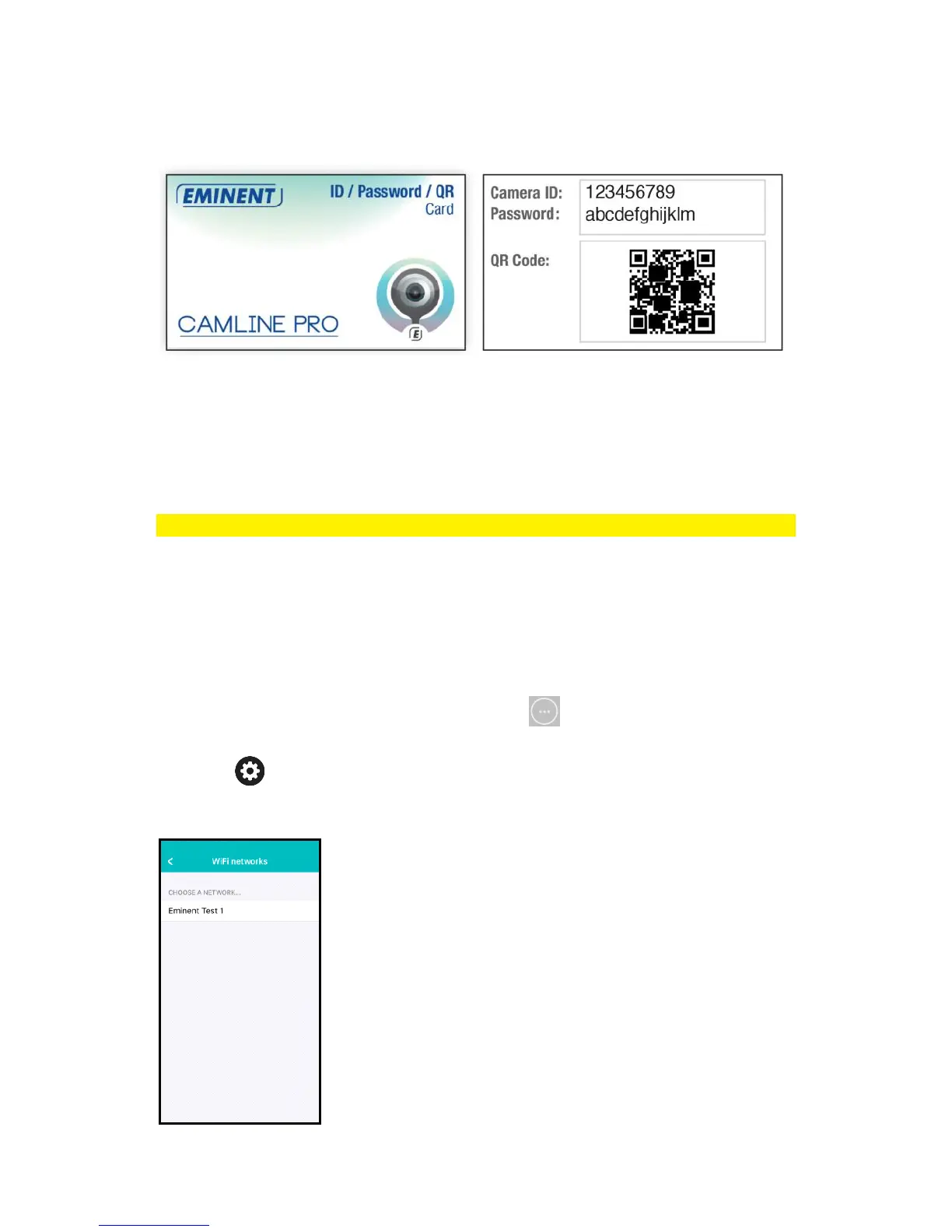
14. The default password entered by the PC software is “ipcam” select the password
field and change the password to match the password located on the Camera ID
card and press “OK”.
2.4 Adding the camera to a wireless network
There are 2 options to connect the EM6350 to your wireless network. First option is to
configure the settings by using the APP settings and the second option with the PC
(Windows) software settings.
Note: The device will reboot if necessary followed by calibration of the camera.
2.4.1 Connecting to Wi-Fi using the App.
1. Ensure the camera is connected to the network with a Ethernet cable, and your
smartphone is connected to the same network.
2. Start the App “CamLine Pro”.
3. Make sure the camera you wish to configure to connect to the WiFi is already
added to the camera list and is already listed in the camera overview.
4. Open the menu of the camera by pressing the button in the camera you wish
to add to the WiFi network.
5. Press .
6. Select “Advanced settings”.
7. Select “WiFi”.



 To Next Page