5.4 Playback local recordings
Open the Playback feature by pressing the button.
In this part you can playback the recordings stored on your PC.
1. First make sure the camera(s) you wish to playback is selected (double click the
camera or drag and drop the camera in an available screen).
2. (Optional) If desired you can select a type of recording from the dropdown list
“Record type” in the left lower corner.
3. Press button to start searching for local recordings.
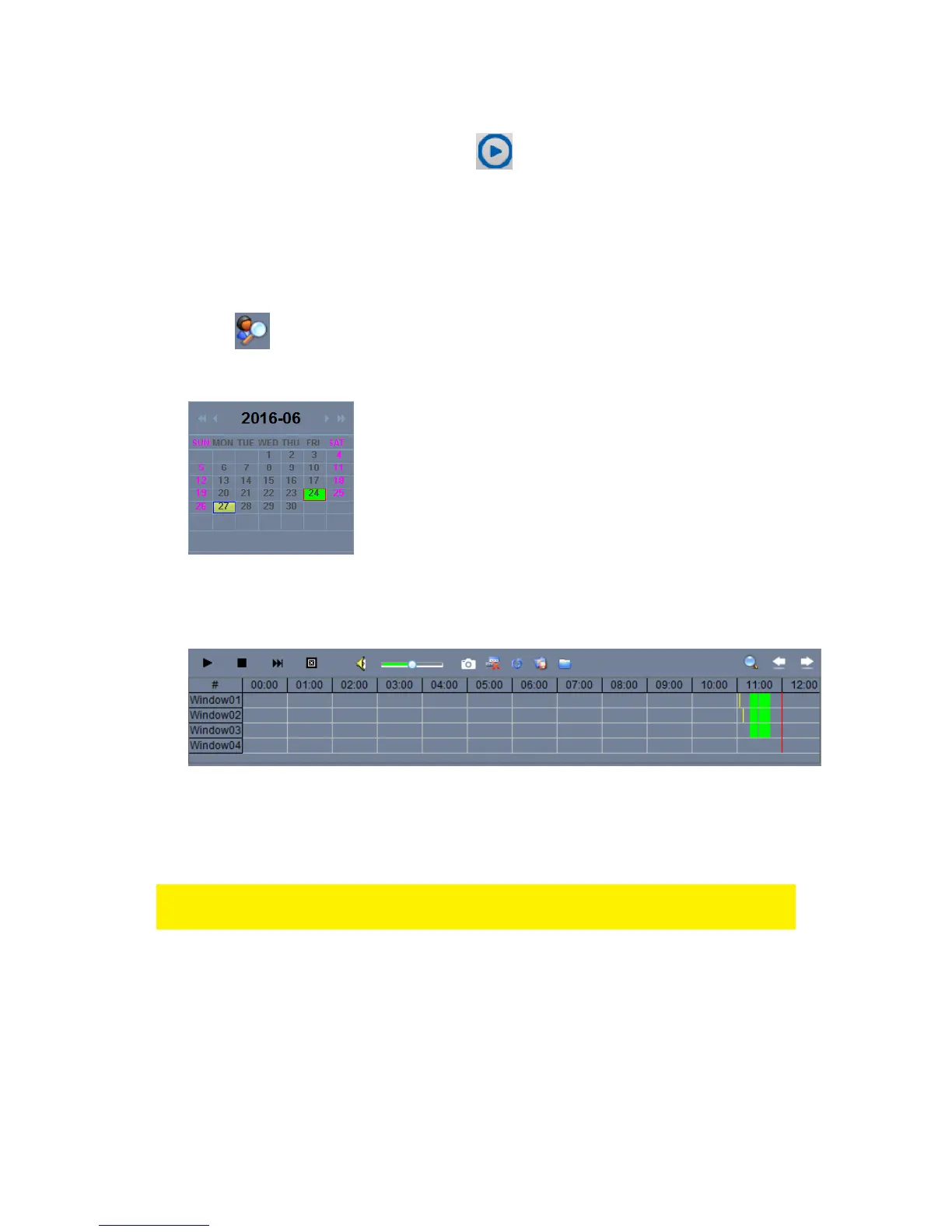
4. In the calendar you will see dates marked in green these are the days where the
CamLine Pro software has found local recordings.
5. Select the day you wish to playback.
6. Below the camera overview you will see different markings in the time bar, these
are markings of the time periods the CamLine Pro software has found local
recordings.
7. Drag the red line to the time frame you wish to playback the recording.
The markings marked as green are the scheduled recordings.
The markings marked in yellow are the manual recordings.
To be able to select a manual recording (marked in yelllow) successfully we advise to
use a minimum time period of 1 minute per recording.



 To Next Page