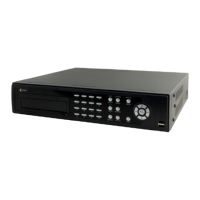
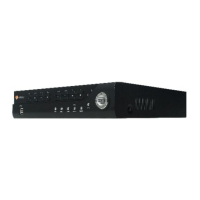
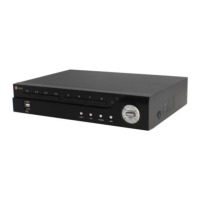
Digital Video Recorder
25
NOTE: Selecting Use Mobile sets the WebGuard service to be enabled automatically regardless of your WebGuard
settings.
When using NAT (Network Address Translation) or firewall services, opening all UDP ports allows you
to access a DVR using Blackberry and Android devices.
You can access a remote DVR and monitor live video images using media players, such as VLC Player,
supporting RTSP service. Start the media player on your local PC and enter “rtsp://ID:Password@IP
address:RTSP port number/track ID=‘channel number’”, or start Internet Explorer on your Blackberry
or other mobile devices and enter “http://IP address:Webguard port number/”.
Some media players might play video properly depending on network conditions.
RTSP service might not be supported, depending on the type of media player.
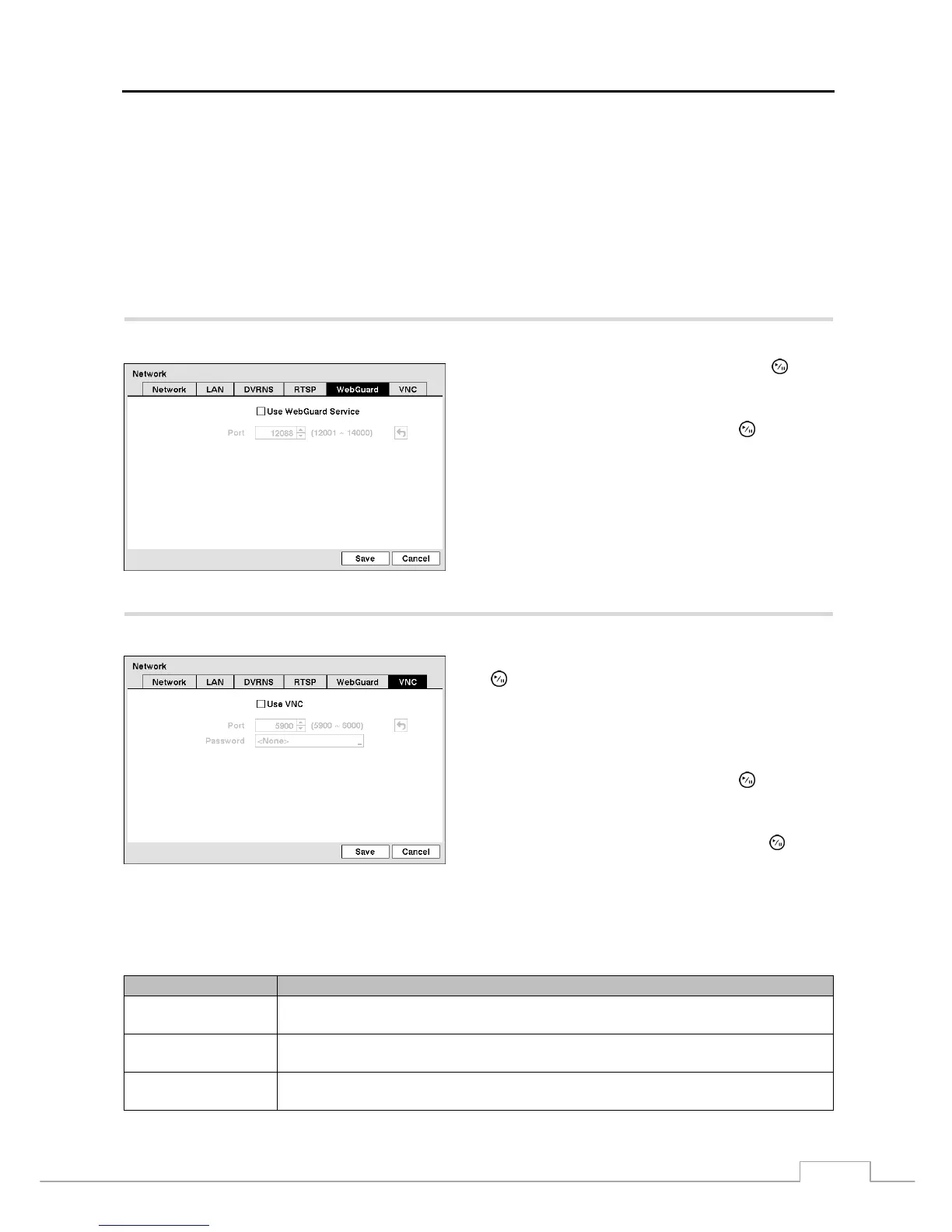
Highlight the WebGuard tab, and the WebGuard screen displays.
Highlight Use WebGuard Service and press the
button
to toggle between On and Off. See Appendix – WebGuard
for detailed descriptions of the WebGuard service.
Highlight the box beside Port and press the button. Set
the port number used when accessing WebGuard by using
the Up and Down arrow buttons to increase or decrease the
numbers.
Figure 25 — WebGuard setup screen.
Highlight the VNC tab, and the VNC setup screen displays.
Figure 26 — VNC setup screen.
Highlight Use VNC (Virtual Network Computing) and press
the
button to toggle between On and Off. You will be able
to change the settings if Use VNC is enabled.
NOTE: VNC service allows you to access the DVR and
control it remotely using a PC or mobile devices
via Ethernet.
Highlight the box beside Port and press the button. Set
the port number of the VNC server obtained from your system
administrator.
Highlight the box beside Password and press the button.
A virtual keyboard appears allowing you to enter the password
for VNC connection.
NOTE: Up to three users at a time can access a DVR remotely via VNC service.
When controlling the DVR remotely using a keyboard, shortcut keys perform the following functions as
described below:
Key Function
“←” or “h”
Pressing the “←” or “h” key moves to the left in the menu. It is the same as pressing the Left
arrow button on the front panel.
“→” or “l”
Pressing the “→” or “i” key moves to the right in the menu. It is the same as pressing the Right
arrow buttons on the front panel.
“↑ ” or “k”
Pressing the “↑ ” or “k” key moves up in the menu. It is the same as pressing the Up arrow
button on the front panel.


 To Next Page