Operating Instructions
28
NOTE: You will only be able to set up PTZ devices if the
PTZ port is set to RS232 or RS485.
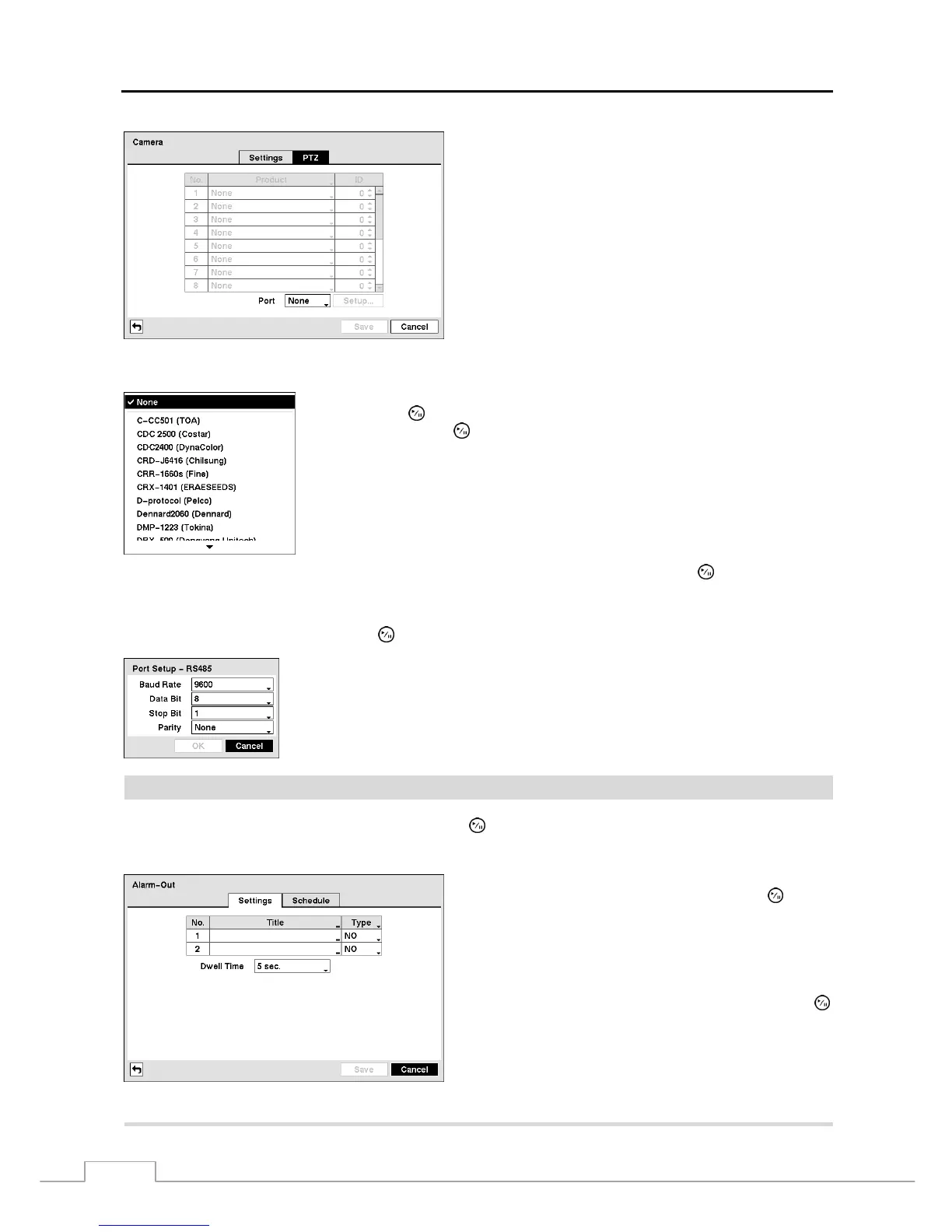
Figure 31 — Camera PTZ setup screen.
Highlight the box in the Product column for the PTZ camera you wish to configure
and press the
button. A list of PTZ devices appears. Select your camera from
the list and press the
button. You will need to connect the camera to the RS232
or RS485 connector on the back of the DVR following the camera manufacturer’s
instructions.
You can assign IDs to each camera by highlighting the box under the ID heading and pressing the button. Change the
number by highlighting it and using the Up and Down arrow buttons to increase and decrease the number. The PTZ
ID number can be set from 0 to 256.
Highlight the Setup… box and press the button. The Port Setup window appears.
Configure the port’s setting based on the PTZ camera manufacturer’s instructions.
Alarm-Out
Highlight Alarm-Out in the Devices menu and press the
button. The Alarm-Out screen allows you to change the
settings and establish a schedule for each alarm output from the DVR.
Each alarm output can be given its own title by highlighting
the box under the Title heading and pressing the
button.
A virtual keyboard appears allowing you to enter the title.
Highlighting the box under the Type heading allows to set
the alarm output for NO or NC (normally open or normally
closed).
Highlighting the box beside Dwell Time and pressing the
button allows you to set the dwell time of the alarm output.
Dwell times range from 5 seconds to 30 minutes.
Figure 32 — Alarm-Out Settings screen.


 To Next Page