Digital Video Recorder
27
Highlight the Test box and press the
button to test emailing with the current settings you made.
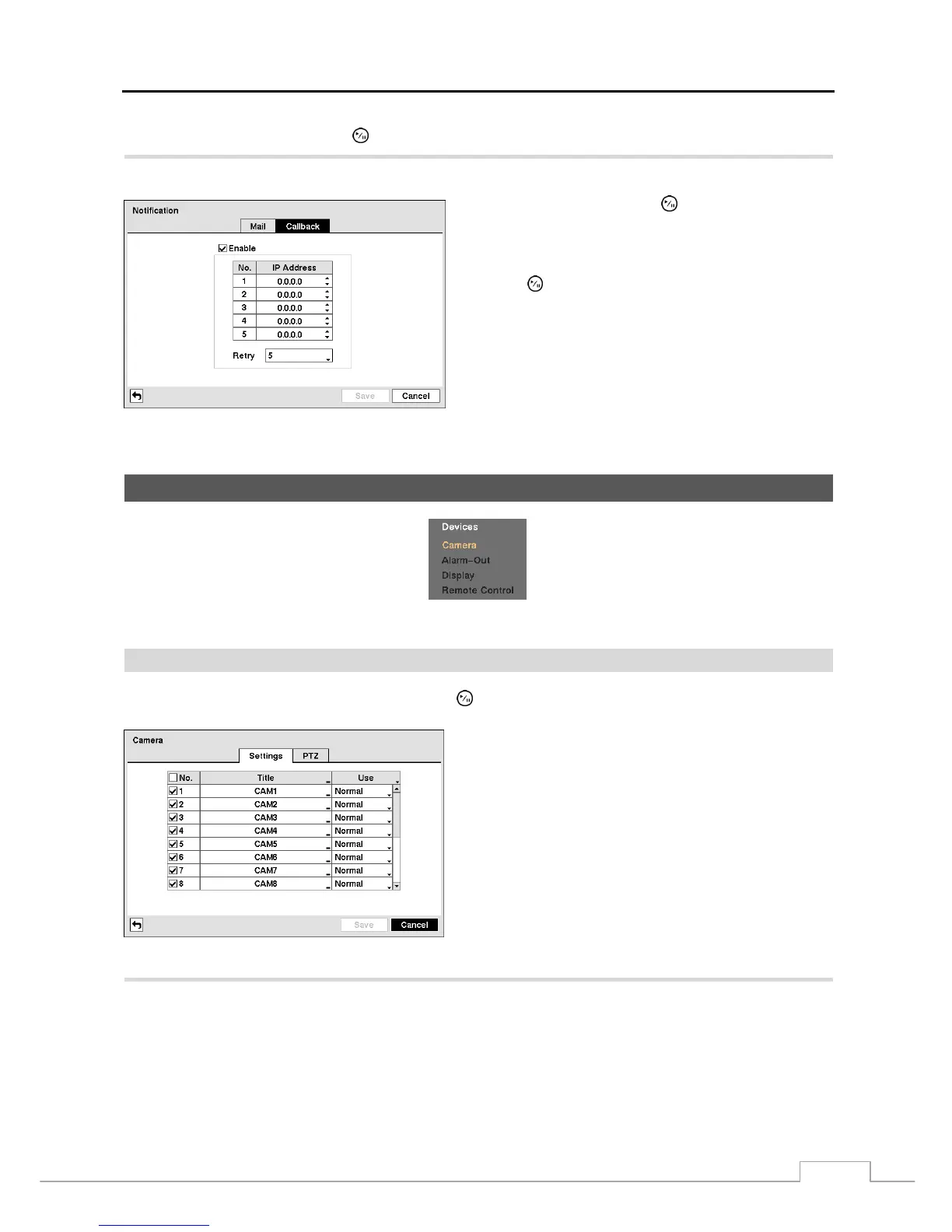
Highlight the Callback tab, and the Callback screen displays.
Highlight Enable and press the
button to toggle between
On and Off. You will only be able to change the IP addresses
if Callback is enabled.
Highlight the IP Address box that you want to change and
press the
button. Use the arrow buttons to enter the IP
address of the computer you want contacted during an event.
You can enter up to five IP addresses.
Highlight the box beside Retry and enter the number of times
you would like the DVR to try contacting the computer. You
can select from 1 to 10 retries.
Figure 28 — Notification Callback setup screen.
Devices Setup
Figure 29 — Devices menu.
Camera
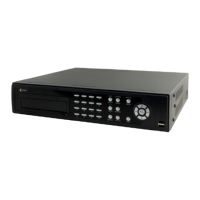
Highlight Camera in the Devices menu and press the button. The Camera setup screen appears.
Figure 30 — Camera setup screen.
You can turn the camera number On or Off, and you can
change the Title of each camera using the virtual keyboard.
You can also determine which cameras will display on the
monitors by selecting Normal, Covert 1 or Covert 2 from
a drop-down list in the Use column.
NOTE: When selecting the Covert 1, the DVR displays
the camera title and status icons on the covert
video. When selecting the Covert 2, the DVR
displays only camera title on the covert video.
NOTE: A user who does not have Covert Camera View
authority cannot view video from cameras set to
Covert 1 or Covert 2 in both the live monitoring
and playback modes.
Highlight the PTZ tab, and the PTZ setup screen displays.


 To Next Page