Operating Instructions
60
Highlight the box beside To and press the
button to toggle between On and Off. When set to Off, you can enter a
specific Date and Time. When set to On, the search will be from the last recorded image. When highlighting
and
pressing the
button the bookmark list displays and the bookmark point you selected will be the ending date and time.
Highlight the box beside Type and press the
button. You can select between Motion Search and Museum Search.
Motion Search detects motion in the defined area. Museum Search detects if a defined object has moved.
Highlight the box beside Zone and press the
button. An image from the video appears with a grid overlaid. You
can turn sensor blocks On and Off to define the area of the picture in which you want to search for motion.
NOTE: Defining the area of the image in which you want to search for motion is nearly identical to setting up
the DVR for Motion Detection. Please refer to Motion Detection Screen in Chapter 3 — Configuration
for more detailed instructions on setting up the detection blocks.
When setting the Museum Search Zone, the zone should be placed inside of the border line of the target
object. If the selected block is placed on the border line, the sensitivity of the Museum Search may decrease.
The zone should be placed or focused on the centre or, at least, within the outline of targeted object.
Highlight the box beside Sensitivity and press the
button. You will be able to select from 1 (low sensitivity) to 5
(high sensitivity).
Highlight the box beside Min. Blocks and press the
button. You will be able to set the number of sensor blocks
that must be activated. Setting the Min Blocks will only be available if Motion Search is selected.
Once you set your desired search conditions, highlight Search and press the
button to display the search results in
the Motion Search screen. Selecting Cancel exits the screen without saving the changes.
When you search for motion events of another camera, you will be asked whether or not you want to delete the previous
search results from the list.
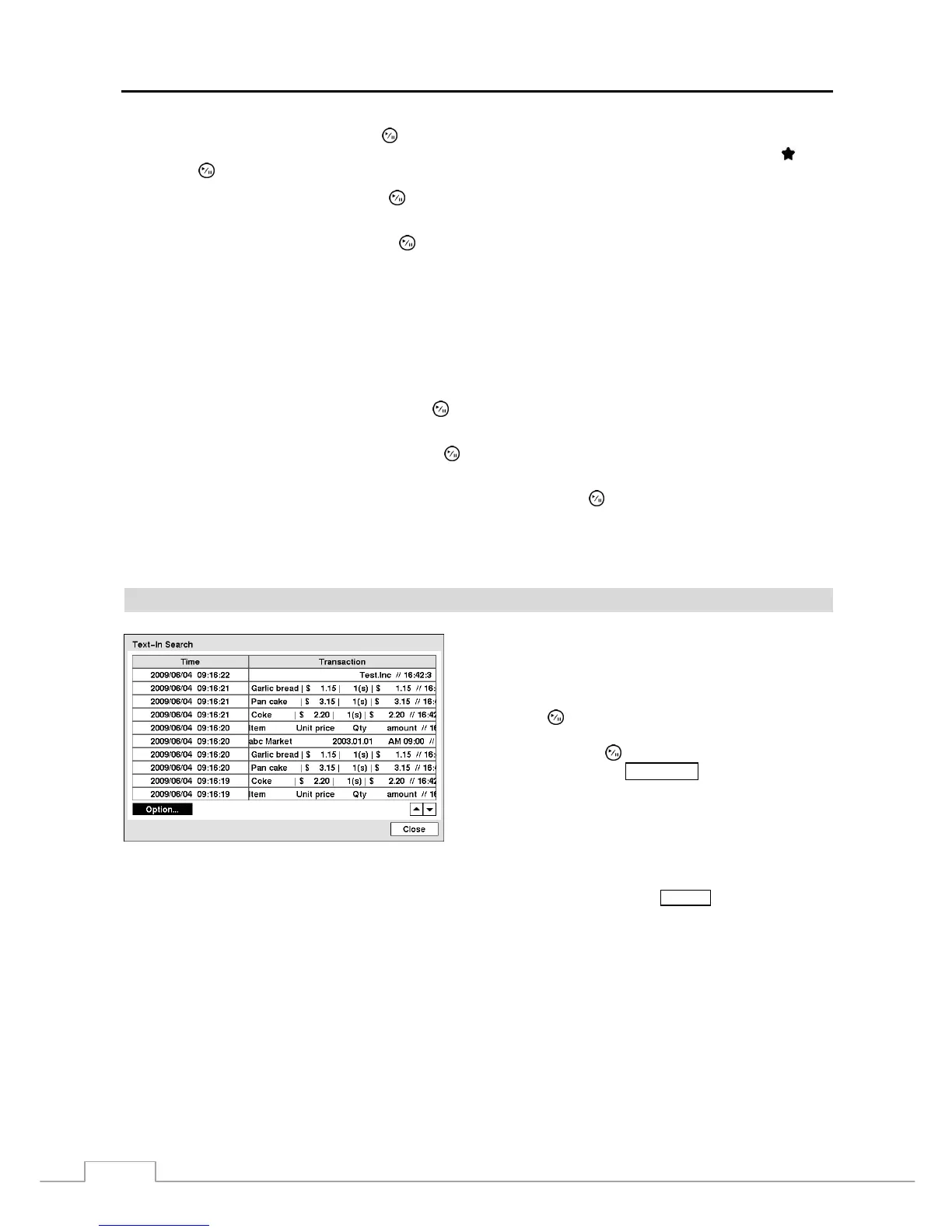
Text-In Search
Figure 77 — Text-In Search screen.
The DVR maintains a log of each time there is Text Input.
The Text-In Search screen displays this list. Use the arrow
buttons to highlight the event for which you would like to
see video.
Pressing the (Play/Pause) button will extract the video
associated with the Text Input and display the first image of
the event. Pressing the button will start playing the “event”
video segment. Pressing PLAYBACK returns to live
monitoring
.
NOTE:
It is possible that no recorded image displays on the current screen. Press the
DISPLAY button and change
the screen mode to 4x4. You will be able to easily see the camera have recorded video during target time.
Text Input information will be overlaid on the image while the recorded video is played at regular speed.
You can also narrow your event search by selecting the Option… button and setting up the new search condition.


 To Next Page