Operating Instructions
26
Key Function
“↓ ” or “j”
Pressing the “↓ ” or “j" key moves down in the menu. It is the same as pressing the Down
arrow button on the front panel.
“m” or “” (Windows)
Pressing the “m” or “” key displays the Live Monitoring menu or Search menu on the screen.
It is the same as pressing the
MENU button on the front panel.
“Enter” or “Return”
Pressing the “Enter” or “Return” key selects the highlighted item or completes an entry that
you have made during system setup. It is the same as pressing the (Play/Pause) button
on the front panel.
“d” or “PageUp” or
“PageDown”
Pressing the “d” or “PageUp” or “PageDown” key toggles between different display formats.
It is the same as pressing the
DISPLAY button on the front panel.
“c” or “Home”
Pressing the “c” or “Home” key allows you to copy video clips. It is the same as pressing the
CLIP COPY button on the front panel.
“F5” Pressing the “F5" key refreshes the current VNC screen.
Notification
The DVR can be set up to send an email or to contact a computer running RAS (Remote Administration System) when
an event occurs.
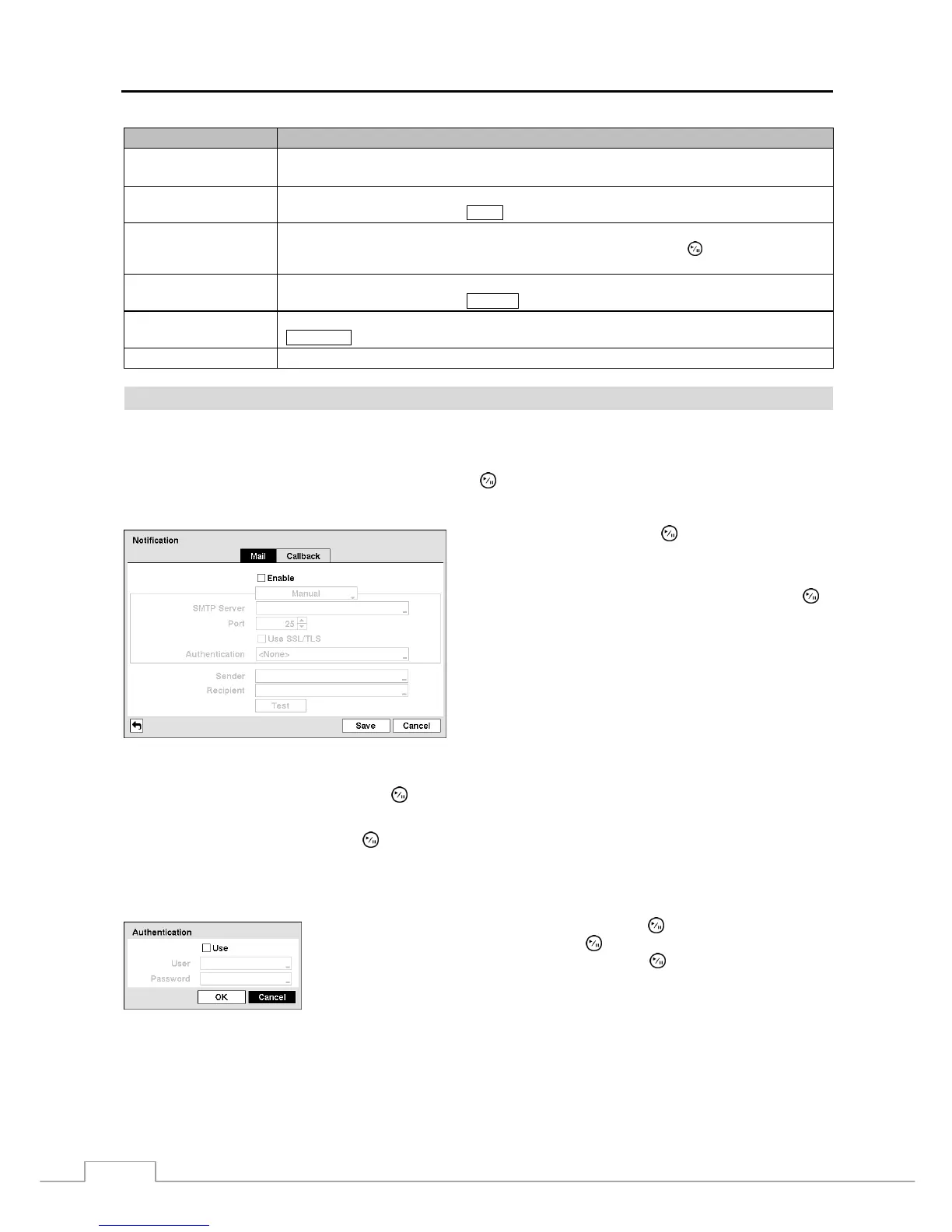
Highlight Notification in the Network menu and press the
button. The Notification screen displays. You will be
able to change the Mail and Callback settings.
Figure 27 — Notification Mail setup screen.
Highlight Enable and press the button to toggle between
On and Off. You will only be able to change the settings if
Mail is enabled.
Highlight the box beside SMTP Server and press the
button. A virtual keyboard appears that you can use to enter
the IP address or domain name of the SMTP server.
NOTE: You will need to get the IP Address or domain
name of the SMTP Server from your network
administrator.
NOTE: You can use the domain name instead of IP address
if you already set up the DNS Server when setting
up the LAN.
Highlight the box beside Port and press the
button. Use the arrow buttons to enter the SMTP Server port number
obtained from your system administrator. The default port number is 25.
Highlight Use SSL/TLS and press the button to toggle between On and Off. When it is On, the DVR can send an
email via an SMTP server requiring SSL (Secure Sockets Layer) authentication.
NOTE: This product includes software developed by the OpenSSL Project for use in the OpenSSL Toolkit
(http://www.openssl.org/).
Highlight the box beside Authentication and press the button. An Authentication
screen appears. Highlight Use and press the
button to toggle between On and Off.
Highlight the box beside User/Password and press the
button. A virtual keyboard
appears allowing you to enter the user ID and password.
Highlight the box beside Sender and enter the sender’s e-mail address. Use the virtual keyboard to enter the e-mail
address.
NOTE: The e-mail address must include the “@” character to be a valid address.
Highlight the box beside Recipient and enter the recipient’s e-mail address. Use the virtual keyboard to enter the
e-mail address.


 To Next Page