Digital Video Recorder
29
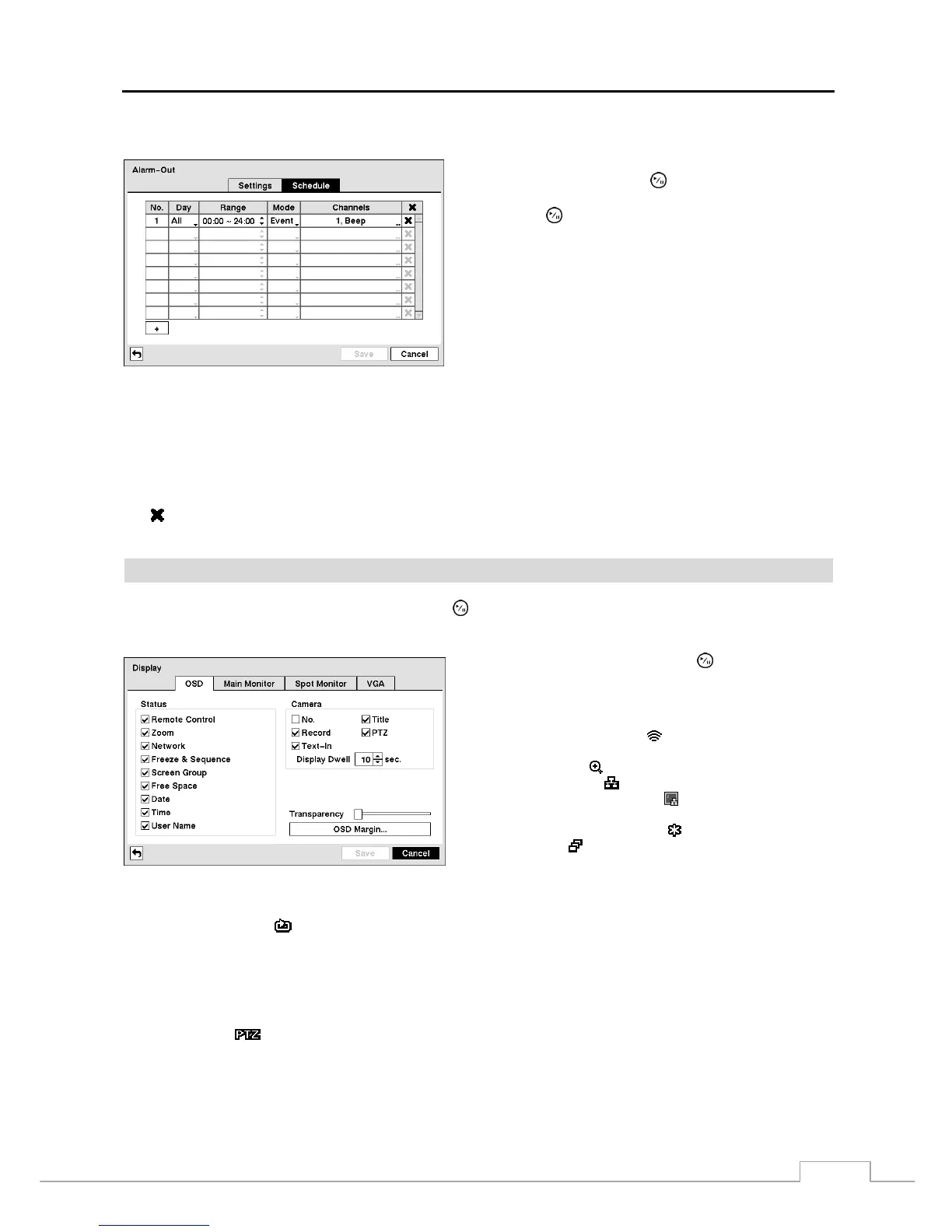
Highlighting the Schedule tab causes the Schedule screen to display.
You can add and edit alarm output schedules on this screen.
Highlight the + and press the button to add a schedule.
Highlighting the boxes under the Column heading and
pressing the button allows you to edit the information in
those boxes.
The Day box allows you to select the days that the alarm
schedule will be active. The choices are: Sun, Mon, Tue,
Wed, Thu, Fri, Sat, M~F, Hol and All.
The Range box allows you to set the time that the alarm
schedule will be active in 15-minute increments from 00:00
to 24:00.
Figure 33 — Alarm-Out Schedule screen.
The Mode box allows you to set how the alarm reacts during the scheduled time. When set to On, the Alarm-Out is
active during the scheduled time. When set to Event, the Alarm-Out is only active when there is an Event during the
scheduled time.
The Channels box allows you to set which alarm outputs will be active. You can also select the DVR’s internal buzzer.
The box allows you to delete an alarm output schedule. You will be asked to confirm whether or not you really wish
to delete the schedule.
Display
Highlight Display in the Devices menu and press the
button. The Display screen allows you to select what
information will be displayed on the monitor.
Figure 34 — Display OSD screen.
Highlighting an item and pressing the button toggles that
item On and Off. When an item is On, there is a checkmark
in the box beside it. The following items can be turned On
or Off:
Remote Control – The icon
displays when the DVR can be
controlled by the infrared remote control.
Zoom – The icon
displays on the enlarged video.
Network – The icon
displays when the unit is connected to
a network via Ethernet. The icon
displays when VNC service
is running.
Freeze & Sequence – The icon
displays while in the Freeze
mode, and the
displays while in the Sequence mode.
Screen Group – The number of screen group displays when the
DVR is not in the 4x4 display mode of the 16-channel DVR, and
3x3 mode of the 8-channel DVR.
Free Space – The icon
displays when the DVR is in the Recycle mode, and the percentage of available storage space displays
when the DVR is not in the Recycle mode.
Date/Time – The current date and time information displays.
User Name – The name of the current user logged in displays.
Camera No. – The camera number displays at the top-left corner of each camera screen.
Camera Title – The camera title displays at the top-left corner of each camera screen.
Record – The record related icons display on each camera screen.
PTZ – The icon
displays on each PTZ camera screen.
Text-In – The text input strings display on the screen. You can adjust the Display Dwell time (sec.) for the text input strings
displayed on the screen.
You can adjust the transparency of the setup screens by highlighting Transparency and using the Left and Right arrow
buttons.


 To Next Page