Operating Instructions
40
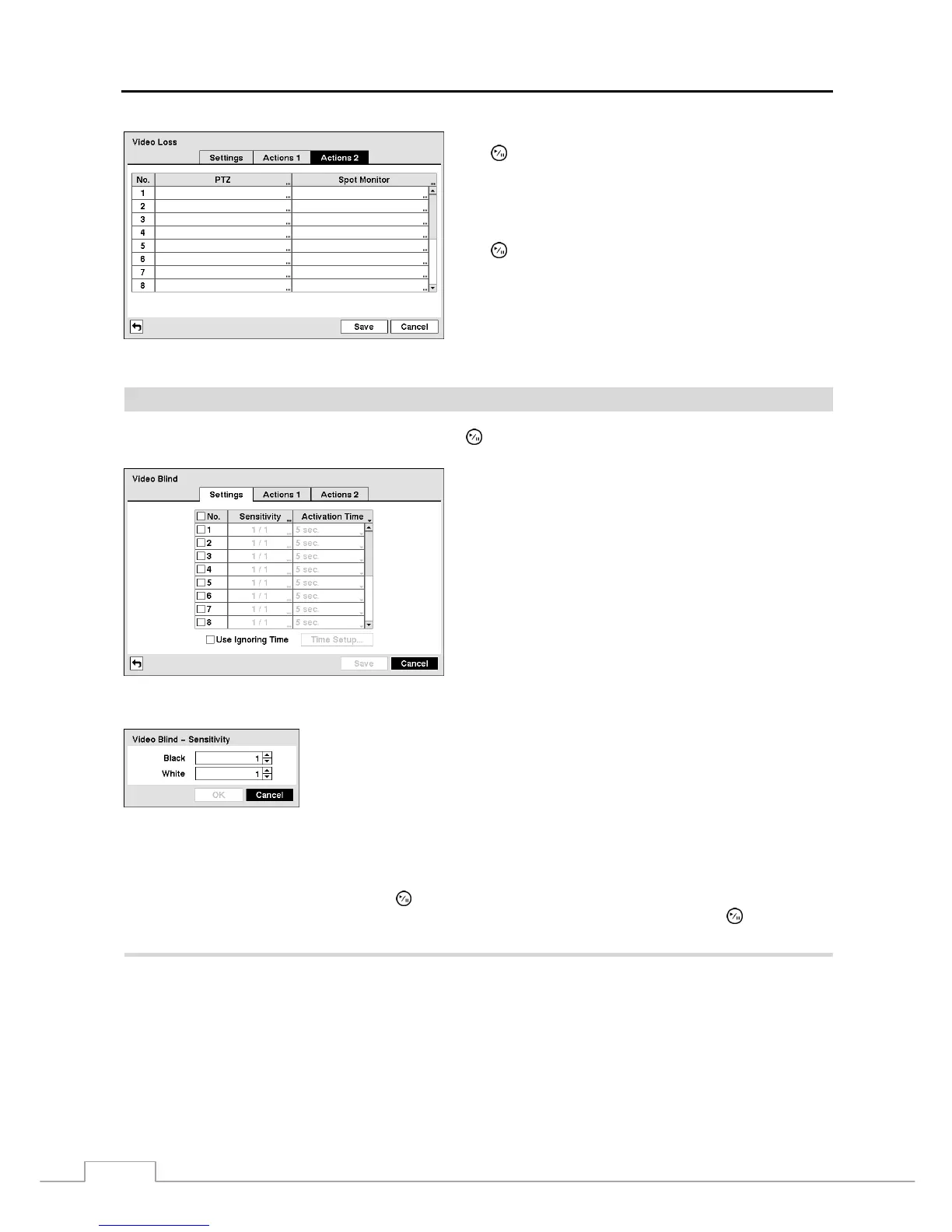
Figure 54 — Video Loss Actions 2 screen.
Highlight the desired box under the PTZ heading, and press
the
button. A list of PTZ presets appear. Select the preset
position for each PTZ camera, where you want PTZ cameras
to move to when the DVR detects video loss on the selected
camera’s input.
Highlight the box under the Spot Monitor heading and press
the
button. A list of SPOT monitors and cameras appears.
Each SPOT monitor can be associated with a camera. The
DVR will display the associated camera on the SPOT monitor
whenever it detects video loss on the selected camera.
Video Blind
Highlight Video Blind in the Event menu and press the
button. The Video Blind setup screen appears.
Figure 55 — Video Blind Settings screen.
The DVR checks to see if anything is blinding a camera.
Highlighting the box under the Sensitivity heading allows you to adjust the DVR’s
sensitivity to video blind for Black and White independently from 0 (Never) and 1
(least sensitive) to 15 (most sensitive).
NOTE: Video blind might NOT be detected for a camera with a very noisy image
especially when set for low sensitivity values.
Highlighting the box under the Activation Time heading allows you to set the duration before the DVR will report a
Video Blind. The DVR will not consider any blinded camera to be a Video Blind if the detected blindness is less than
the Activation Time set on this screen.
Highlight Use Ignoring Time and press the button to toggle between On and Off. When set to On, the DVR will
ignore video blind events occurred during the preset period. Highlighting Time Setup and press the
button allows
you to set up event ignoring time.
Highlight the Actions 1 and Actions 2 tabs and the Video Blind Actions 1 and Actions 2 screens display.


 To Next Page