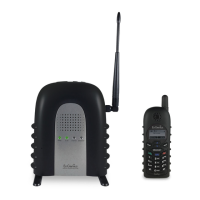
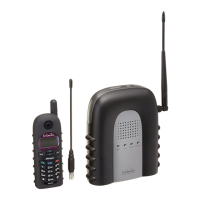
Re : Handsets can answer calls from any port or line, unless port is dedicated to
a specific handset or group.
Handset Registration.
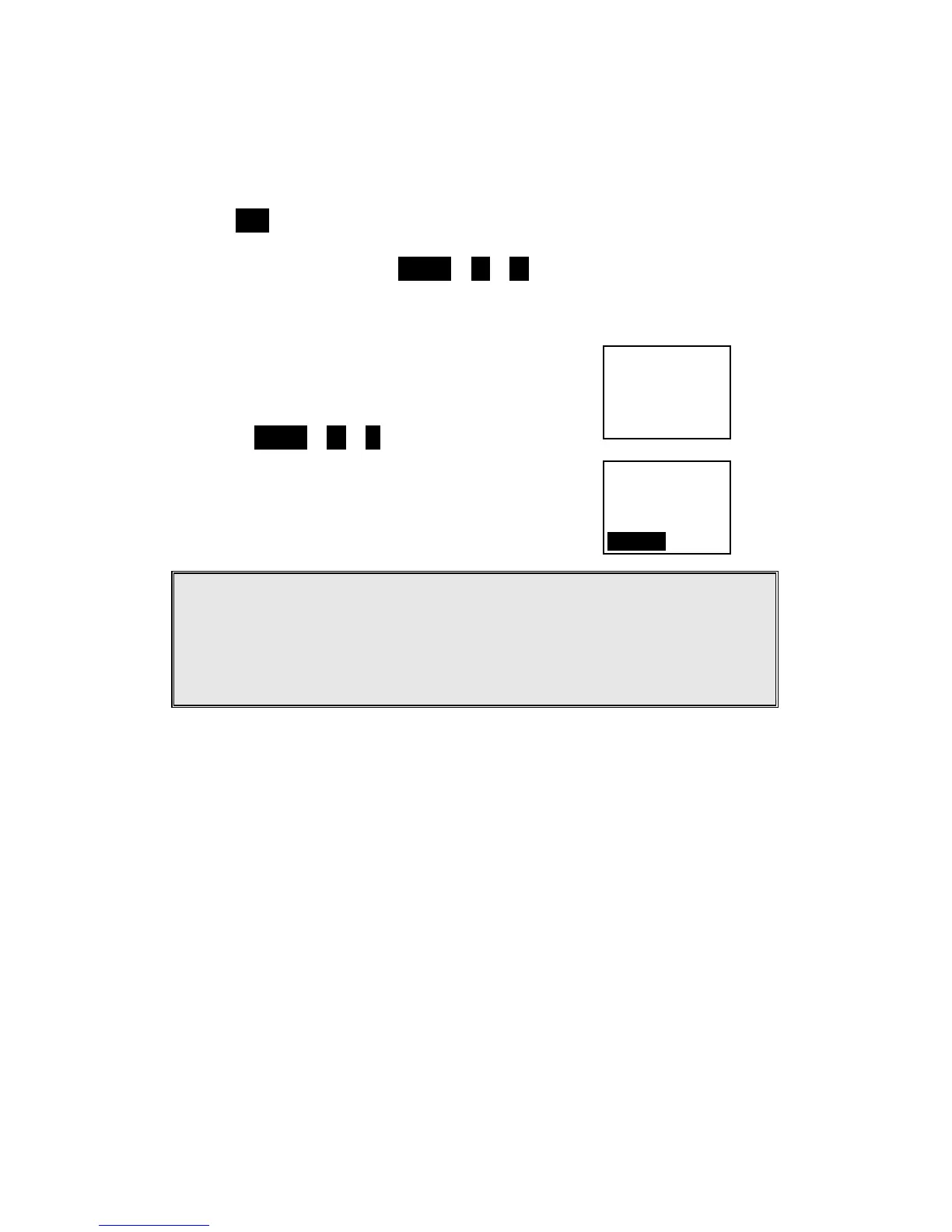
a. Press REG button on Base 00(default), four LEDs will light up in
setting mode
b. Handset operation: Press MENU 6 1 . (It will complete the
registration process)
c. Repeat, as needed, to add handsets
Establishing additional Base Units:
Press REG button on new Base.
Use Handset 10 or 11 to Add base :
Repeat, as needed, to add base units
Notes:
1. Only Handset 10, 11 can assign Base ID.
2. Base 00 is a primary base. All handset must register only on Base 00.
3. To avoid interference, the interval between any two bases should be
at least 10 meters.
Handset and Charger Installation
Plug the transformer end of the Charger AC/DC adaptor into a standard AC
electric power outlet, plug the other end into the “DC In” jack on the back of
the Charger.
Install battery pack onto the handset.
Place handset onto the charger front slot.
The phone system is now ready to perform basic functions such as making and
receiving phone calls and intercom calls. No base station or handset
programming is needed for basic operations.
10
Select Mode:
1. Add Base
10
Added Base
Number : **
CANCEL


 To Next Page