3 Configuring Your Computer for TCP/IP
This chapter describes how to configure the TCP/IP settings on a computer that will be used
to configure the ENH200EXT. Because the default operating mode is Client Bridge, an IP
address will not be assigned to the computer/notebook. Therefore, follow the steps below to
assign an IP address to a client’s Ethernet adapter.
3.1 Configuring Microsoft Windows 7
Use the following procedure to configure a computer running Microsoft Windows 7.
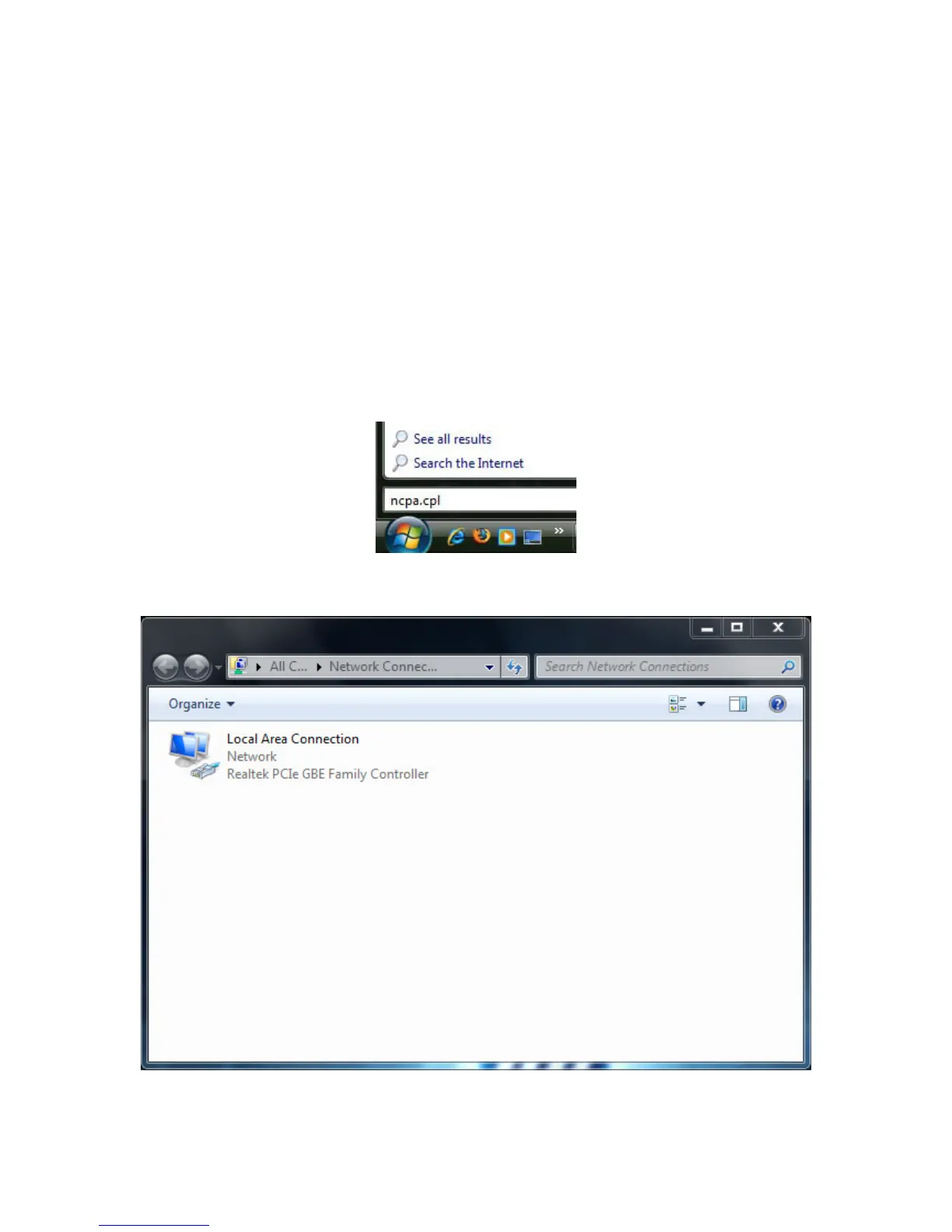
1. In the Start menu search box, type: ncpa.cpl
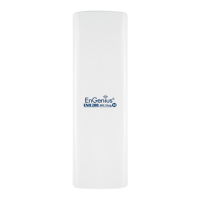
2. When the Network Connections List appears, right-click the Local Area Connection icon
and click Properties.
3. In the Networking tab, click Internet Protocol Version 4 (TCP/IPv4), and then click
Properties.



 To Next Page