10.2 Client Bridge Mode
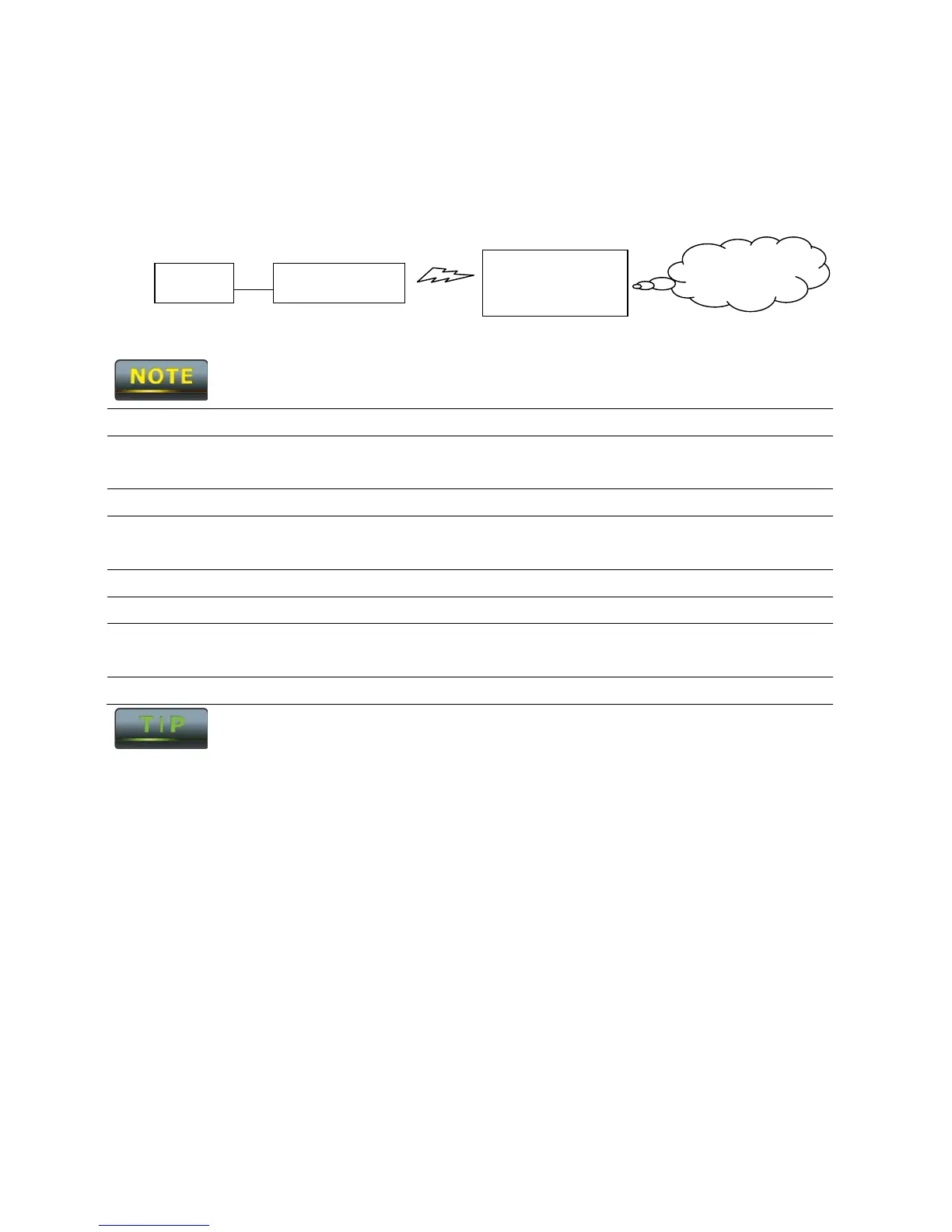
Client Bridge Mode functions like a wireless dongle. It must connect to an Access Point/AP
Router to join the network.
Please refer to the last section to check the Access Point’s configuration.
Client Bridge
Step 1 Login to the web-based configuration interface with the default
IP: 192.168.1.1
Step 2 Select your country or region’s regulation.
Step 3 Select Operation Mode to Client Bridge from System
Properties.
Step 4 Use site survey to scan channels of the nearby area.
Step 5 Select the AP that you would like to associate with.
Step 6
Setup the authentication settings that match to the Access Point’s
settings.
Step 7 Select Apply to process all of the configurations.
The Client Bridge’s IP settings must match the Access Point’s settings.
Access Point /
Wireless Router
Internet
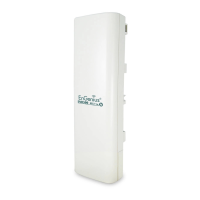
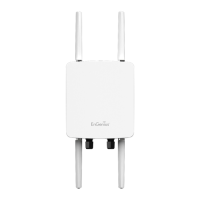
ENH200EXT Client



 To Next Page