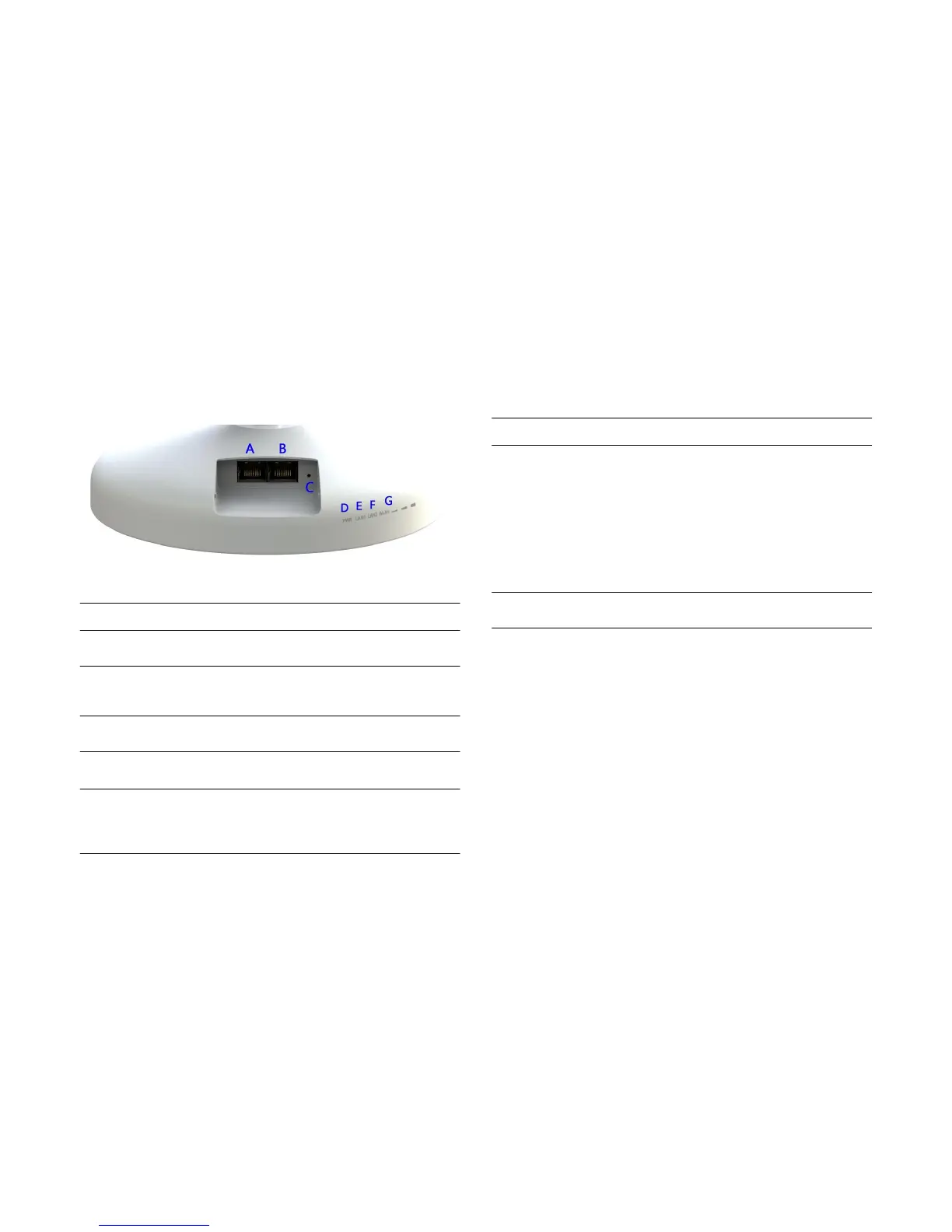
1.3 Product Interface
BACK PANEL VIEW DESCRIPTION
Figure 1-1: Back Panel View
BACK PANEL VIEW DESCRIPTION
A
LAN Port(PoE)
The PoE interface allows EnStation to be
powered using the supplied PoE injector.
F
WAN LED
G
Signal Indicator LED
(Access Point or Client Bridge Mode)
OFF=EnStation radio is off and the device is
not sending or receiving data over the
wireless LAN.
ON=EnStation radio is on, and the device is
not sending or receiving data over the
wireless LAN.
Blinking=EnStation radio is on, and the
device is sending or receiving data over the
wireless LAN.
(Client Bridge, WDS Station, and Client
Router, Modes)
B
LAN Port
To configure EnStation, connect to an
Ethernet adapter in a computer for accessing
more information.
C
Reset Button
To reset to factory settings, press the button
for more than 10 seconds.
D
Power LED
OFF=EnStation is not receiving power
ON=EnStation is receiving power.
E
LAN(2) LEDs
OFF=EnStation is not connected to the
network.
ON=Enstation is connected to the network
but not sending or receiving data.



 To Next Page