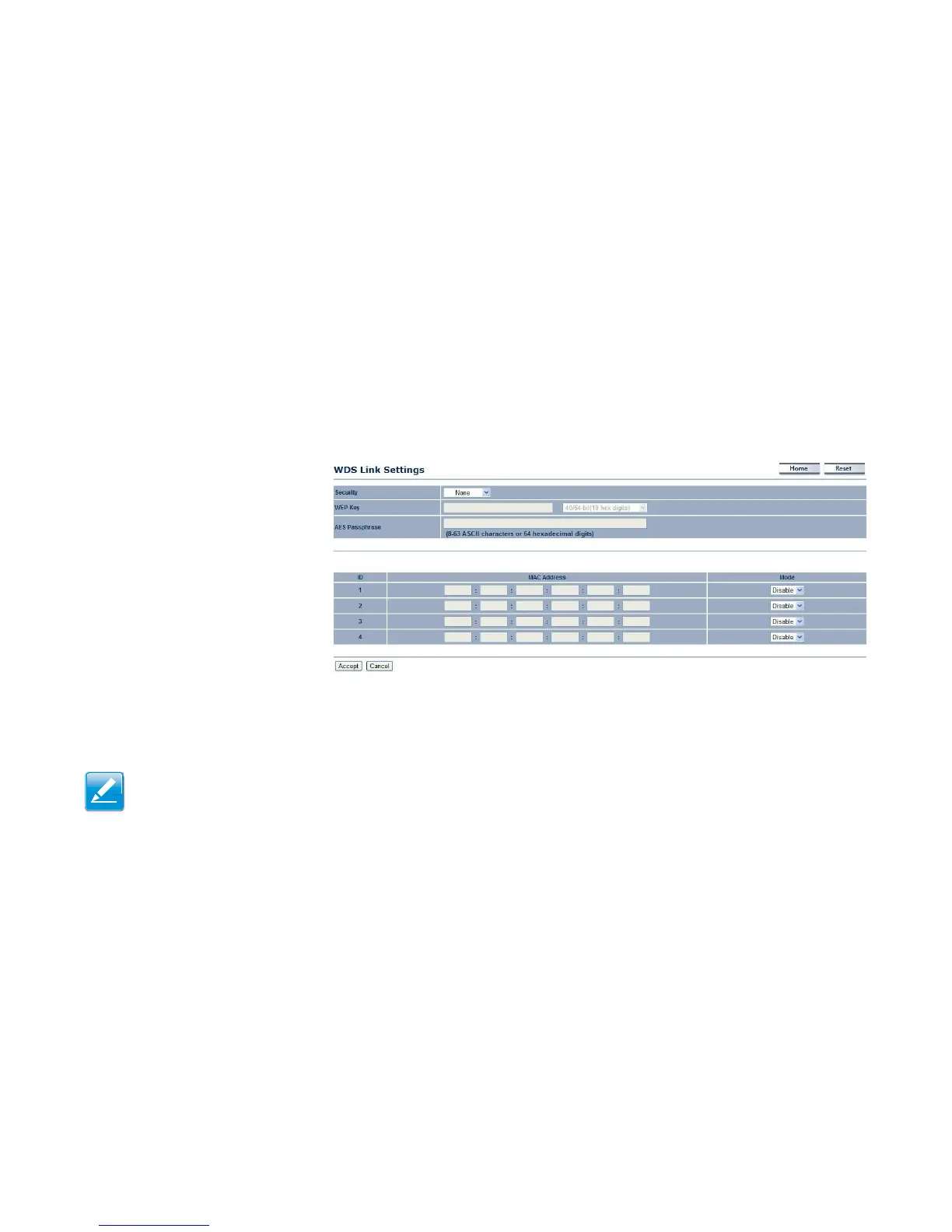
4.4.4 Configuring WDS Link Settings
Using WDS Link Settings, you can create a wireless backbone link between multiple access points that are part of the same wireless
network. This allows a wireless network to be expanded using multiple Access Points without the need for a wired backbone to link
them, as is traditionally required.
Security
Select the type of WDS
security: None,
WEP, or AES.
WEP Key
Enter the WEP key.
AES Passphrase
Enter the AES passphrase.
MAC Address
Enter the MAC address of the Access
Point to which you want to extend
wireless connectivity.
Mode
Select Disable or Enable to disable or enable WDS.
Click Accept to confirm the changes or Cancel to cancel and return to previous settings.
Note:
The Access Point to which you want to extend wireless connectivity must enter the EnStation2’s MAC address into its configuration.
For more information, refer to the documentation for the Access Point. Not all Access Point support this feature.



 To Next Page