3.1 Logging In
The EnStation2 has a built-in Web Configurator that lets you
manage the unit from any location using a Web browser that
supports HTTP and has Javascript installed for your
convenience.
After configuring the computer for TCP/IP using the procedure
appropriate for your operating system, use that computer’s
Web browser to log in to the EnStation2 Web Configurator:
1.
Launch your Web browser.
2.
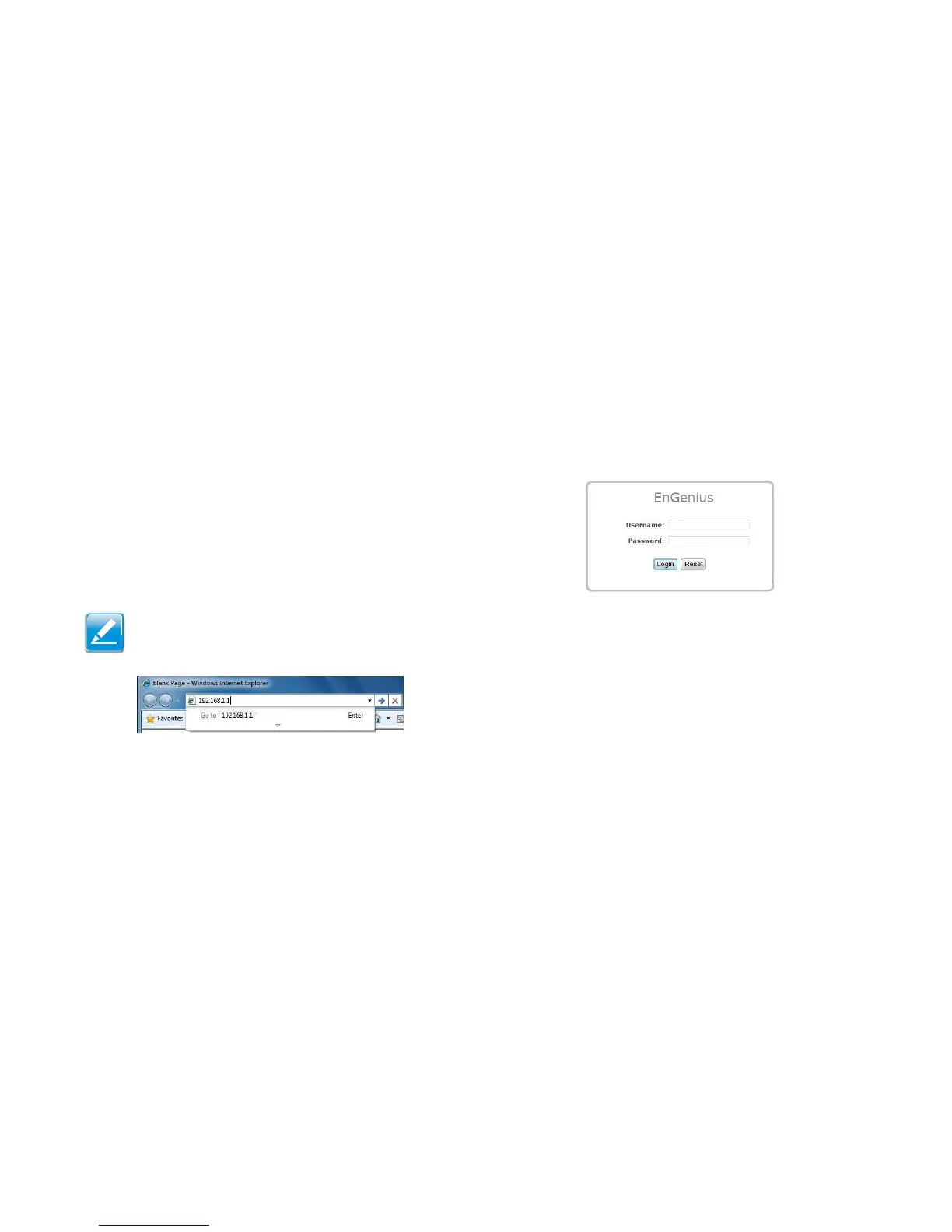
In the browser address bar, type 192.168.1.1 and
press the Enter key.
Note:
If you changed the EnStation2 LAN IP address, enter the
correct IP address.
Figure 3-1: Web Browser Address Bar
3.
When the login screen appears, enter admin for the user-
name in the top field and admin for the password in the
bottom field.
Figure 3-2: Windows Security Login Dialog
4.
Click Login to continue or Reset to abort the login.
You are now ready to use the instructions in the following chap-
ters to configure the EnStation2.



 To Next Page