Envirosight Verisight Pro
+
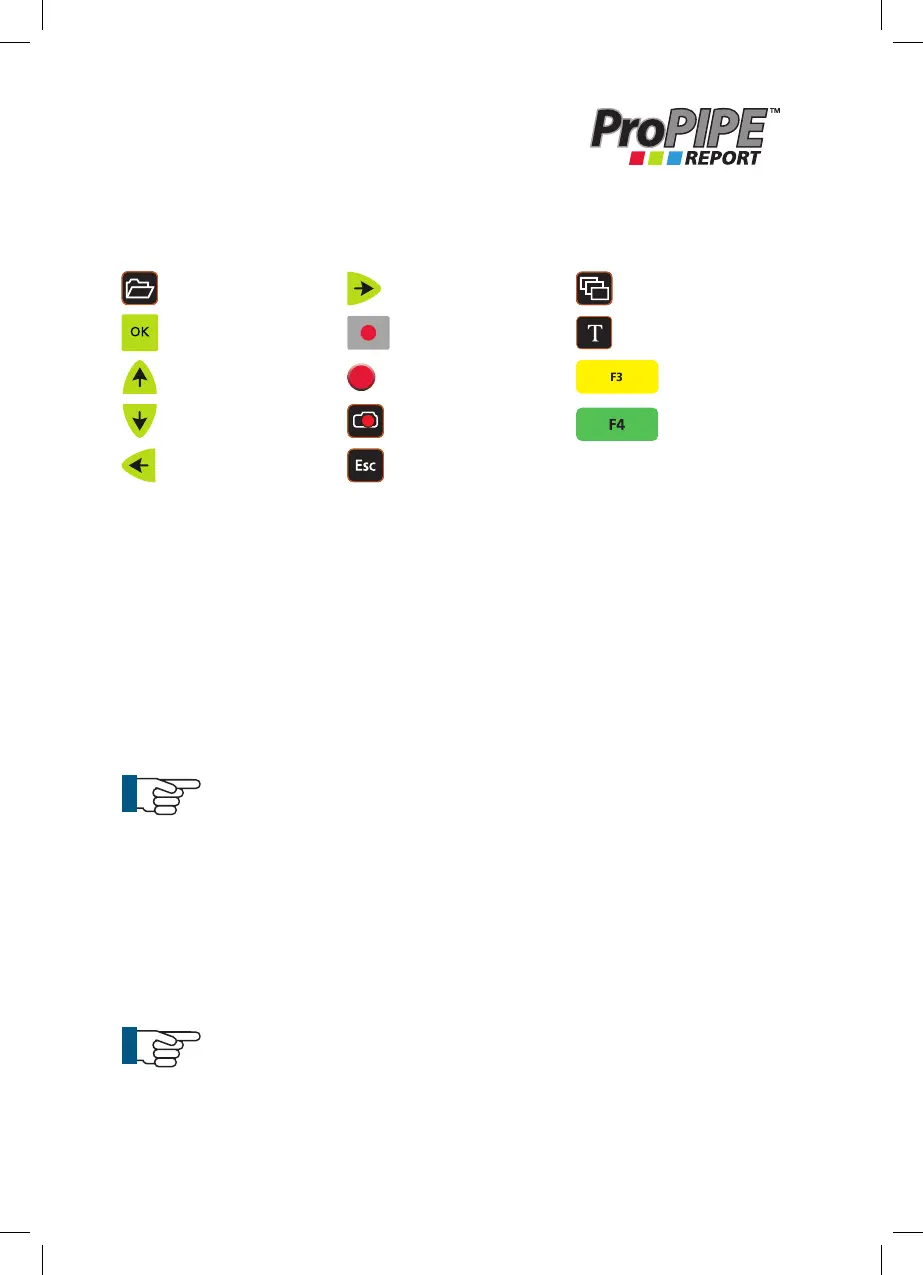
Survey Folder
OK
Arrow Up
Arrow Down
Arrow Left
Arrow Right
Stop
Record
Snapshot
Escape
Media Browser
Text
F3
F4
ProPIPE Reporting Software
Pre-installed with the Verisight Pro
+
System
KEYBOARD REFERENCE
To start ProPIPE Reporting Software
1 Press the Survey Folder key to display the Survey Features menu.
2 Highlight Begin Pro-PIPE Survey and press OK.
3 The Survey Details page will now display. This is where you can input all
the details you require.
4 Use the Arrow Up or Arrow Down keys to move the cursor up or down
between the information line and enter the information using the text entry
keys.
NOTE! Pipe, Material, Diameter and Usage are changed
using the Up Arrow and Down Arrow keys.
Changing Text Colors
5 Press the F4 (Green key).
6 Choose the color you require from the menu using the Up Arrow
and Down Arrow keys.
7 Press OK to select.
NOTE! This will only change the color on the selected line which
the arrow is pointing to, you need to repeat for each individual line
of text.
96



 To Next Page