118
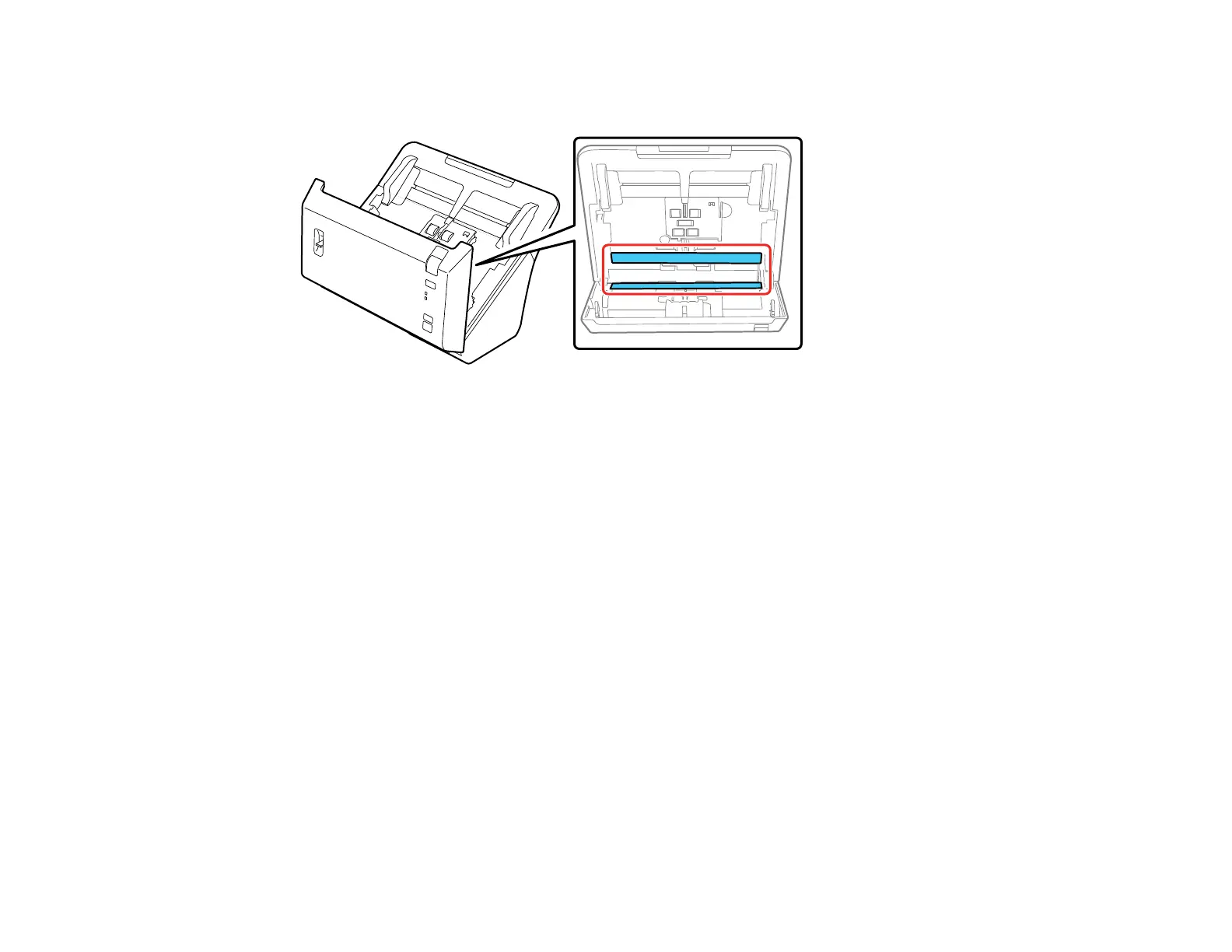
4. Wipe off any dust or dirt on the glass scanning surfaces using the included microfiber cloth or a soft,
dry cloth.
Note: If the glass surfaces are stained with grease or some other hard-to-remove material, use a
small amount of glass cleaner on a soft cloth to remove it. Wipe off all remaining liquid.
Caution: Do not spray glass cleaner directly on the scanning surfaces. Be careful not to place too
much force on the glass.
5. Close the scanner cover.
6. Plug in the AC adapter and turn on the scanner.
Parent topic: Solving Scanned Image Quality Problems
Related references
Available Image Adjustments
Related tasks
Cleaning Inside Your Scanner
Scanned Image Edges are Cropped
If the edges of a scanned image are cropped, try the following solutions:
• Select Auto Detect as the Size setting (Epson Scan) or the Document Size setting (Document
Capture Pro or Document Capture).





 To Next Page