26
You can save photo files on your memory card to a
computer when you connect it to PictureMate with a
USB cable. You can also save photos to an external
device that you connect directly to PictureMate.
Note: Even if you have the optional battery, you still need to
connect the AC adapter when transferring files.
Saving Photos to a Computer
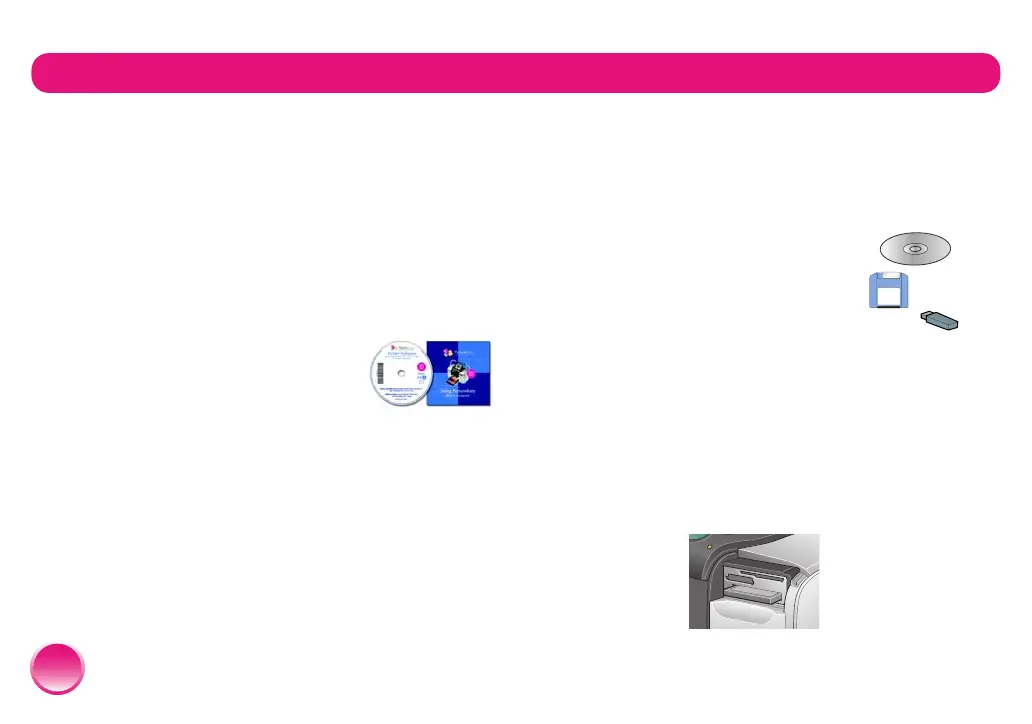
You can connect PictureMate to your
computer and view, copy, or print
files on the memory card as if it were
a drive on your computer. You can
even copy files from your computer
to the memory card.
See Using PictureMate With a Computer for setup
instructions and the on-screen User’s Guide to save
your photos.
Saving Photos to an External Device
You can connect a USB external storage device directly
to PictureMate and save your photo files to one of
these:
● CD-R/RW drive (CD-R media only)
● Iomega
®
Zip
®
disk (100, 250, or
750MB)
● Flash memory (thumb) drive
Note: Epson cannot guarantee the compatibility of
any drives. If you’re not sure about a drive, check
www.mypicturemate.com/support for a list of
compatible drives.
1 Make sure PictureMate is on and not connected to
your computer.
2 Insert your memory card into PictureMate.
Save Your Photos to a Computer or an External Device







 To Next Page