EasyManua.ls Logo

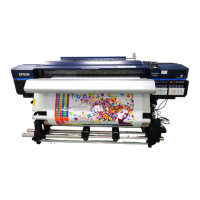
Epson SC-S70600 Series - User Manual

Epson SC-S70600 Series
198 pages
Print Icon
To Next Page IconTo Next Page
Loading...
User's Guide
NPD4674-07 EN

Table of Contents

Other manuals for Epson SC-S70600 Series

Questions and Answers

  • J
    John MeadowsAug 14, 2025
    What to do if my Epson SC-S70600 Printer does not turn on?
    • A
      anthony71Aug 14, 2025
      If your Epson printer isn't turning on, start by checking the power cable. Ensure it's securely plugged into both the electrical outlet and the printer. If it is, test the electrical outlet by plugging another device into it to confirm it works.
  • R
    Rachel GreenAug 17, 2025
    Why Epson SC-S70600 Printer sounds like it is printing, but nothing prints?
    • J
      Jamie HughesAug 17, 2025
      If your Epson printer sounds like it's printing but no ink is on the paper, several factors could be at play. First, ensure the printer's interface cable is securely plugged into both the computer and the printer. Verify that the interface cable specifications match those required by both the printer and the computer. If you're using a USB hub, try plugging the USB cable directly into your computer's USB port. If the message 'Motor Self Adjustment' is displayed on the control panel's screen, wait without turning off the printer. Also, disconnect the USB hub from the computer and connect the computer directly to the printer to ensure the USB hub is recognized correctly. Finally, confirm the printer operation by printing a test pattern.
  • C
    Christine HenryAug 21, 2025
    Why is Epson SC-S70600 Printer print quality poor?
    • S
      suzanne04Aug 21, 2025
      Poor print quality on your Epson printer can stem from several causes. Consider these solutions: * Replace old ink cartridges with new ones. * Try printing a test pattern to check for clogged print head nozzles. * Adjust the temperature if the print results are blurred or smudged. * Confirm that the media settings in the software RIP or on the printer match the media actually in use.
  • B
    benjamin40Aug 25, 2025
    What to do if my Epson SC-S70600 Printer is not communicating with the computer?
    • D
      David BrownAug 25, 2025
      If your Epson printer isn't communicating with your computer, first verify that the network settings are correct by consulting your network administrator. Additionally, try connecting the printer directly to the computer using a USB cable and attempt to print.
  • P
    Peter TaylorAug 28, 2025
    What causes the printed surface of my Epson SC-S70600 to be scuffed or soiled?
    • D
      Deborah ClarkAug 28, 2025
      If the printed surface from your Epson printer is scuffed or soiled, consider these potential causes and solutions: * Check media specifications to confirm that it is compatible with the printer, as the media might be too thick or too thin. * If the media is wavy, press the d button in the control panel to feed the media and avoid the affected area. * Ensure that the media is not creased or folded. * Clean the affected area if the wiper, caps, or print head are stained. * Clean the affected area periodically.
  • R
    Rachel PriceAug 31, 2025
    How to fix Epson SC-S70600 test pattern that does not print correctly?
    • L
      Lisa TranAug 31, 2025
      If the test pattern on your Epson printer does not print correctly, perform Head Alignment, head cleaning and Feed Adjustment. If the printer has not been used for a long time, the nozzles may have dried up and have been clogged.
  • O
    Oscar SchaeferSep 3, 2025
    Why is the print not positioned properly on the media with my Epson SC-S70600?
    • J
      Jeffery AlvaradoSep 3, 2025
      If the print is not positioned properly on the media with your Epson printer, select Printer Full Width for Head Movement. Compare the printing result with the image on the display monitor. Check whether the correct options are selected for Side Margin and Print Start Position.
  • J
    Jessica BowmanSep 6, 2025
    How to stop Epson Printer when printing does not stop when the roll ends?
    • P
      phillipsisaiahSep 6, 2025
      To ensure your Epson printer stops when the roll ends, set Advanced Settings - Tension Measurement or Media End Check to On. This is because the item for having the printer detect the end of the media might be set to Off.
  • K
    kevinwileySep 9, 2025
    How to prevent Epson Printer control panel display keeps turning off?
    • J
      Jessica WestSep 10, 2025
      If the control panel display on your Epson printer keeps turning off, the printer is likely in sleep mode. The heaters will be reactivated and sleep mode will end when a print job is received.

Summary

Copyrights and Trademarks

Introduction

Important Safety Instructions

Critical safety guidelines for using the printer to prevent injury or damage.

When handling the ink cartridges

Important precautions for safely handling ink cartridges to ensure proper operation.

Printer Parts

Front section (SC-S70600 series, SC-S50600 series)

Details the front components of the SC-S70600 and SC-S50600 series printers.

Inside (SC-S70600 series, SC-S50600 series)

Identifies internal parts of the SC-S70600 and SC-S50600 series printers.

Control panel

Describes the layout and function of each button on the printer's control panel.

Understanding the Display

Explains the printer's control panel display elements and messages.

Features

Realizing High Productivity

Details features contributing to high productivity, such as heaters and ink capacity.

High Print Quality

Discusses features that ensure high print quality, like tone gradations and special inks.

Basic Operations

Loading and Exchanging Media

Detailed instructions on how to load and replace different types of media.

Loading Media (SC-S70600 series, SC-S50600 series)

Step-by-step guide for loading media into the SC-S70600 and SC-S50600 series printers.

Using the Auto Take-up Reel Unit

Instructions on how to use the auto take-up reel unit for efficient media handling.

Maintenance

When to Perform Various Maintenance Operations

Explains the importance and frequency of printer maintenance tasks.

Cleaning Around the Print Head (Daily)

Daily cleaning procedure for the area around the print head to prevent issues.

Replacing Consumables

Instructions for replacing consumable parts of the printer.

Using the Control Panel Menu

Menu List

Provides a comprehensive list of menu items and their parameters.

The Media Setup Menu

Details the options and parameters within the Media Setup menu.

The Printer Setup Menu

Details the options and parameters within the Printer Setup menu.

The Maintenance Menu

Details the options and parameters within the Maintenance menu.

Problem Solver

When a Message is Displayed

Guidance on how to respond to specific error messages displayed by the printer.

You cannot print (because the printer does not work)

Steps to diagnose and resolve issues when the printer does not turn on or communicate.

The prints are not what you expected

Solutions for print quality issues like poor color, graininess, or uneven tones.

Removing Jammed Media.

Step-by-step instructions for safely removing jammed media.

Appendix

Supported Media

Lists media types and specifications compatible with the printer.

Specifications Table

Technical specifications of the printer, including dimensions, weight, and power.

Where To Get Help

Information on how to obtain technical support and assistance from Epson.

Epson SC-S70600 Series Specifications

General IconGeneral
BrandEpson
ModelSC-S70600 Series
CategoryPrinter
LanguageEnglish

Related product manuals