U “Replacing the Wiper and Wiper Cleaner”
on page 120
D
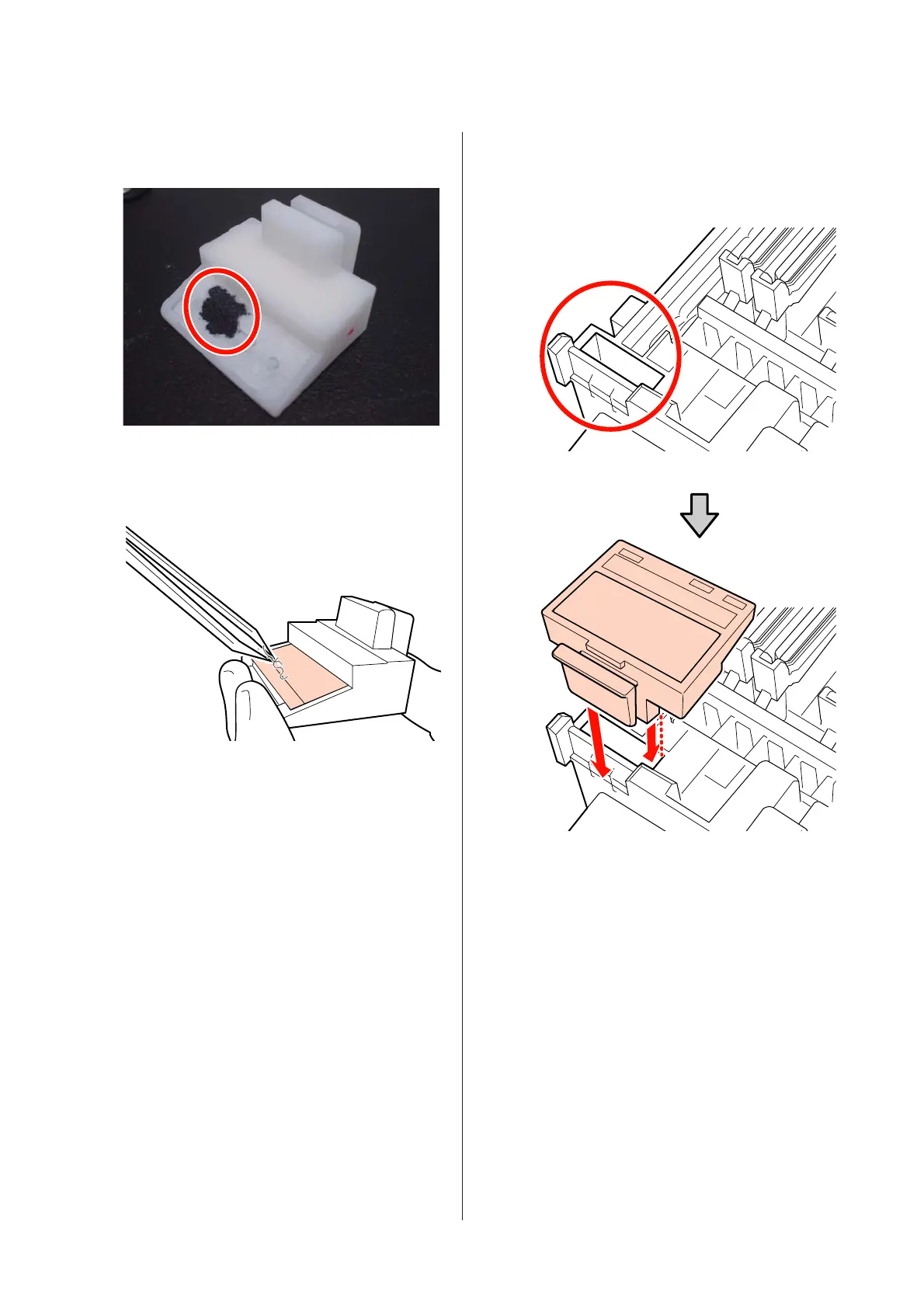
Remove lint or dust that has adhered to the
bottom surface of the wiper cleaner using
tweezers.
E
Clean the wiper rail once every two weeks.
If two weeks have not passed since the last time
the wiper rail was cleaned, go to step 6.
U “Cleaning the Wiper Rail (Once Every Two
Weeks)” on page 112
F
Attach the wiper cleaner.
Place on the attachment point and press down
until you hear a click.
For the SC-S70600 series and SC-S50600 series,
clean the other wiper cleaner in the same way.
G
After cleaning, close the right maintenance cover
and press the Z button.
The menus will close when the print head returns to its
normal position.
To continuously make prints, perform Nozzle Check.
U “Printing nozzle check patterns” on page 128
Disposing of used ink cleaner, cleaning stick, and
clean-room wipers U “Disposal of used consumables”
on page 126
EPSON SC-S70600 series/SC-S50600 series/SC-S30600 series User's Guide
Maintenance
110



 To Next Page
 Loading...