EasyManua.ls Logo

Epson Stylus C79 - User Manual

Epson Stylus C79
85 pages
Print Icon
To Next Page IconTo Next Page
Loading...
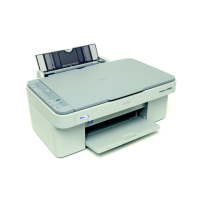
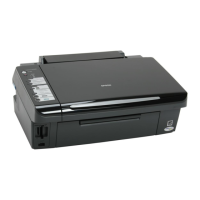
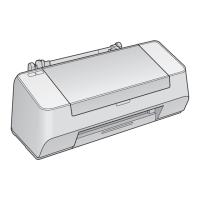
Epson Stylus C58/C59
Epson ME 2
Epson Stylus C79/D78
Epson Stylus C90/C91/C92/D92
Epson Stylus T20/T20E/T23/T26/S20
Epson Stylus T10/T11
Epson ME 30
Epson Stylus T21/T24/T27/S21
Color Inkjet Printer
SEIJ06-003
SERVICE MANUAL
Confidential

Table of Contents

Other manuals for Epson Stylus C79

Questions and Answers

  • J
    Joshua AlvarezJul 25, 2025
    What to do if my Epson Stylus C79 Printer has a paper jam?
    • J
      john57Jul 26, 2025
      If your Epson printer indicates a paper jam, try the following: 1. Press the [Maintenance] button on the printer's panel. 2. If the paper jam persists, open the printer cover and remove all paper from inside the printer and the hopper. 3. Ensure there is no paper inside the printer, then load paper on the hopper and press the [Maintenance] button again. This should resolve the issue if the leading or trailing edge of the paper couldn't be detected during feeding.
  • E
    Elizabeth VelazquezAug 1, 2025
    How to fix fatal error on Epson Printer?
    • E
      Erin WardAug 1, 2025
      If your Epson printer displays a fatal error, follow these steps: 1. Turn the printer off, wait a few seconds, and then turn it back on. 2. If the error persists, turn the power off again, remove the paper from the hopper, and check the following: * Open the printer cover, check the ink cartridges, and reinstall them correctly. * Check for any foreign material or paper inside the printer and remove it. 3. Turn the printer power on. This addresses issues where the carriage home position couldn't be detected, abnormal pressure was applied during power-on, or carriage movement was obstructed during printing.
  • A
    amyhebertAug 7, 2025
    What to do if my Epson Stylus C79 says 'Paper Out'?
    • M
      Martin MedinaAug 7, 2025
      If your Epson printer displays a 'Paper Out' error, here's what to do: 1. If the paper tray is empty, load paper into it. 2. If the paper stopped halfway, remove the paper, ensure it is not bent, fan the paper, and load it against the edge guide. 3. Press the [Maintenance] button to clear the error. This usually happens when no paper is loaded, paper stops before the PE sensor, paper isn't aligned against the edge guide, or the PE sensor connector is disconnected.
  • J
    John MaloneAug 12, 2025
    Why does my Epson Printer say 'Ink end/ No ink cartridge/ Incorrect ink cartridge'?
    • A
      Adam BartlettAug 12, 2025
      Your Epson printer may display 'Ink end/ No ink cartridge/ Incorrect ink cartridge' for the following reasons: * The ink inside the Bk, Y, M, C cartridges has run out. * Ink cartridge(s) is not installed. * Non-genuine ink cartridge(s) is installed. To resolve this: * Check the ink cartridge(s) and reinstall it correctly. * Replace the ink cartridge(s) with a genuine one.
  • Y
    Yesenia GarciaAug 18, 2025
    What causes a double feed error on an Epson Stylus C79 Printer?
    • H
      Heather CamposAug 19, 2025
      A double feed error on your Epson printer can occur for these reasons: * When performing duplex printing, blank paper is ejected. * The printer detected that the paper is too long upon ejection. To fix this: 1. Remove the blank paper, or check the paper size. 2. Press the [Maintenance] button to eject the paper and release the error.

Summary

PRECAUTIONS

Safety Precautions and Warnings

Details DANGER and WARNING precautions for personal injury and equipment damage.

About This Manual

Manual Configuration Overview

Outlines the structure of the manual, listing its chapters.

Symbols Used in the Manual

Explains various symbols used to convey important information and warnings.

Chapter 1 PRODUCT DESCRIPTION

Printer Features

Details the main features, dimensions, and weight of the printer models.

Printer Specifications

Lists detailed technical specifications including print speed, resolution, and paper handling.

Paper Support

Specifies supported paper types, sizes, thickness, and weight.

Printable Area and Margins

Defines printable area sizes and margins for different paper types and models.

Ink Cartridge Information

Lists ink cartridge numbers and types for various printer models.

Black Ink Save Mode

Explains the black ink save mode feature and its operating procedure.

Interface Specifications

Details interface standards and descriptors, including USB specifications.

General Specifications

Covers electrical, acoustic noise, safety approvals, and CE marking details.

Control Panel Operations

Describes the functions of the printer's buttons and LED indicators.

Errors and Panel Status

Lists printer errors, their causes, and status indications via LEDs.

Printer Initialization

Explains the different methods for initializing the printer.

Chapter 2 OPERATING PRINCIPLES

Printer Mechanism Overview

Provides a general overview of the printer's internal mechanisms.

Printhead Specifications

Details the nozzle configuration and arrangement of the printhead.

Carriage Mechanism

Describes the components of the carriage mechanism, including CR motor specs.

Paper Feeding Mechanism

Explains the paper loading and feeding process and its drive mechanism.

Ink System Mechanism

Describes the pump and capping mechanisms within the ink system.

Power-On Sequence

Details the sequence of operations when the printer is powered on.

Chapter 3 TROUBLESHOOTING

Preliminary Checks

Lists essential checks to perform before troubleshooting printer issues.

Troubleshooting LED Error Indications

Explains LED error displays, their causes, and recommended remedies.

Troubleshooting Motors and Sensors

Provides guidance on troubleshooting issues related to printer motors and sensors.

Chapter 4 DISASSEMBLY;ASSEMBLY

Disassembly Overview and Precautions

Introduces disassembly procedures and outlines critical safety precautions.

Tools and Screws

Lists required tools and specifies screw types used in disassembly.

Work Completion Check

Provides a checklist to verify proper completion of service work.

Caution After Repair

Advises on securing the CR Unit before shipping the product after repair.

Procedural Differences Between Models

Highlights procedural variations for different printer models during disassembly.

Disassembly Procedures Flowchart

Presents a flowchart illustrating the sequence of disassembly steps.

Removing Housing

Details the procedure for removing the printer's housing components.

Removing Board

Explains how to remove and replace the main printer board.

Disassembling Printer Mechanism

Covers the disassembly of various printer mechanism parts.

Procedures Specific to Epson Stylus C58;C59;ME 2

Specific disassembly procedures for certain Epson models.

Shortest Way to Remove Main Frame

Alternative method for removing the main frame with other parts attached.

Chapter 5 ADJUSTMENT

Adjustment Items Overview

Lists and describes various adjustment items required for printer service.

Servicing Adjustment Item List

Provides a detailed list of adjustment items and their purposes.

Replacement Part Adjustment Items

Maps replacement parts to required adjustment items.

Adjustment by Using Adjustment Program

Explains how to perform adjustments using the printer's software program.

Head Angular Adjustment

Procedure to adjust printhead angular tilt for optimal printing.

Top Margin Adjustment

How to adjust the top margin setting for print output.

Bi-D Adjustment

Adjusts print timing for bidirectional printing paths.

First Dot Adjustment

Corrects the starting print position in the main scan direction.

PF Band Adjustment

Corrects paper feed variations and accuracy.

Chapter 6 MAINTENANCE

Cleaning Procedures

Details cleaning procedures for exterior parts, interior, and rollers.

Service Maintenance

Steps to clear maintenance request errors and perform printhead cleaning.

Lubrication Points

Specifies lubrication points, types, and amounts for printer mechanisms.

Chapter 7 APPENDIX

Exploded Diagram; Parts List

Information on obtaining exploded diagrams and parts lists.

Epson Stylus C79 Specifications

General IconGeneral
BrandEpson
ModelStylus C79
CategoryPrinter
LanguageEnglish

Related product manuals