239
1. Load a multi-page original with blank pages or barcodes inserted where you want to start a new
scanned file.
2. Do one of the following to start Document Capture Pro:
• Windows 10: Click and select EPSON Software > Document Capture Pro.
• Windows 8.x: Navigate to the Apps screen and select Document Capture Pro.
• Windows (other versions): Click or Start, and select All Programs or Programs. Select
EPSON Software > Document Capture Pro.
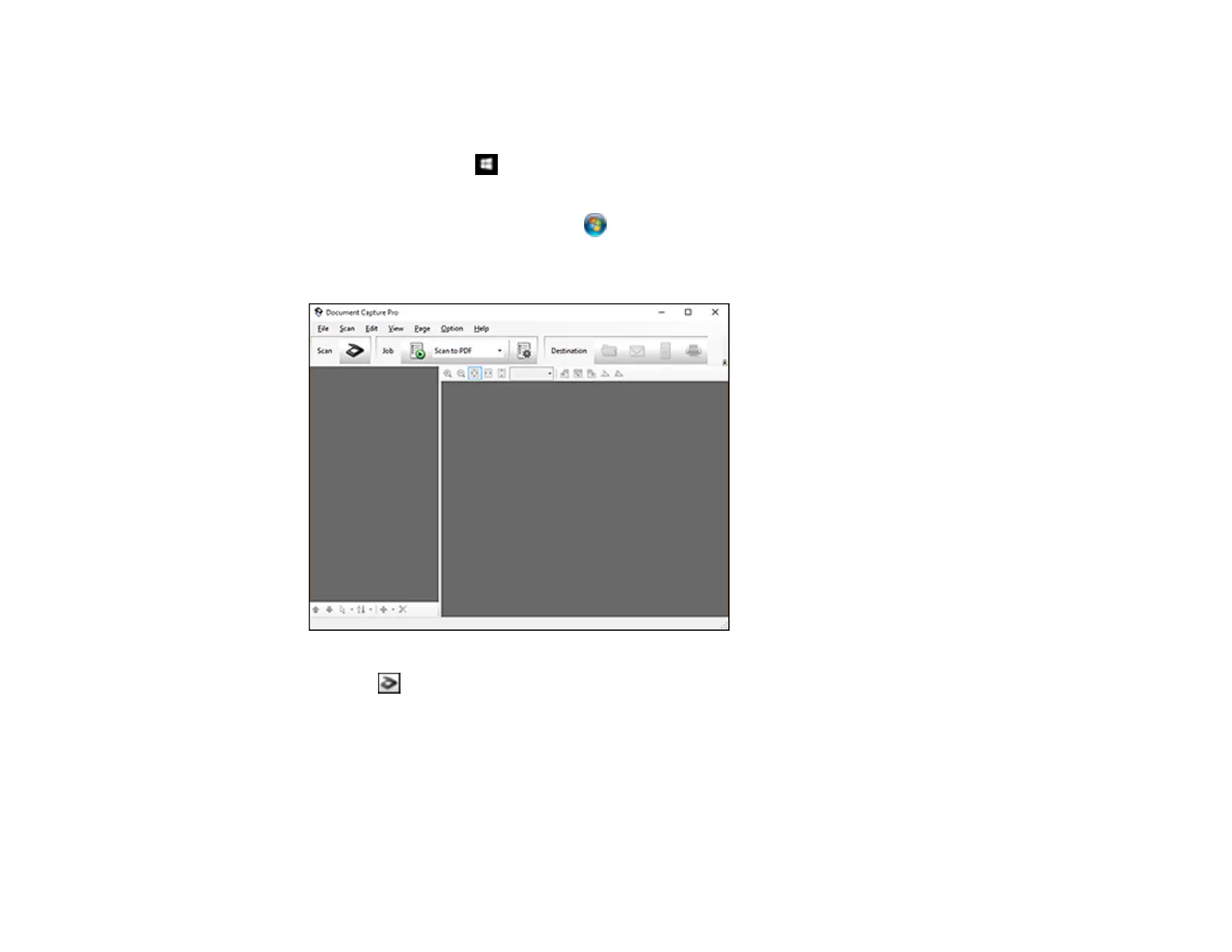
You see this window:
3. Click the Scan icon.
4. Select any displayed scan settings you want to use.
Note: See the Help information in Document Capture Pro for details.
5. Click Scan.
You see a preview of your scan in the Document Capture Pro window.











 To Next Page