215
5. Follow the on-screen instructions to print an alignment sheet.
Note: Do not cancel printing while you are printing head alignment patterns.
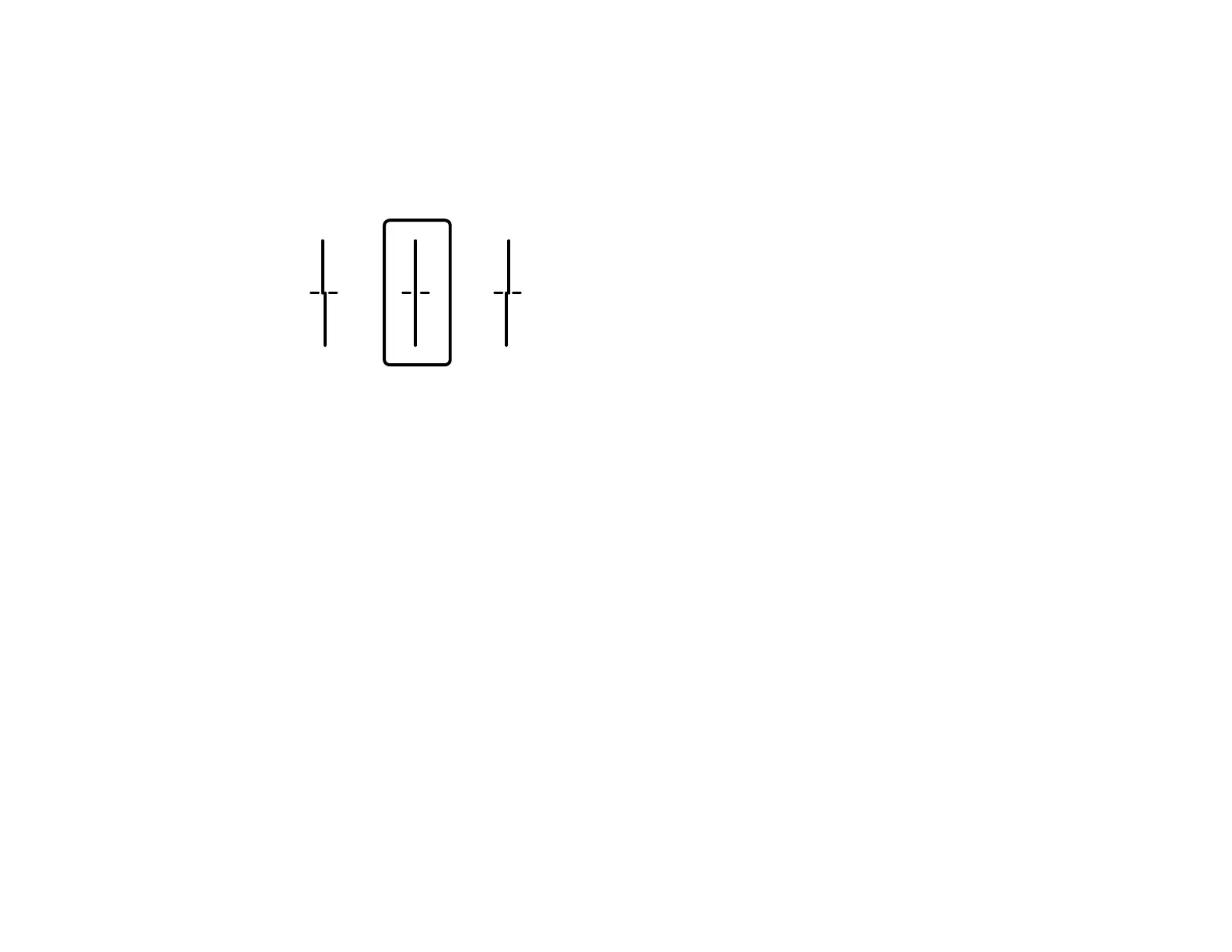
6. Check the printed patterns on the alignment sheet and select the number representing the pattern
with the least misaligned vertical line on the LCD screen:
7. Select Done.
Parent topic: Print Head Alignment
Related topics
Loading Paper
Print Quality Adjustment
If your printouts become grainy or blurry, you notice misalignment of vertical lines, or you see dark or
light horizontal bands, you may need to adjust the print quality.
Note: Banding may also occur if your print head nozzles need cleaning.
Adjusting the Print Quality Using the Product Control Panel
Adjusting the Quality for Each Paper Type
Parent topic: Adjusting Print Quality
Adjusting the Print Quality Using the Product Control Panel
You can adjust the print quality using the control panel on your product.
1. Make sure there are no errors on the LCD screen.
2. Load a few sheets of plain paper in the product.













 To Next Page