47
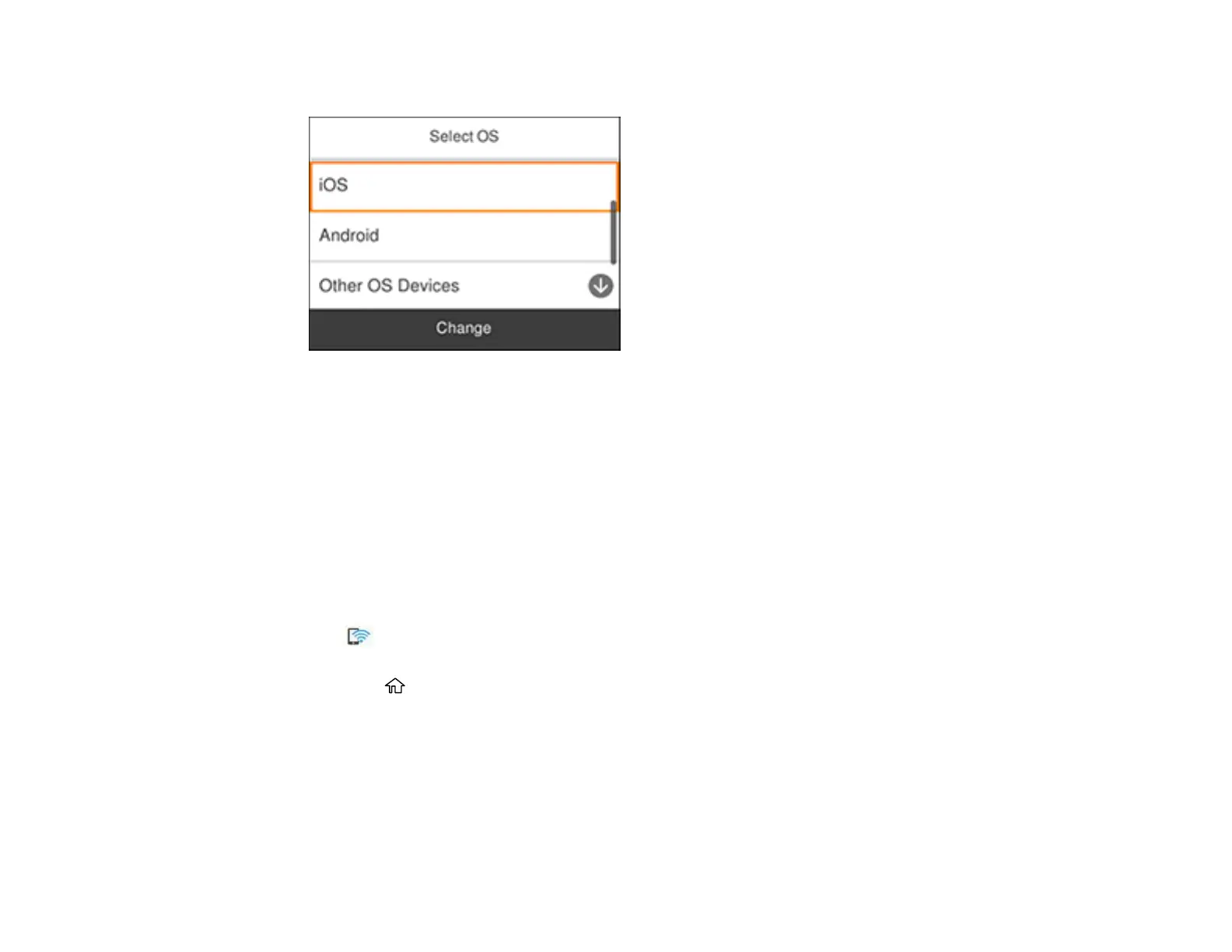
You see a screen like this:
5. Do one of the following:
• For iOS devices, select iOS. Scan the QR code with the camera app on your device and follow the
instructions on your device. Select Next on the LCD screen to verify the product information, then
open the Epson iPrint app on your device and select the product displayed on the LCD screen.
Select Complete on the LCD screen.
• For Android devices, select Android. Open the Epson iPrint app on your device and select the
product displayed on the LCD screen. Select Complete on the LCD screen.
• For other types of devices, select Other OS Devices. Use your device to select the Wi-Fi network
name (SSID) displayed on the LCD screen, and enter the password shown.
6. Follow the instructions on the LCD screen to complete Wi-Fi Direct setup.
The Wi-Fi Direct icon is displayed on the LCD screen and indicates if Wi-Fi Direct is enabled on
the product.
7. Press the home button to exit.
Parent topic: Wi-Fi Direct Mode Setup
Related references
Status Icon Information













 To Next Page