30
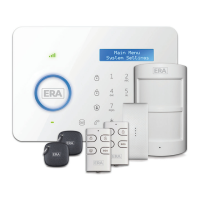
The Control Panel is supplied set to a default user code, admin code and duress code.
Please change all codes before system use and only disclose your codes to authorised
system users.
Access Code
Admin Code
An ‘admin code’ user can arm and disarm the system, change system settings, reset
codes etc. To change the Admin Code:
Log into the menu, press or , choose “System Settings”, press .[ ] [ ] [Enter]
Press or , choose “Access Code”, press .[ ] [ ] [Enter]
Press or , choose “Admin Code”, press .[ ] [ ] [Enter]
The LCD screen will show “Input 6 Digits”. Input the current admin code and press
[Enter]. (Default Admin Code: 123456)
Input the new 6 digit admin code, press .[Enter]
A ‘user code’ user can set arm and home modes and disarm the alarm system.
To change the User Code:
User Code
Log into the menu, press or , choose “System Settings”, press .[ ] [ ] [Enter]
Press or , choose “Access Code”, press .[ ] [ ] [Enter]
Press or , choose “User Code”, press .[ ] [ ] [Enter]
The LCD screen will show “Input 4 Digits”. Input the current user code and press
[Enter]. (Default User Code: 1234)
Input the new 4 digit user code, press .[Enter]
Duress Code
In the case of an emergency situation, i.e. intrusion or attack, it is recommended that
the duress code is used to disarm the alarm system. The Control Panel will silently dial-
out to the alarm telephone numbers stored. To change the Duress Code:
Log into the menu, press or , choose “System Settings”, press .[ ] [ ] [Enter]
Press or , choose “Access Code”, press .[ ] [ ] [Enter]
Press or , choose “Duress Code”, press .[ ] [ ] [Enter]
The LCD screen will show “Input 4 Digits”. Input the current code, press . [Enter]
(Default Duress Code: 1111)
Input the new 4 digit duress code, press .[Enter]


 To Next Page