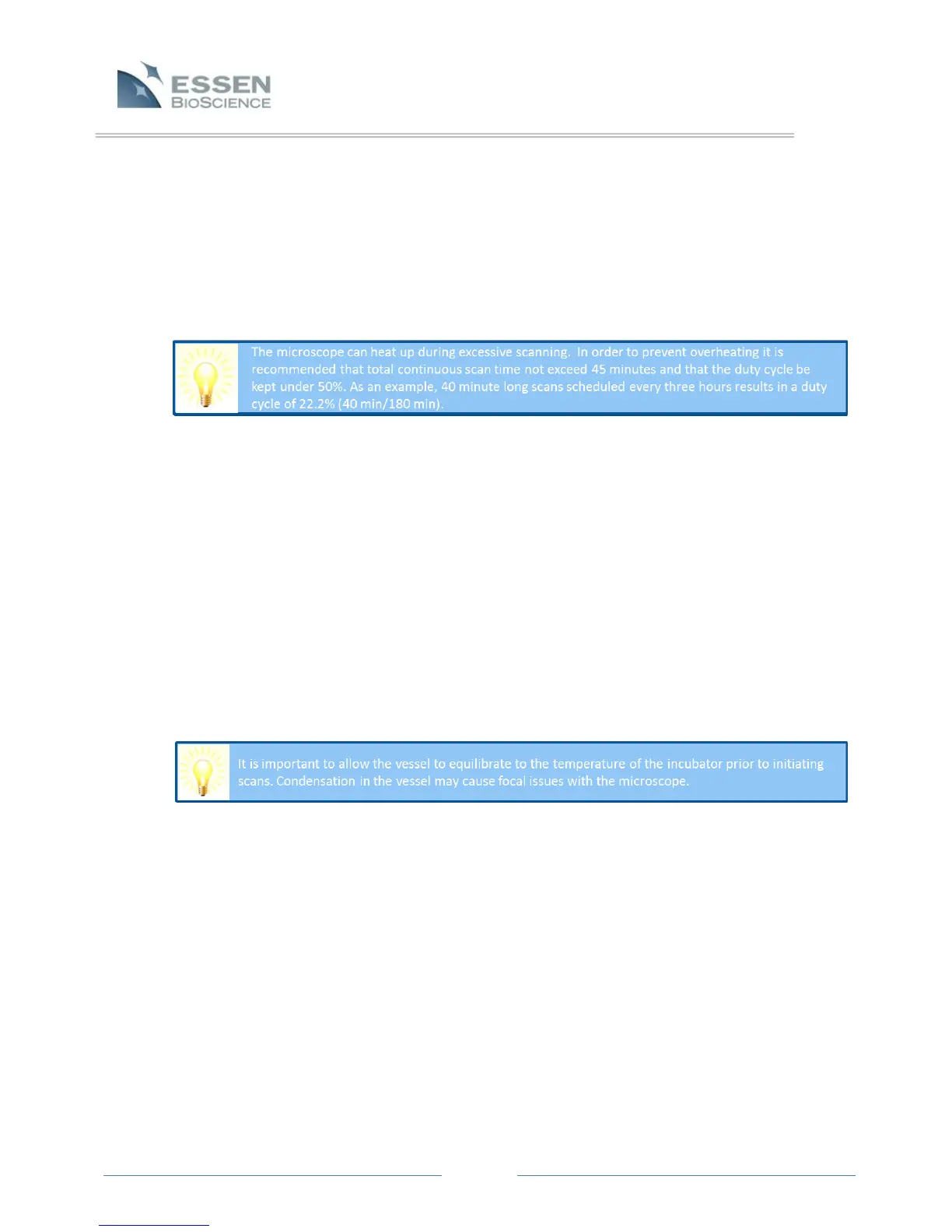
7.3.1.6 Multiple Vessel Scheduling: When scanning multiple vessels, the “Vessel
Scheduling” button at the bottom of the Schedule Scans screen allows the
User to insert cooling (idle) times between vessel scans and customize the
order in which IncuCyte™ scans vessels. Using the Auto-Cool function is
recommended and allows for the most efficient vessel scheduling.
NOTE: The Multiple Vessel Scheduler is ONLY needed if Users plan to
introduce cooling times or need to change the order of scanned vessels.
7.3.1.7 Apply Schedule: When the Scan Setup, vessel Properties and Scan Time(s)
have been set, select the “Apply” button at the bottom of the screen. A
window will appear confirming that scanning parameters have been applied.
NOTE: Pressing the “Reload” button at the bottom of the Schedule Scans
screen will reset all settings (physical layout, properties, scan times, etc.)
back to the way they were prior to the last time the “Apply” button had been
selected.
7.3.1.8 Place Tray and Vessel in IncuCyte™: Place the appropriate tray (refer to
section 7.8.1 Selecting and Placing Trays) and vessel in the pre-determined
position within the IncuCyte™. Allow time for the vessel to equilibrate to the
temperature of the incubator prior to initiating scans (approximately 15- 20
minutes).
7.3.1.9 Terminating Scan Times and Deleting Vessels:
1. To terminate scanning, right-click on the Scan Bar to be deleted and
either select delete (for that specific scan time) or delete all (to remove
all scan times). Select the “Apply” button at the bottom of the screen. A
scan can also be manually terminated by pushing the Stop button on the
front of the IncuCyte™. Pushing the Stop button will abort the scan that
is ongoing at that time. However, if scanning is terminated in this way,
the IncuCyte™ will start scanning again at the next scheduled scan time.
The ONLY way to terminate all future scans is by deleting all the Scan
Bars and then selecting “Apply”.
2. To remove a vessel from the schedule, simply highlight the desired vessel
and click on the “Remove Vessel” button. Select the “Apply” button on
the bottom of the screen.



 To Next Page