7.4.1.2 Search Tab: Scanned vessels can also be found by using the Search option
found in the left task list pane. Once the Search screen is displayed, Users can
search the entire Scanned Vessels table using the “Find” field or search
within individual columns. The searching tools within the IncuCyte™ ZOOM
software auto filters the table as soon as Users begin typing (at the beginning
and within words), thus quickly narrowing down to a limited list of scanned
vessels. Users can also place quotation marks around search terms in order
to search the complete string.
NOTE: Searches are NOT case sensitive.
1. Using the “Find” field, searches the entire Scanned Vessels table. Use the
Clear button located next to the Find field to remove filter results.
2. Search a specific column by clicking on the first row of the column.
Column searching offers the auto sort when typing as well as multiple
other functions which are listed in the table below. Refer to Table 4 for
details.
NOTE: Because the column search tools use the “and” function to filter,
Users are able to filter scanned vessels using multiple columns. For
example, you can use the User Column to narrow down to an individual,
and then sort using other column fields such as Label, Color Data, or Cell
Type.
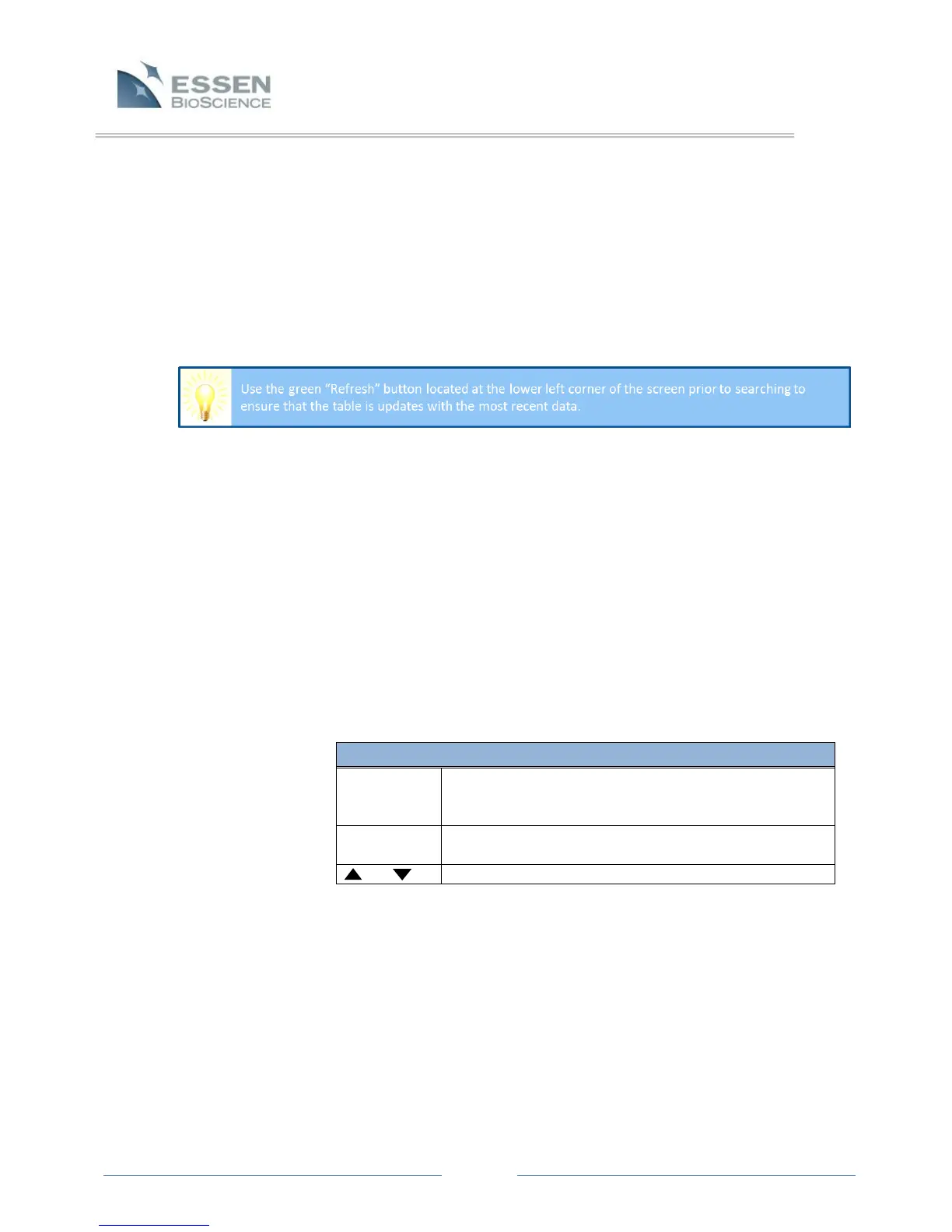
Table 4. Column Search
Allows you to sort and customize the column. For example
you can sort, edit the script language, or remove or add a
column.
Left-click on the funnel icon in the upper right corner to
filter.
Ascending or descending sort tool.
3. Filtering using the Start Date/Time column requires you to right-click on
the funnel icon in the upper right corner. A calendar is displayed,
showing the current month and day. To drill out, simply click on the
month. This then displays a yearly calendar by month. You can further
drill out by clicking on the year.
4. To clear a filtered column search in order to begin a new search, click on
the “x” in the lower left corner of the Search screen.



 To Next Page