56 NexLog Recorder User Manual v2.2.0
The 'Options' button next to the drive status will give you a menu of options for
the selected drive:
History: View a history of important events that have occurred to the drive.
Remove: will remove the disk drive from the RAID if it's a hardware RAID or if
the device is already FAULTY or DEGRADED
Set Faulty: option to begin the removal process for a Software RAID system on
a drive that is currently ACTIVE
Add: A drive that is IDLE or REMOVED can be added into a RAID to be utilized
by the RAID
The serial number displayed for each drive in the RAID can be helpful in the
case of a failed drive, to verify which drive needs to be replaced.
4.3.5. Configuration Files
Here you can view and edit configuration files stored on the recorder. Most of
the features that are configurable via files would rarely need to modify by end
users. The contents for these files should be provided by Eventide or your
Eventide Dealer and simply pasted into the edit box. However some of these,
such as configuration files for VoIP Gateways are commonly edited by end users.
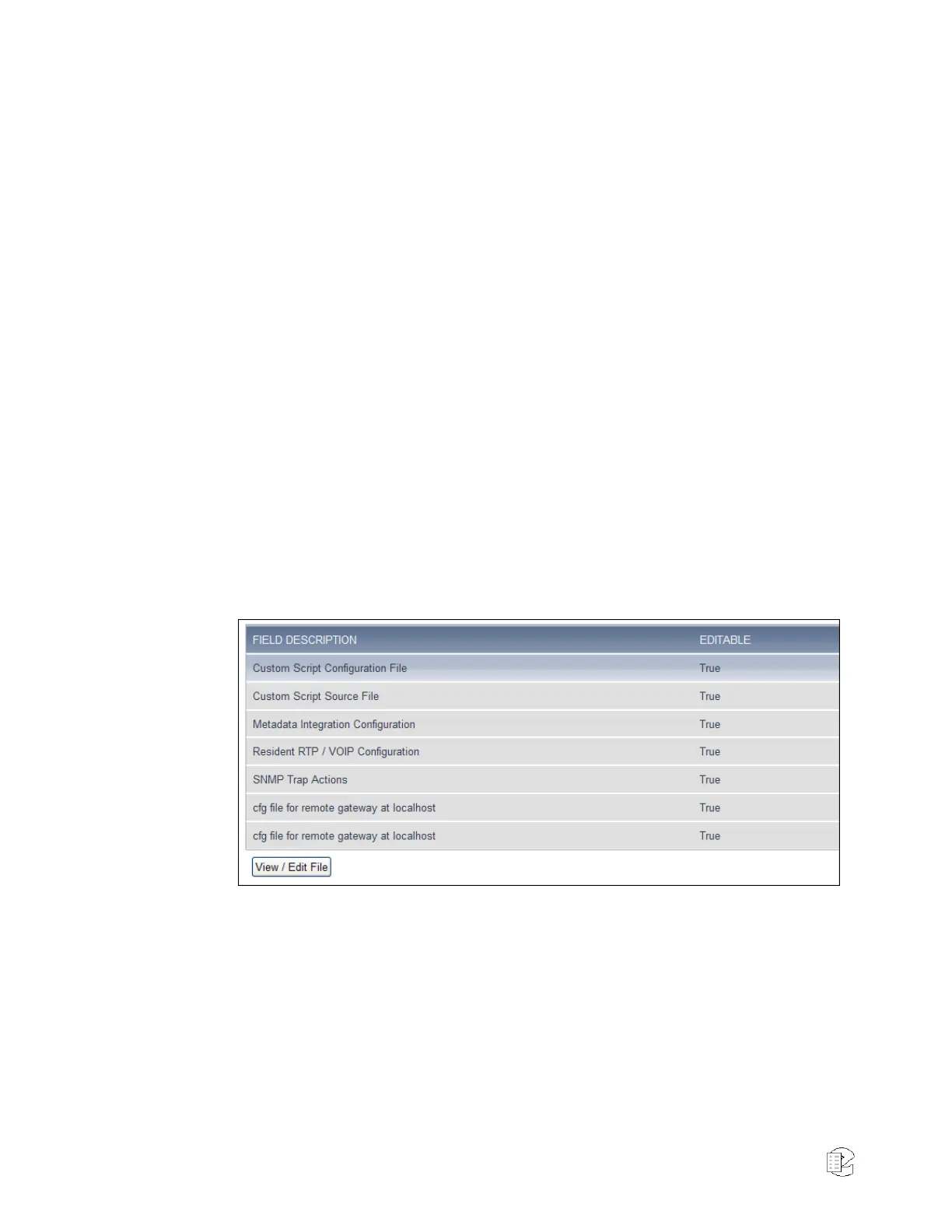
Select your configuration file from the list and press the 'View/Edit' button.
Figure 34—Configuration files
Make any necessary changes here and press ‘Save’ to save your changes.
Briefly, here is a description of the available files and their descriptions:
Metadata Integration Configuration: Configures Serial and IP Based Data feed
formats and actions the recorder should take upon receiving the data. Utilizing
this configuration file requires an Add-On Key for "Metadata feeds". This feature
is generally used when integrating the recorder to a data feed such as ANI/ALI
or SMDR which provides additional information about the calls being sent to the


 To Next Page