NexLog Recorder User Manual v2.2.0 41
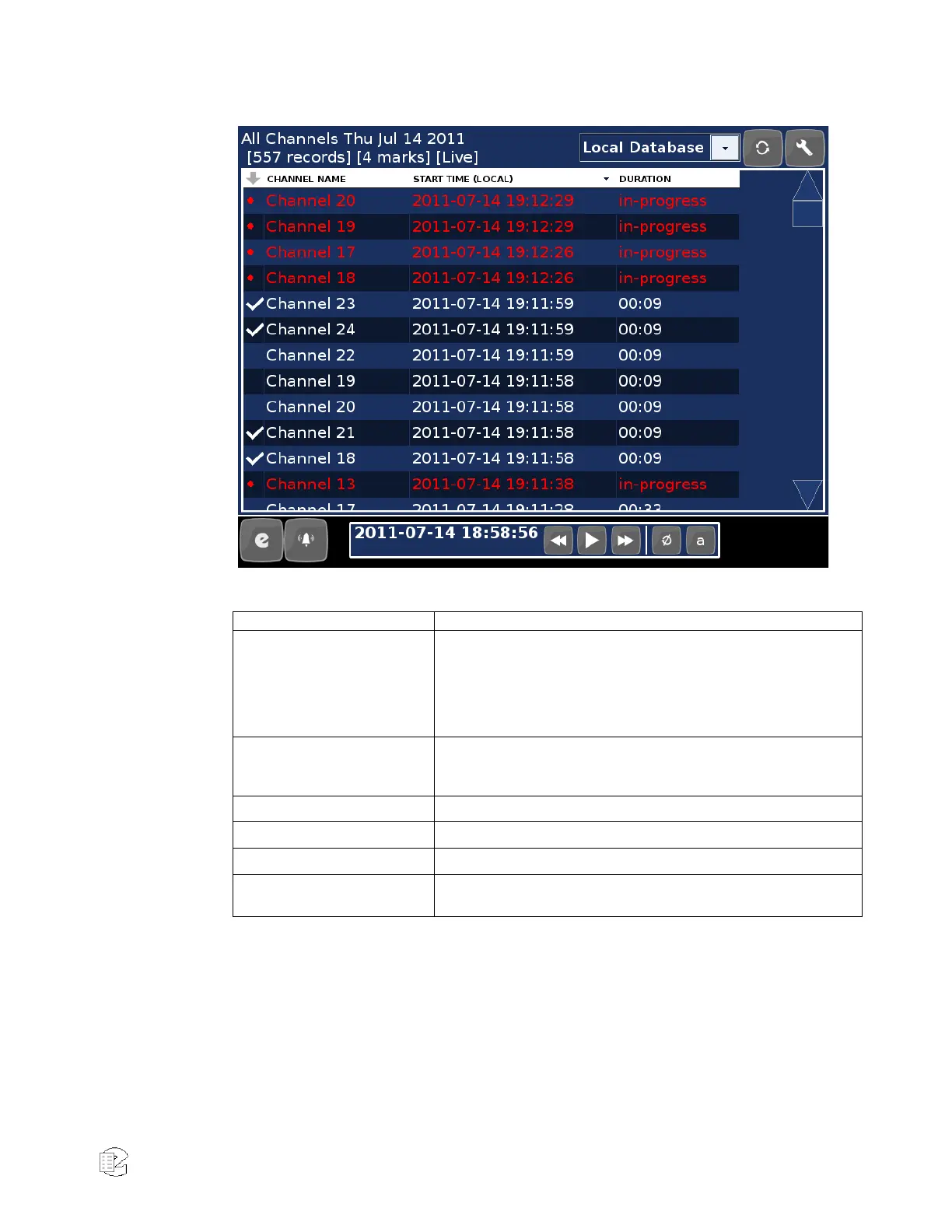
Figure 22—Replay Screen
Table 6—Replay Mode information
A brief summary of the current results are displayed at the top of
the screen. This includes the channels included in the current filter,
as well as the date and time ranges. The total number of queried
records is display, along with the number of records which are
‘selected’ for further processing. When monitoring live channel
activity, the ”[Live]” tag is also visible.
Select the data source to be queried by touching this drop list. The
local database is always available, along with any browsed
archives (see Info Mode for information on browsing archives).
Touch this button to refresh the current query.
Touch this button to display a menu containing additional functions.
Records matching the current filter are displayed here.
When playback is started, these controls allow typical playback
functions (next, previous, pause, loop, etc.).
Playing Audio Recordings
Do the following to play back a recording:
From the main Replay screen, touch or click on a recording. The audio recording
will play, and a timeline will display at the bottom of the screen showing the
recording’s playback status and general attributes.


 To Next Page