Space User Guide The Footswitches
27
The Footswitches – Play and Preset Mode
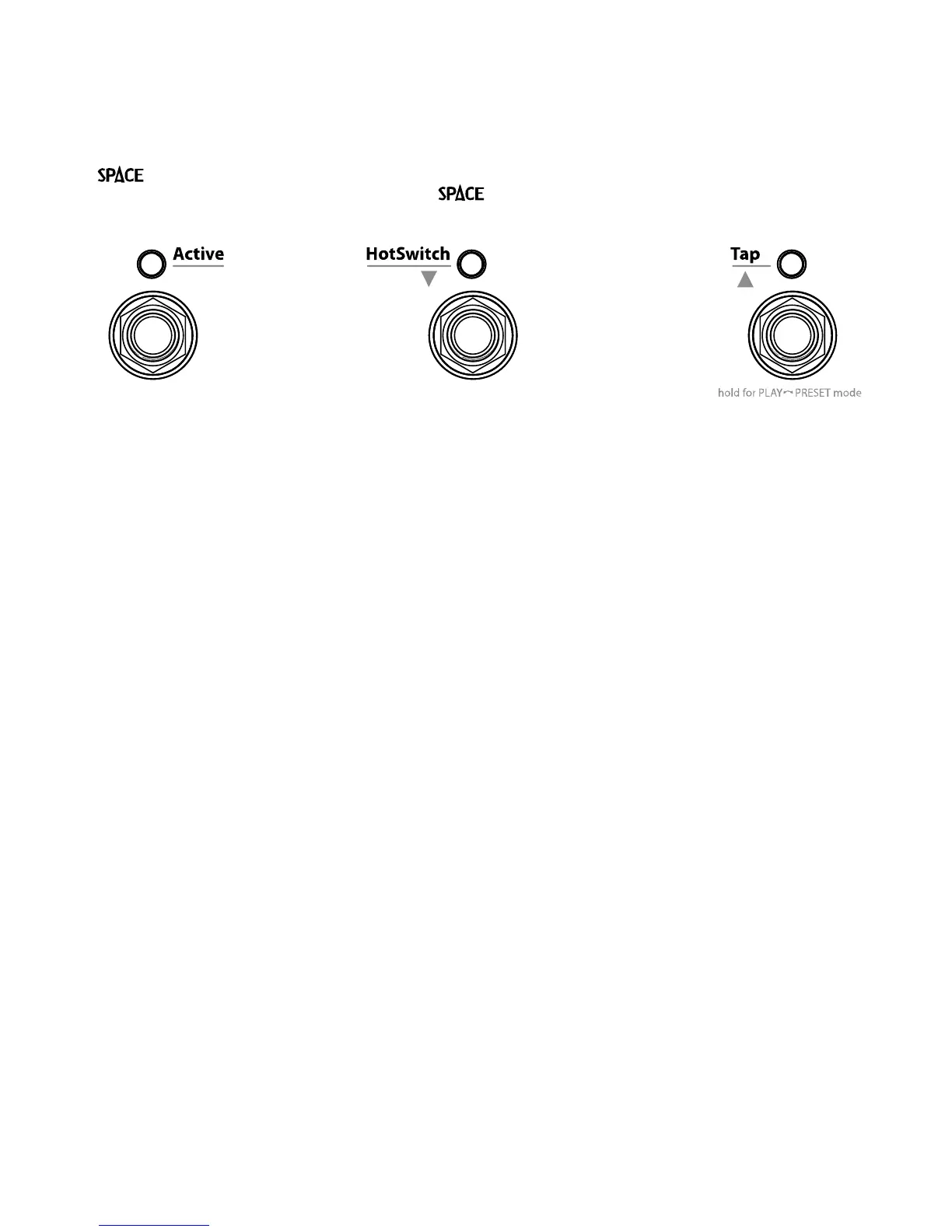
’s footswitches are multi-purpose and operate in one of three modes, Play Mode, Preset
Mode, and System Mode. In normal use, is in either Play Mode or Preset Mode. System
Mode is used to set up MIDI, external controls and various system parameters.
Pressing and holding the Right Footswitch switches between Play and Preset Mode.
Play Mode
In Play Mode, the Billboard displays the first 12 characters of the currently loaded Preset
Name. Three Footswitches are used to control the Preset.
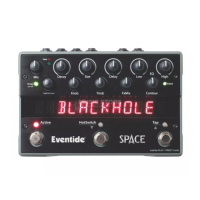
Active Footswitch
The “Active” footswitch is used to toggle between Active and Bypass. The Active LED is lit
orange when the Effect is in use. When Bypassed, the Active LED is off.
HotSwitch™ Footswitch
The Middle Footswitch can be programmed to act on the loaded Preset as a programmable
controller allowing the user to switch between the normal Preset parameter values and a
programmed, alternate set of parameter values. It’s like having two Presets in one!
When a Preset is loaded with a HotSwitch assignment, the Middle Footswitch LED will be lit
GREEN to indicate that the HotSwitch is “active.” (If the HotSwitch is not programmed, the
LED will be unlit.)
Press and release the HotSwitch and the Preset’s parameter values will change to their
HotSwitch programmed values, the LED will turn orange and the display will indicate which
of the parameters have been modified by the HotSwitch. If only a single parameter is under
HotSwitch control, the parameter’s value is displayed. If multiple parameters are under
HotSwitch control, the display is a graphic representation of the Control Knobs. Control
Knobs that are controlled by the HotSwitch are represented as circles while unassigned
Control Knobs are indicated by a solid line (dash).
Press and release the HotSwitch again and the Preset’s parameter values will return to their
default values (Preset values) and the HotSwitch LED turns GREEN. In this way, by pressing
and releasing the HotSwitch you can toggle between two settings for the loaded Preset.
You can also use the HotSwitch to only momentarily change the parameter values rather than
toggle between the two settings. Press and hold the HotSwitch and the values will change
while holding and revert back to the previous value upon release.


 To Next Page