30
Component Identification and Explanation
# Component Identication Function/Component Note
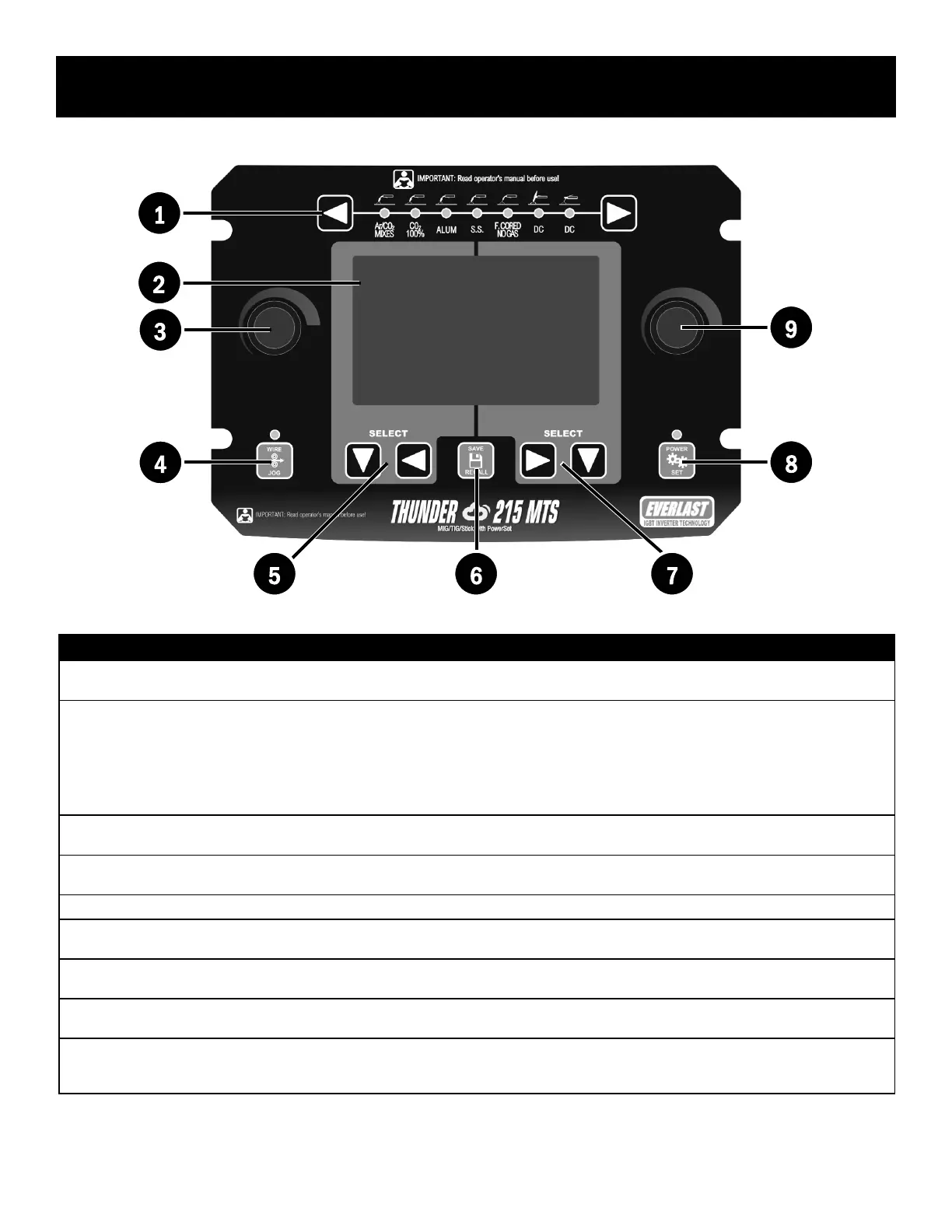
1. Welding Process Selector Press left or right arrow key connected to the process selector LEDs to navigate back and forth to select the desired weld pro-
cess. The LED will light to indicate which weld process has been selected. See Quick Setup Section.
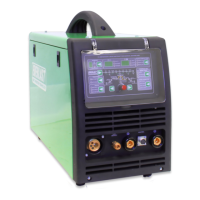
2. 4.3” 720HD TFT Color Display This display is designed to be clear and bright. It will provide long life if proper care is taken. Keep the flip down cover in place
when welding and when not in use. Remove temporary, original protective lm on the screen surface upon delivery. Use cut-to-
t screen protectors as a replacement for future use. Do not use harsh cleaners. Use only screen type cleaners sprayed onto a
damp, lint free rag to clean. Remove dust with short bursts of dry compressed air.
Notice: The operation of the screen is divided into left half and right half sides. The left and right half are divided by a green line
running down the middle of the screen on all adjustable pages of the menu. The left and right half are also highlighted further
by the black extended line in the middle of the green surrounded area of the screen that groups right and left side controls.
3. Left Adjustment Knob This control knob controls all the parameter values found on left-half side of the LCD screen. It is used to increase and decrease
the value. Helpful Hint: Press in and turn to increase the parameter value in larger increments to save time.
4. Wire Jog The wire jog function is designed to feed wire without pressing the trigger. This speeds up wire delivery when changing the wire
spools out or loading the gun with wire. It prevents waste of gas while wire is feeding during this change process.
5. Left-Half Side Navigation Keys The left side down and left arrow keys are used to navigate and select the left side parameters for adjustment.
6. Program Save Key Use this key to both access the program save menu, lock/unlock a program recall a program. See Quick Setup Section.
A short press will bring up the recall menu. A long 3 second press will bring up the save menu.
7. Right-Half Side Navigation Keys The right side down and right arrow keys are used to navigate and select the right side parameters for adjustment.
8. PowerSet Key The PowerSet key is used to activate the synergic programming of any welding mode. The LED will light to both conrm and
remind the user that the PowerSet Mode is activated. Also used to lock or unlock a program in the save mode
9. Right Adjustment Knob This control knob controls all the parameter values found on the right side of the LCD screen. It is used to increase and de-
crease the value. It is also used to select and navigate the pop up on-screen keyboard when naming the program or selecting a
program in the recall mode.
Control Panel Layout
1
2
5 6 7
8
3
4
9


 To Next Page