35
USING THE PROGRAM MENUS AND MEMORY FUNCTION.
The memory function on this machine allows the user to save and name up
to 30 different programs. (There are 30 programs but only 10 programs per
page.) Not only can the programs be saved, they can also be locked to
prevent unwanted or accidental tampering for WPS work requirements. The
process to save and recall the memory is relatively simple. However, there
are some differences in the way the machine is controlled from the main
menu screens. There are no longer any left or right division of control in
this mode. Only the right side control knob and Save/Recall Program but-
ton will be used for navigation and selecting. The PowerSet button is used
for selecting or deselecting the lock function. Most programs will say
“Empty” until they are lled by a program. But if there are some form of
program stored, these were stored during factory testing and not intended
to be functional settings. These programs can be saved over, after being
unlocked. Any recalled program can be ne tuned or adjusted, but the new
settings or changes made to the machine will not be kept.
NOTICE: There are no useful pre-stored programs on this machine.
IMPORTANT: It is advised not to use any programs designed for 240V
input with 120V input. However, if saving in 120V mode and 240V mode is
expected, be sure to include the voltage in the program name .
Navigating and Using the Recall Screen.
The program function consists of two screens: the recall screen and the
save screen. Both look alike except at the top information bar location, the
words “Recall” or “Save” are used. Be sure to notice which word is at the
top so that the unit is in the correct screen to perform the action desired.
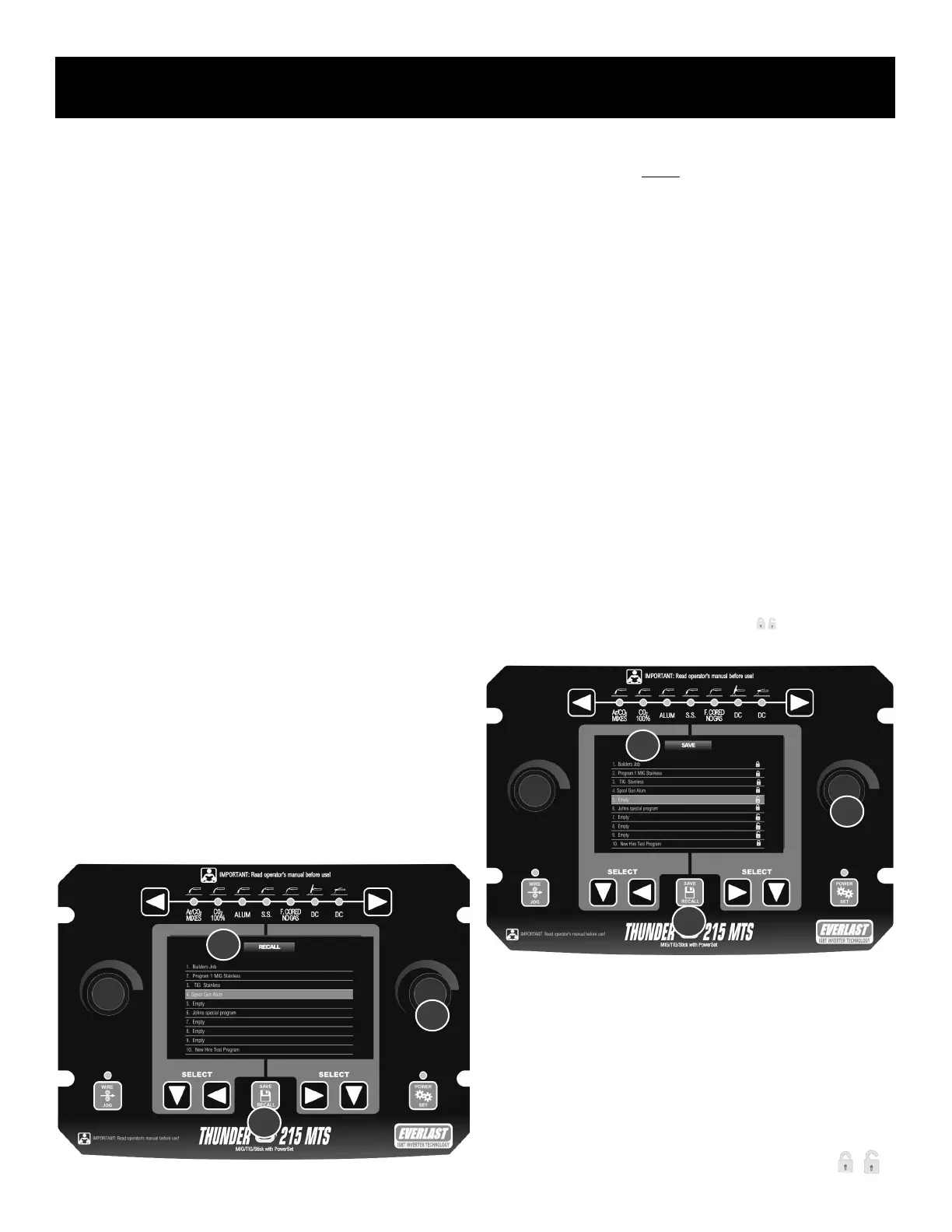
The recall screen is used to “recall” or bring up a desired program for use.
The recall mode does not allow any saving or any permanent modication
of the programming. A recalled program will allow adjustments to be made,
but the base program cannot be modied unless it is unlocked in the save
mode and completely resaved or saved over. Recall mode will always be a
safe mode to use for any user since programming cannot be saved over in
this mode.
1. To recall any program, quickly press and release the save program
button (1). This may be done from any process, even if the desired
process is not selected at the top of the selector. (The selected pro-
gram will override the process selector and display the saved program
and process.)
2. The Recall menu screen will appear and will be conrmed by the
green “Recall” bar (2) at the top of the screen.
3. Navigate to the desired program by rotating the right side adjustment
knob (3). A green bar will highlight the line chosen.
4. Press the right side adjustment knob (3) to select and enter and open
the program. The screen will display the program and settings like a
normal screen, but it will not allow it to be overwritten. The program-
ming will allow the user to make adjustments, but these will not be
permanent to the program.
NOTICE: If the recall mode is not being actively used, and no choice has
been selected/entered by pressing the right adjustment knob, the machine
will return back to the previous setting. It will not recall (bring up on
screen) the program, even if it has been highlighted.
Navigating and Using the Save Screen.
The Recall and Save screen are similar but the Save screen allows pro-
grams to be stored and features the lock/unlock ( ) function which will
allow a new program to be saved in the old memory slot.
1. To save, complete all normal setup for the process desiring to be
saved. Make sure all settings are correct before proceeding to step 2.
2. To access the save menu screen, press and hold the save/recall but-
ton (1) for at least three seconds before releasing.
3. When the button is released the Save screen will appear and the
green “Save” bar at the top of the screen will conrm the selection.
4. Navigate to the desired line by rotating the right side adjustment knob
(3). Each line will highlight in green as the adjustment knob is rotated.
5. Each line will have either a lock symbol or unlock symbol ( )
3
Component Identification and Explanation
1
2
1
2
3


 To Next Page