ShareLink Pro 500 • Operation Using a Computer 11
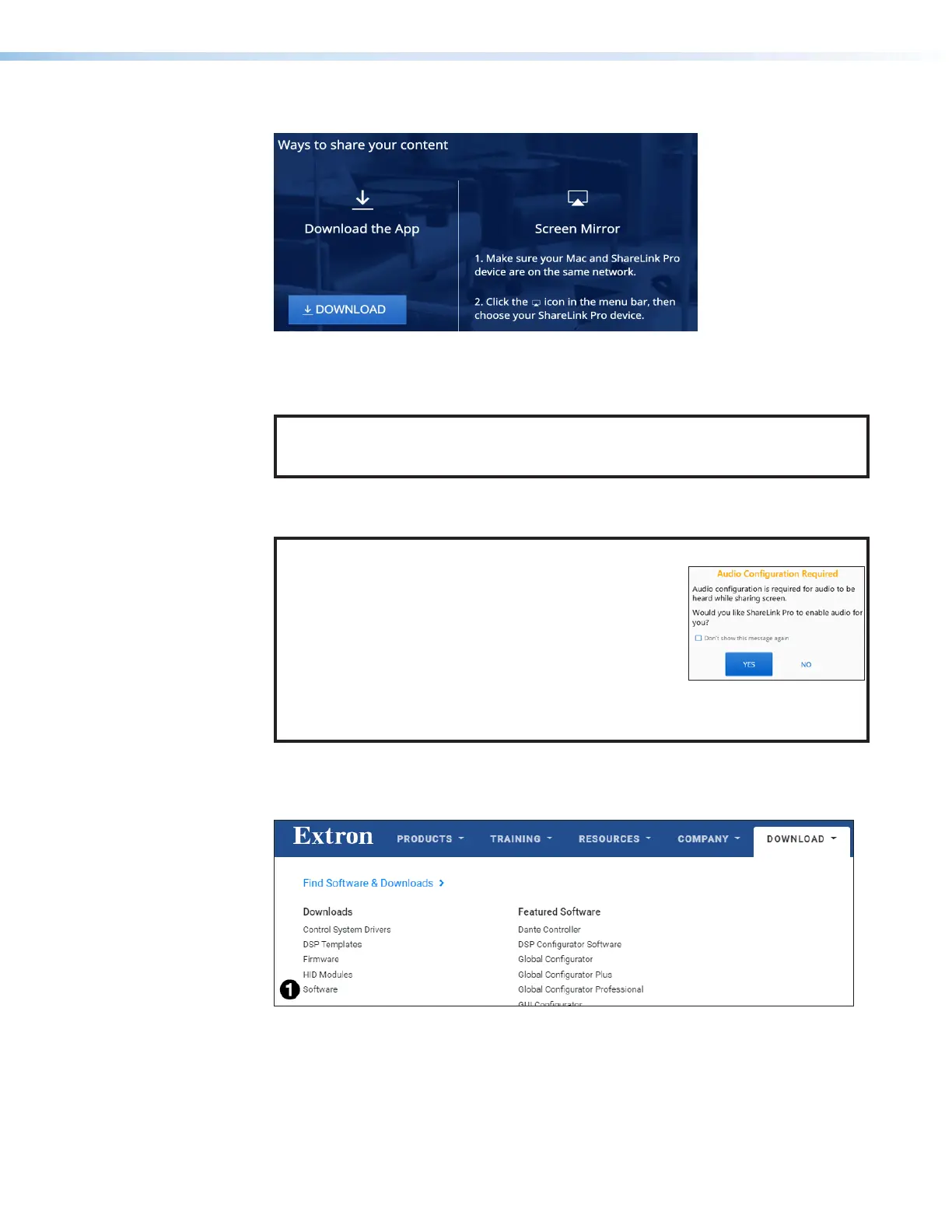
The ShareLink Pro 500 landing page opens on the browser:
11
22
Figure 7. ShareLink Pro Landing Page
3. Mac users: Click Download (
1
), or follow the instructions under Screen Mirror (
2
)
to share your screen without downloading the software.
NOTE: macOS users: The .app software file is embedded in a .zip file. Some
browsers automatically extract (unzip) the .app file. However, in some cases, the
user may need to extract the file.
Windows users: Click Download (
1
), and submit any required information to run the
executable (.exe) file.
NOTE: Windows users:
• If audio configuration is required, the ShareLink Pro
software displays the notification shown at right.
Click Yes to allow the ShareLink Pro software to
make the necessary audio configuration.
• If an audio driver is required, the software will also
ask for permission to install the Extron virtual audio
driver. If you choose not to install the driver, you may
do so later by clicking the information icon on the
Share Screen (see figure 11,
6
, on page 13).
Downloading the software from the Extron website
1. On the Extron website, go to the Download tab and click Software (see figure 8,
1
).
Figure 8. Download Page on the Extron Website
2. Click the S link (see figure 9,
1
on the next page).


 To Next Page