ShareLink Pro 500 • Operation Using a Computer 10
Operation Using a
Computer
Users can present from a Windows or Mac computer using the ShareLink Pro 500 software.
This section covers the following:
• Connecting a Computer to the ShareLink Pro 500
• Downloading the ShareLink Pro 500 Software
• Using the ShareLink Pro 500 Software
• Using the Embedded Web Page
Connecting a Computer to the ShareLink Pro 500
There are two ways to connect a computer to the ShareLink Pro 500:
• Wirelessly, through an external wireless access point (WAP)
• Wired, through a network device
See the following instructions for your preferred connection method.
Connecting through an External WAP
1. Ensure that the external WAP and the ShareLink Pro 500 are
wired to the same network.
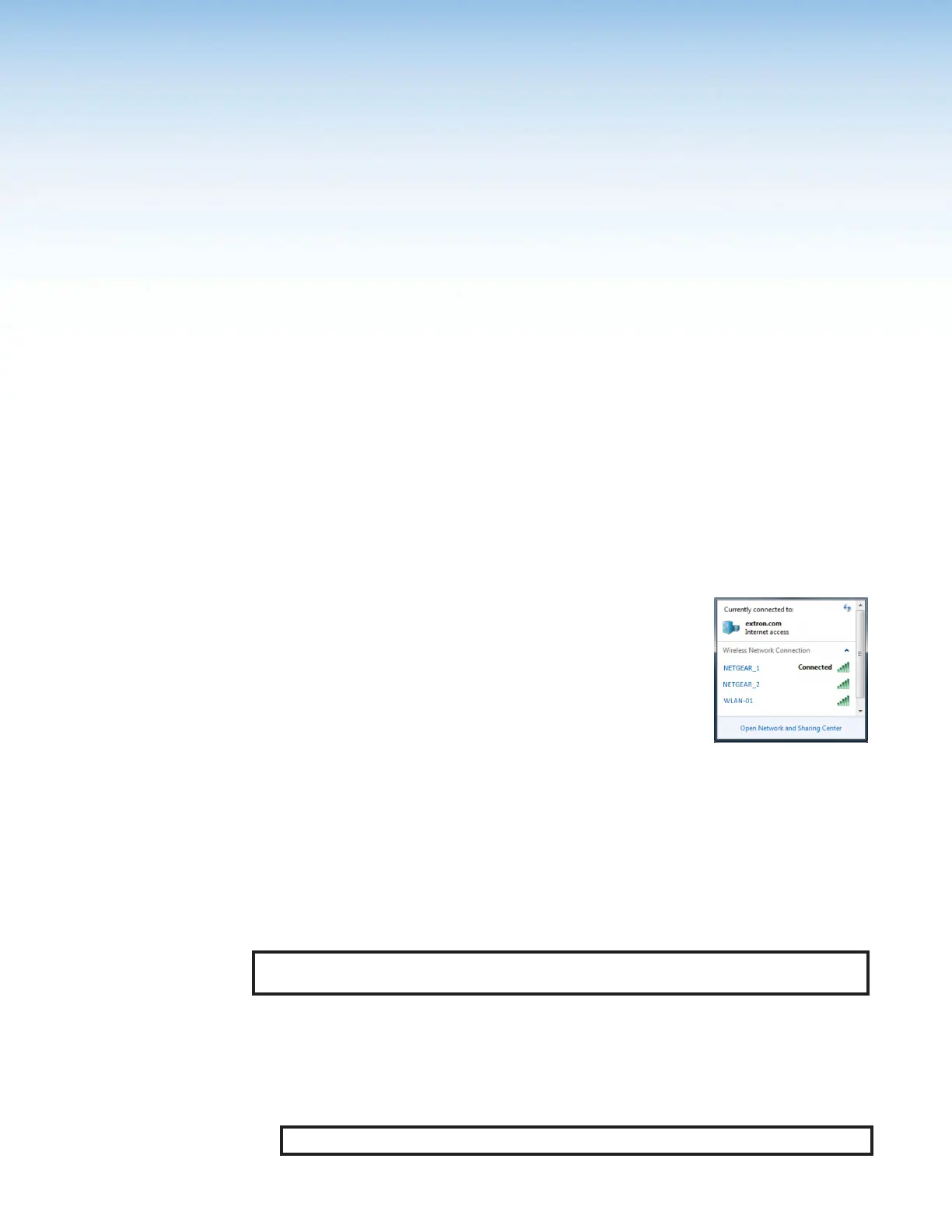
2. Ensure that the ShareLink Pro 500 is powered on and that
wireless network capability is enabled on your computer.
3. Open the wireless networks on your PC and connect to the
external WAP.
Connecting through a Network Hub, Switch, or Router
1. Ensure that your computer is connected to the network through a hub, switch, or router.
2. Connect the RJ-45 connector of the ShareLink Pro 500 to the network device using an
RJ-45 cable.
Downloading the ShareLink Pro 500 Software
The ShareLink Pro 500 software can be downloaded from the embedded web page or from
the Extron website. Follow the instructions below for your preferred download method.
NOTE: For other details on the embedded web page, see Using the Embedded Web
Page on page 15.
Downloading the software from the embedded Web pages
1. Ensure that your computer is connected to the ShareLink Pro 500, either through
an external WAP or through a physical network connection. The computer and the
ShareLink Pro 500 must be on the same network.
2. Open a web browser and enter the ShareLink Pro IP address into the browser.
NOTE: The IP address is shown on the standby screen (see figure 6,
2
on page 9).


 To Next Page