ShareLink Pro 500 • Operation Using a Mobile Device 23
Using iOS Screen Mirroring
This feature allows iOS device screens to be mirrored onto the display.
1. Ensure that the ShareLink Pro 500 is powered and connected to the network.
2. Connect your device to the ShareLink Pro 500 through Wi-Fi (see step 2 of Connecting
to a ShareLink Pro Unit on page 20).
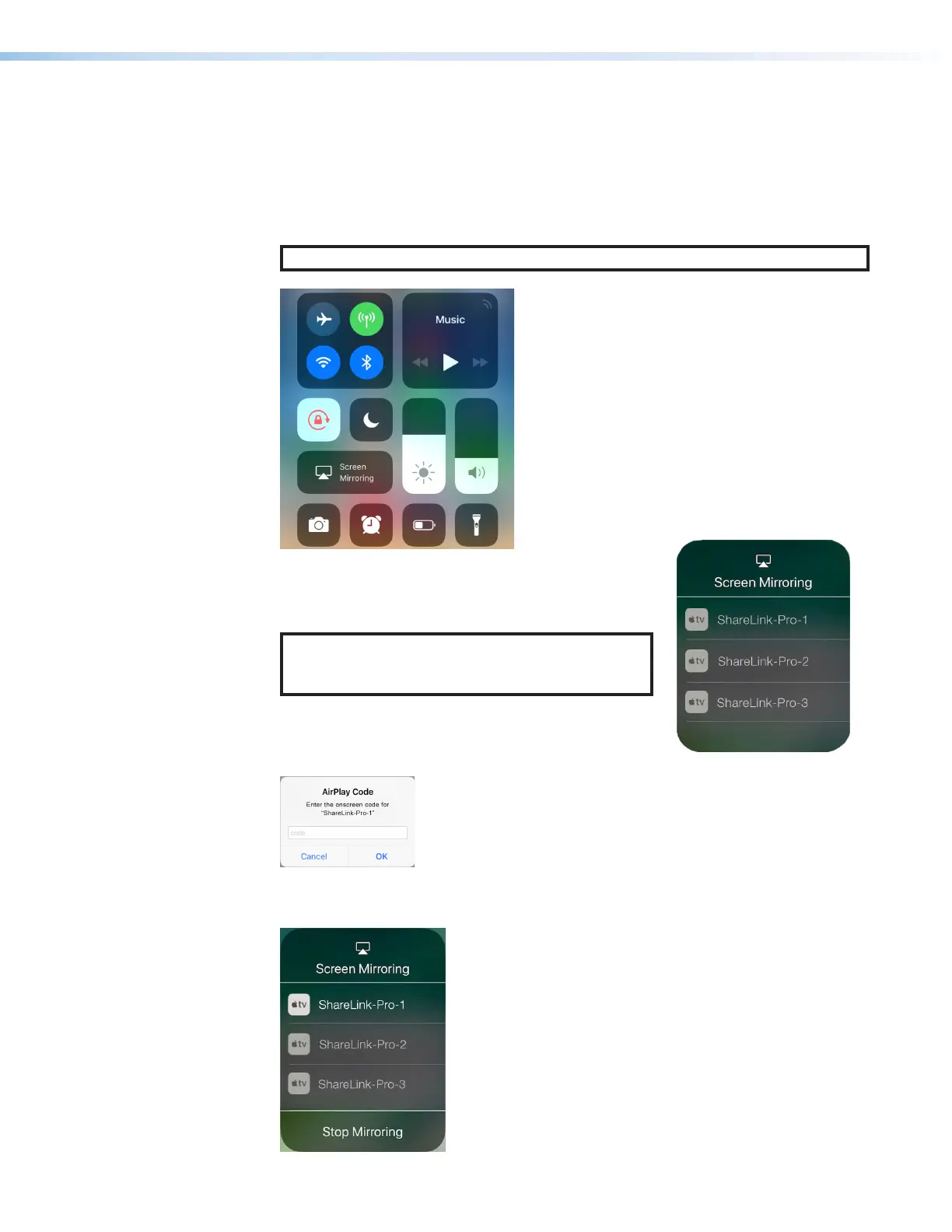
3. Open the iOS device control center and select Screen Mirroring (see
1
, below).
NOTE: Options may look different depending on the iOS version.
11
The discovered devices list appears as shown at right.
4. Select your ShareLink Pro device from the discovered
devices list.
NOTE: If your ShareLink Pro device is not listed
because it is on a different subnet, follow the
instructions on the next page.
If prompted for a code (as shown below), enter the
ShareLink Pro login code (as shown on the standby
screen), and press OK.
The device screen is immediately mirrored onto the display.
To stop presenting the device screen, select Stop Mirroring (see
2
, below).
22


 To Next Page