ShareLink Pro 500 • Operation Using a Computer 13
Presenting Content
Use the Share screen to present your computer screen on the display device.
NOTE:
• Up to four presenters can stream content simultaneously. The ShareLink Pro
automatically arranges the incoming presentations side by side on the display.
• A moderator can control the content presented by participants during a session
(see Moderating a Presentation on the next page for details).
11
22
33
44
55
66
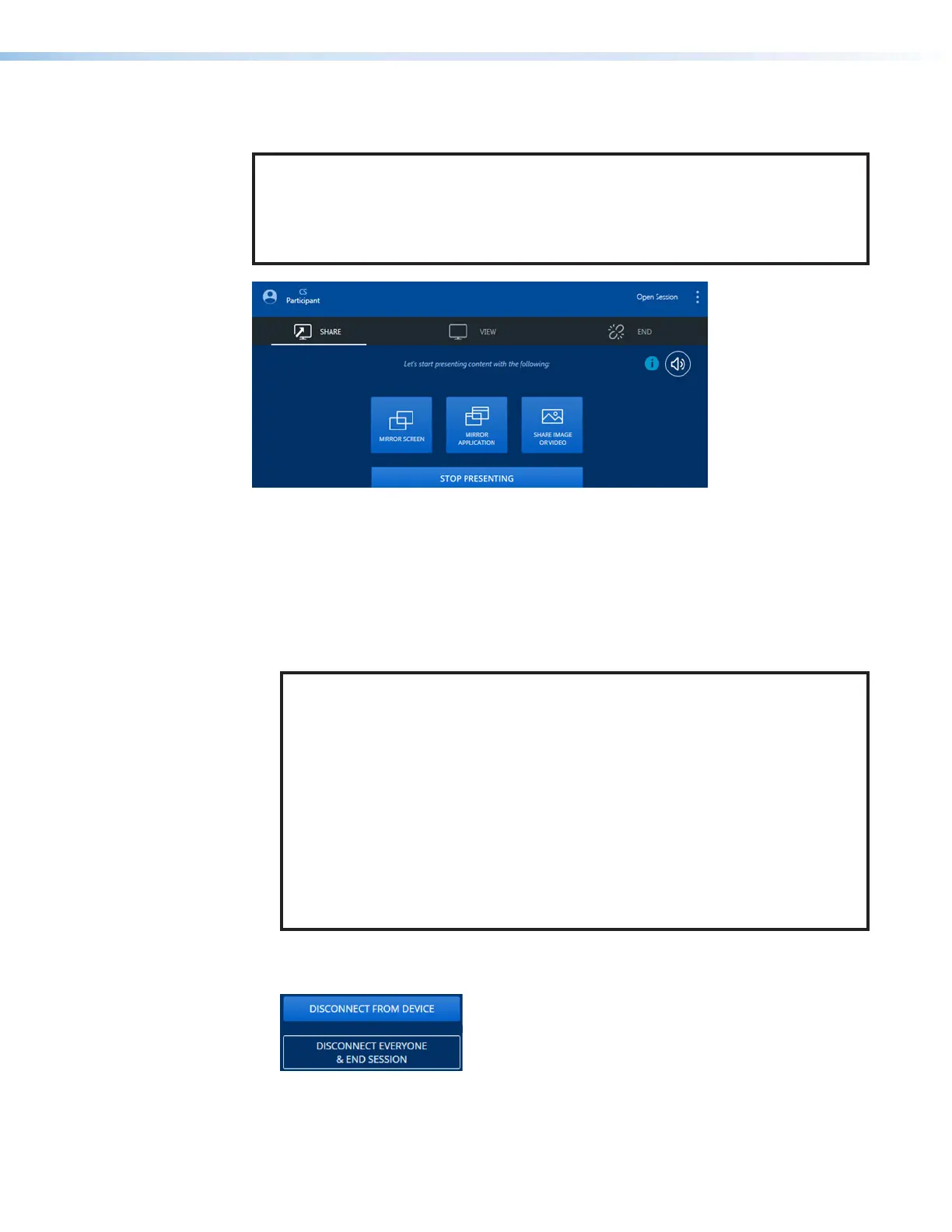
Figure 11. Share Screen
1
Mirror Screen — Click this button to automatically mirror your computer screen on the
display device. Select Stop Presenting to stop the presentation.
2
Mirror Application — Click this button to open a sub-menu, showing all the programs
and applications currently running on your computer. Select a program or application to
automatically mirror it on the display.
3
Share Image or Video — Click this button to navigate to a specific video or image file
on your computer. Double-click the video or image file to present it on the display.
NOTE:
The following file formats are supported:
• Image: BMP, JPG, PNG, TIFF
• Video: 264, AVI, M2T, M2TS, M4V, MKV, MOV, MP4, MPG, SDP, TS
The following codecs are supported:
• Video: MPEG-2, MPEG4/XviD (Simple Profile), H.264 (Baseline, Main, High,
Stereo SEI Profile), VC1 (Simple, Main, Advanced Profile), WEBM VP8, MJPEG
VP8 (Mirror Screen feature only)
• Audio: AAC-LC (MPEG-2 part 7, MPEG-4 part 3, sub part 4 and part 14,
MP4 mono or stereo audio, max 384 kbps)
PCM mono or stereo 16 kHz to 96 kHz, 16-bit to 32-bit
OPUS (Mirror Screen feature only)
4
View Presentation — Click this tab to view the ongoing presentation on your screen.
5
Disconnect — Click this tab to see these disconnection options:
6
Information — This button is only shown if an appropriate audio driver has not been
installed. Click this button and follow the on-screen instructions to install the driver.
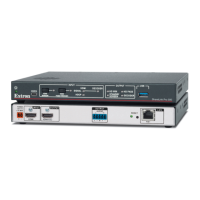
• Disconnect from Device - Click this button to
disconnect from the ShareLink Pro.
• Disconnect Everyone & End Session
- Click
this button to clear all shared content from the output
and disconnect all users from the ShareLink Pro.


 To Next Page