ShareLink Pro 500 • Operation Using a Computer 14
Moderating a Presentation
The ShareLink Pro 500 default collaboration mode (“Run-Time” mode) allows a user to
display content as a participant, or to control the presentation as a moderator. In this mode,
everyone in the session starts as a participant, but a user may choose to take over as
moderator.
A moderator can accept or decline participants, stop shared content, and remove active
participants from a session. Follow the instructions below to moderate a presentation.
NOTE: The following instructions apply only when the ShareLink Pro is set to Run-Time
mode (the default setting). Run-Time mode can be disabled via PCS, and changed to
either of the following modes:
• Full Control - No limitations to controls or sharing
• Moderate - Moderator manages access and sharing
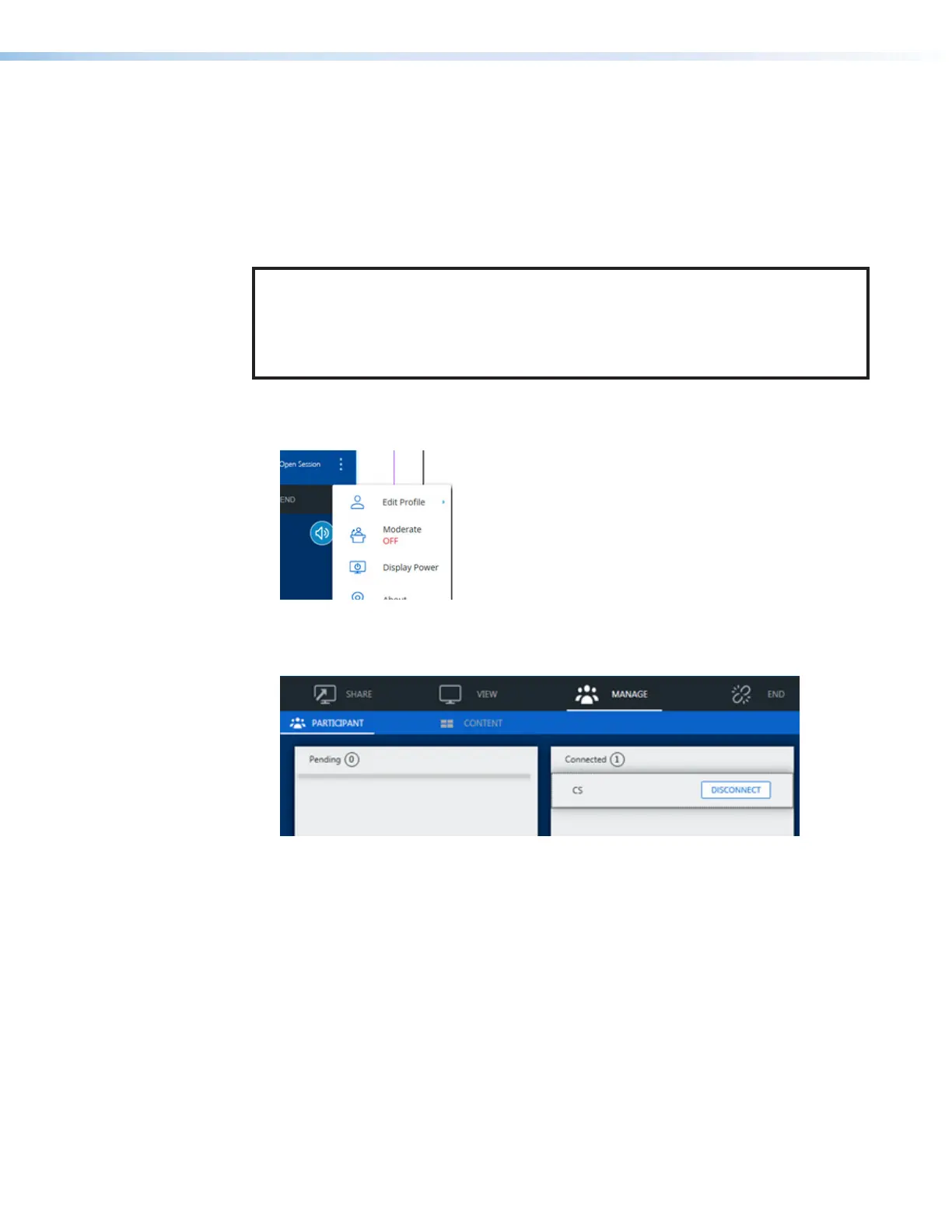
1. Open the software menu by clicking the menu icon (see
1
below), and click
Moderate (
2
).
2
1
Figure 12. ShareLink Pro Software Menu
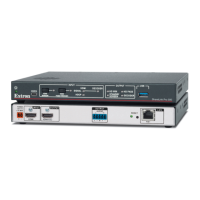
2. Click Enable Moderate. The Manage page appears on the software menu as shown
below:
11
22
Figure 13. ShareLink Pro - Manage Page
1
Participant tab — Use this section to manage session participants as follows:
• Pending (left) panel: Accept or decline pending participants listed in this panel.
• Connected (right) panel: Disconnect current participants by clicking
Disconnect next to the applicable participant.
2
Content tab — Use this section to stop the current presentation or content.


 To Next Page