24
5. Enter the name and password of the Deep Freeze Administrator to be created by the custom
installer and used by Deep Freeze’s Apple Remote Desktop tasks. Retype the password to
verify it and click Continue.
NOTE: If Apple Remote Desktop (ARD) is going to be used to manage Deep Freeze Mac
deployments, ensure that only alpha-numeric characters are used in the password, or the
remote tasks will fail.
6. A dialog appears, asking if you wish to create another user or to continue. Once you have
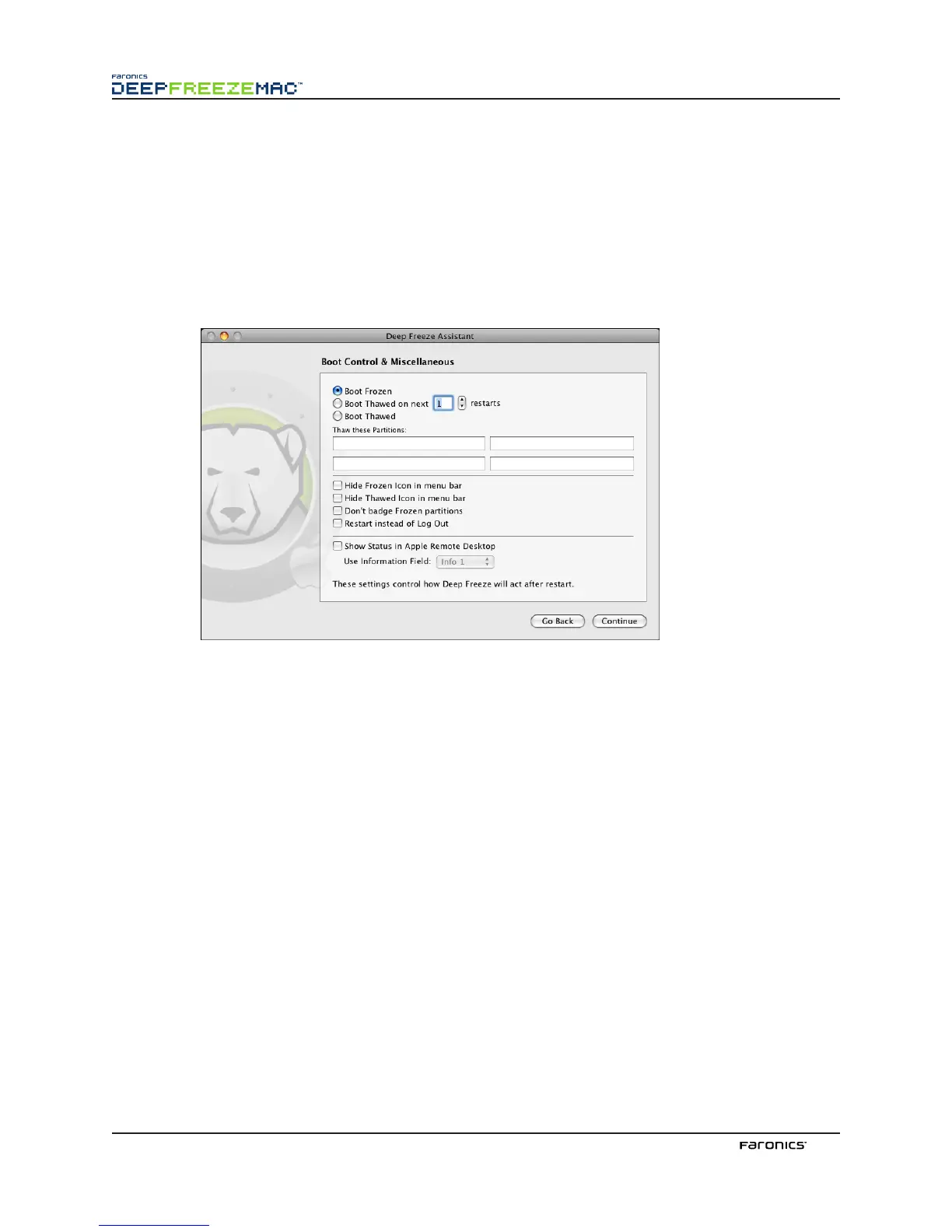
finished creating up to four users, the Boot Control & Miscellaneous screen appears:
7. e Boot Control & Miscellaneous screen contains buttons used to change the status of Deep
Freeze on the computer(s) on which the installer will be applied:
• To set the computer(s) to a Frozen state, choose Boot Frozen.
• To set the computer(s) to a awed state for a specified number of restarts, choose Boot
awed on Next and specify the number of restarts (the number entered must be between
1-99).
• To set the computer(s) to a awed state, choose Boot awed.
• To designate up to four known partitions on the computer(s) as awed, enter their names
in the fields provided below aw these Partitions:. Only named partitions that exist on a
computer will be awed upon install.
As well, the following computer configuration options are available:
• To hide the Frozen icon, select the Hide Frozen Icon in menu bar checkbox.
• To hide the awed icon, select the Hide awed Icon in menu bar checkbox.
• To display Frozen partitions without a Deep Freeze icon, select the Don’t badge Frozen
partitions checkbox.
• To set the computer(s) to restart when a user logs out, select the Restart instead of Log
Out checkbox.
• To display the workstation status (Frozen or awed) remotely in Apple Remote
Desktop, select the Show Status in Apple Remote Desktop checkbox and select the desired
Information Field.



 To Next Page