25
e workstation will now write Frozen or awed to the selected Information Field
during boot time.
To view this status information in Apple Remote Desktop, select Edit > View Options and
select the matching Computer Info Field (1–4). Workstations will now show their current
status, and groups of workstations can be sorted by this status column.
If designating awSpace(s) in the install package, ensure that Boot Control
is set to Boot awed, so the awSpace(s) can be created.
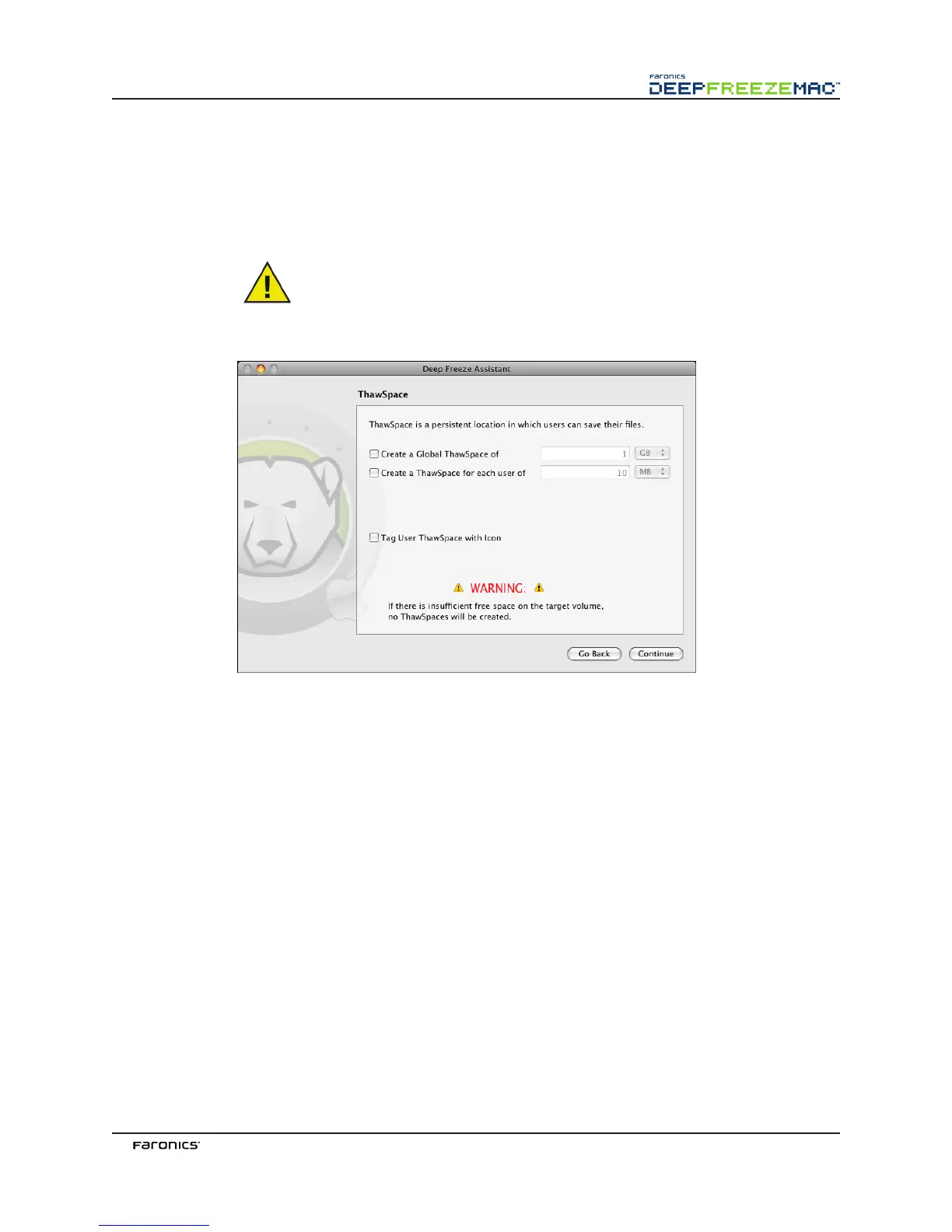
Click Continue. e awSpace screen appears:
8. e awSpace screen is used to create a virtual awed partition where documents and
changes are retained persistently. Administrators can create a User awSpace for each local
user, or a Global awSpace that all users can share.
Computers must be in a awed state to create a awSpace; for your install package, set the
Boot Control setting to Boot awed.
To create a Global awSpace, click the Create Global awSpace of checkbox and enter the
preferred size of the awSpace.
To create a awSpace for each user, click Create a awSpace for each user of checkbox and
enter the preferred size of the awSpace.
awSpaces appear as removable media on the Desktop. To have User awSpaces tagged
with the users’ chosen icons, select the Tag User awSpace with icon checkbox.
Click Continue. e User Mapping screen appears:



 To Next Page