Festo Controller CECC
48
4.10.3 Scanning for an IO-Link device
Instead of manually selecting an IO-Link device, you can also have Codesys find it by scanning.
Prerequisites:
– There is a (temporary) connection to the device via the active path.
– CODESYS V3 pbF has been logged into the device at least once ( section "Online mode").
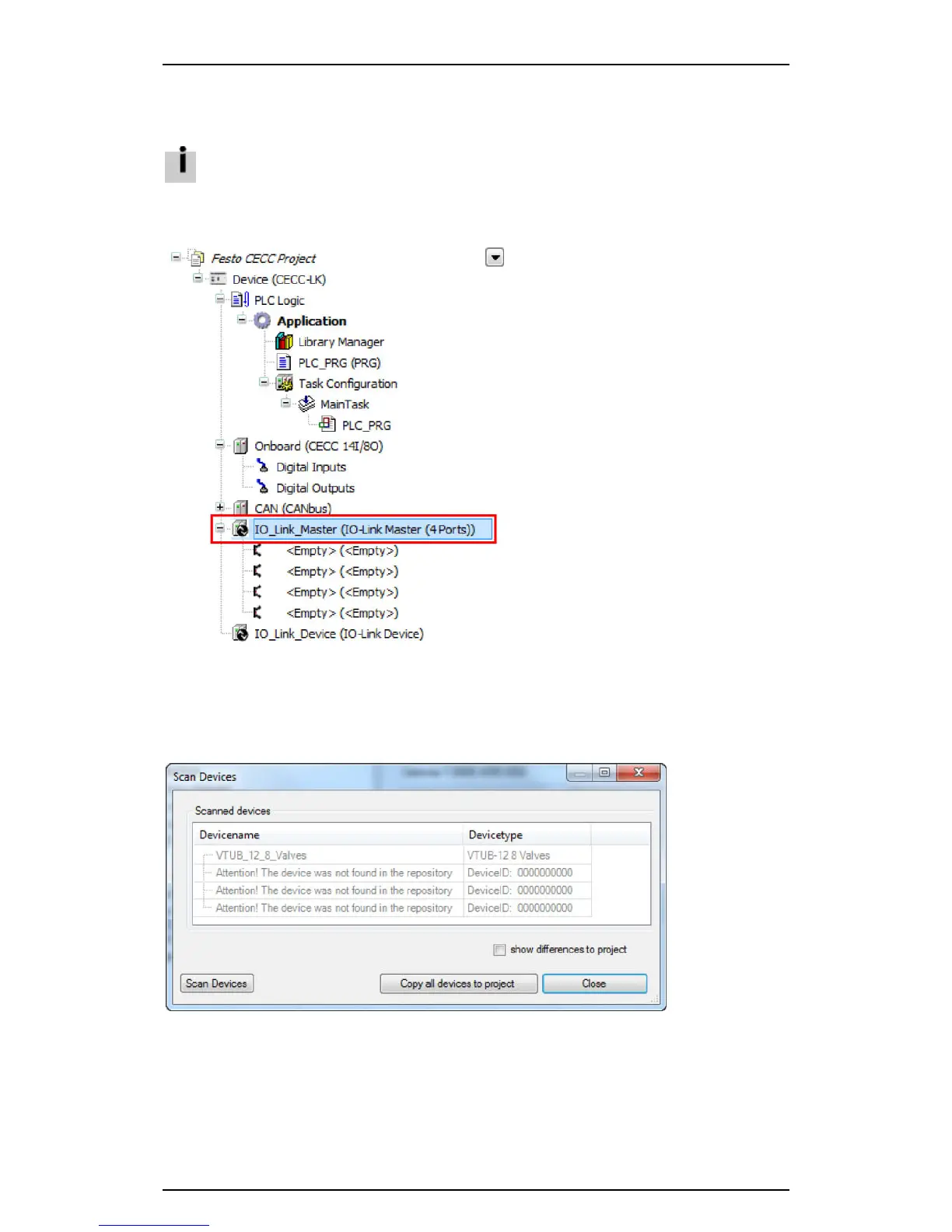
1. Highlight the "IO-Link Master" branch in the CODESYS V3 pbF device window.
Figure: Device window - selecting "IO-Link Master"
2. Open the "Scan Device" dialog
– menu command [Project] [Scan for Devices] or
– context menu [Scan for Devices].
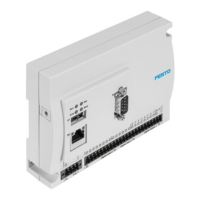
3. Note the safety prompt about connected actuators at the IO-Link master ports. If you answer "Yes", a
dialog for scanning for connected IO-Link devices opens.
Figure: "Scan Devices" at the IO-Link master ports
4. Check the "show differences to project" box to show the IO-Link configuration of the Codesys project
in parallel.
5. Click the "Copy all devices to project" button to transfer the read-in configuration to the Codesys
project.




 To Next Page