QuickServer Start-up Guide Page 18 of 43
FieldServer Technologies 1991 Tarob Court Milpitas, California 95035 USA Web: www.fieldserver.com
Tel: (408) 262 2299 Fax: (408) 262 2269 Toll Free: (888) 509 1970 email: support@fieldserver.com
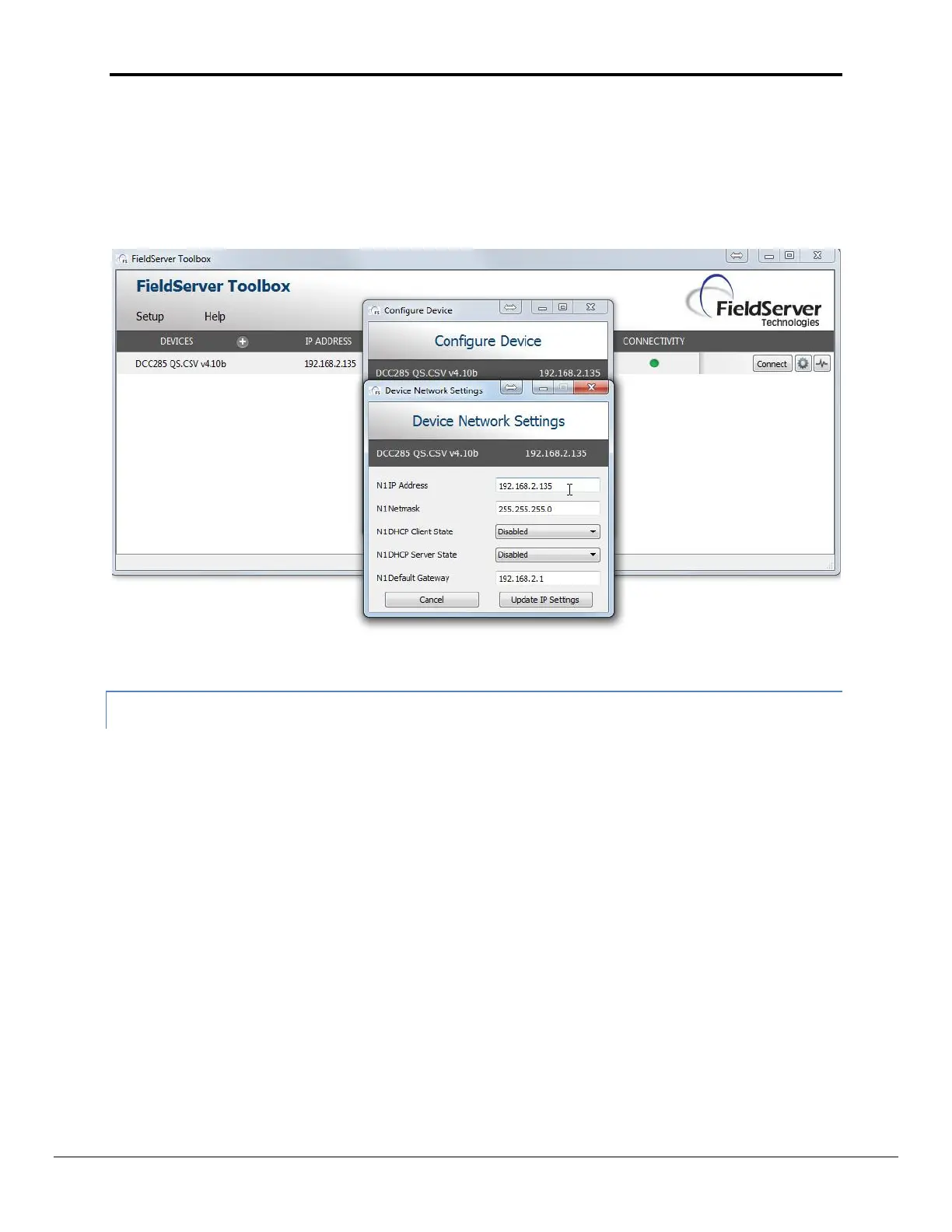
Note: If the FieldServer is connected to a router, the IP Gateway of the FieldServer should be set to
the IP address of the router that it is connected to.
Click Update IP Settings, then click on the Change and Restart to restart the Gateway and activate the
new IP address. Note that the QuickServer will need to be pointed to the new IP address on the Web
Browser before the GUI will be accesssible again. Unplug Ethernet cable from PC and connect it to the
network hub or router
5.4.2 Using the Web GUI to set the IP address:
From the GUI main home page, click on setup and then Network Settings to enter the Edit IP Address
Settings menu.
Modify the IP address (N1 IP address field) of the QuickServer Ethernet port.
If necessary, change the Netmask (N1 Netmask field).
Type in a new Subnet Mask
If necessary, change the IP Gateway (Default Gateway field)
Type in a new IP Gateway
Note: If the FieldServer is connected to a router, the IP Gateway of the FieldServer should be set to
the IP address of the router that it is connected to
Click Update IP Settings, then click on the System Restart to restart the Gateway and activate the new
IP address. Note that the QuickServer will need to be pointed to the new IP address on the Web
Browser before the GUI will be accessible again. Unplug Ethernet cable from PC and connect it to the
network hub or router


 To Next Page