3.2 Software and Hardware Interaction
3.2.1 Starting the Device
Place P1 on a flat surface.
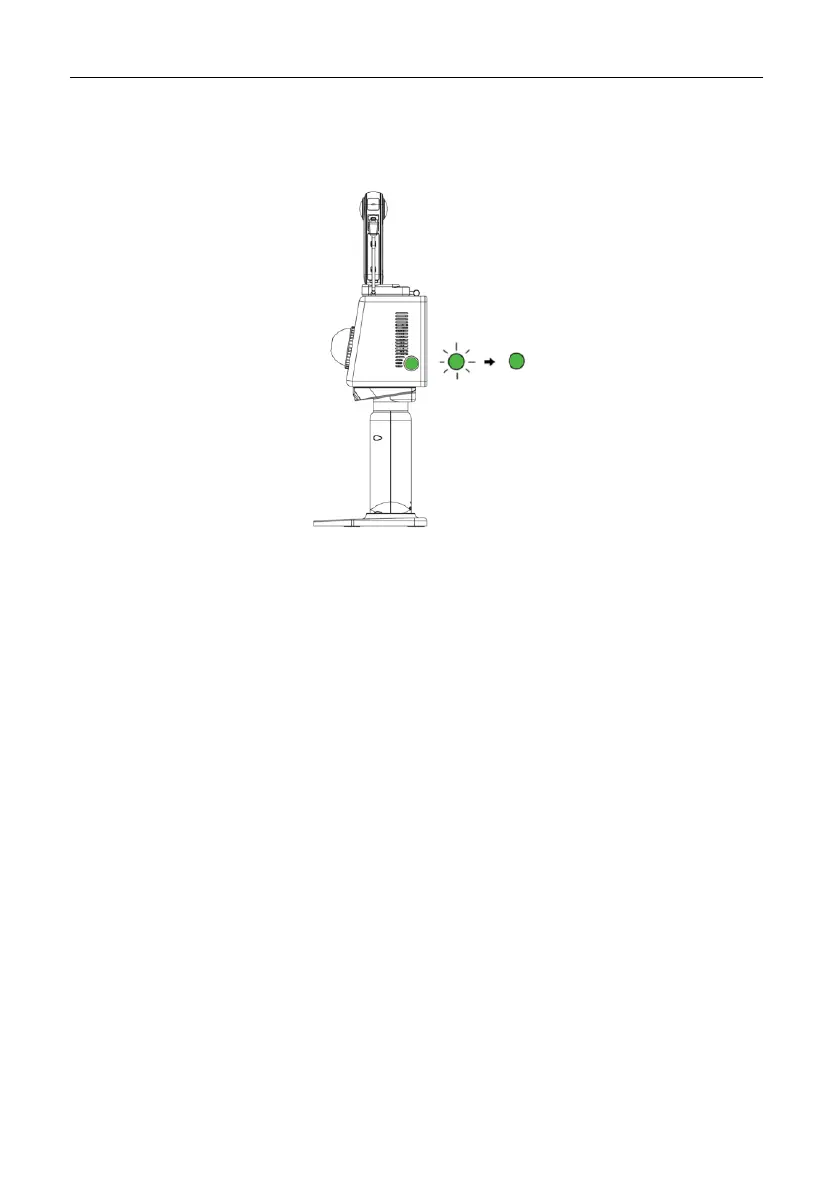
Press and hold the power button for 1s to 2s to power on P1. The status indicator
flashes green slowly.
Wait for about 15s until the status indicator is solid green. The initialization is
completed, and P1 is on standby.
3.2.2 Connecting to Wi-Fi
Disable the cellular data service on your phone, turn on Wi-Fi, and then find the Wi-Fi
network named the device SN, which can be found on the back of P1.
Enter the password "fjdtrionp1" to connect to the network.
Open a browser on your phone, and enter 192.168.1.254 in the address bar to access
Trion Scan.


 To Next Page