————————————————————————————————————————————
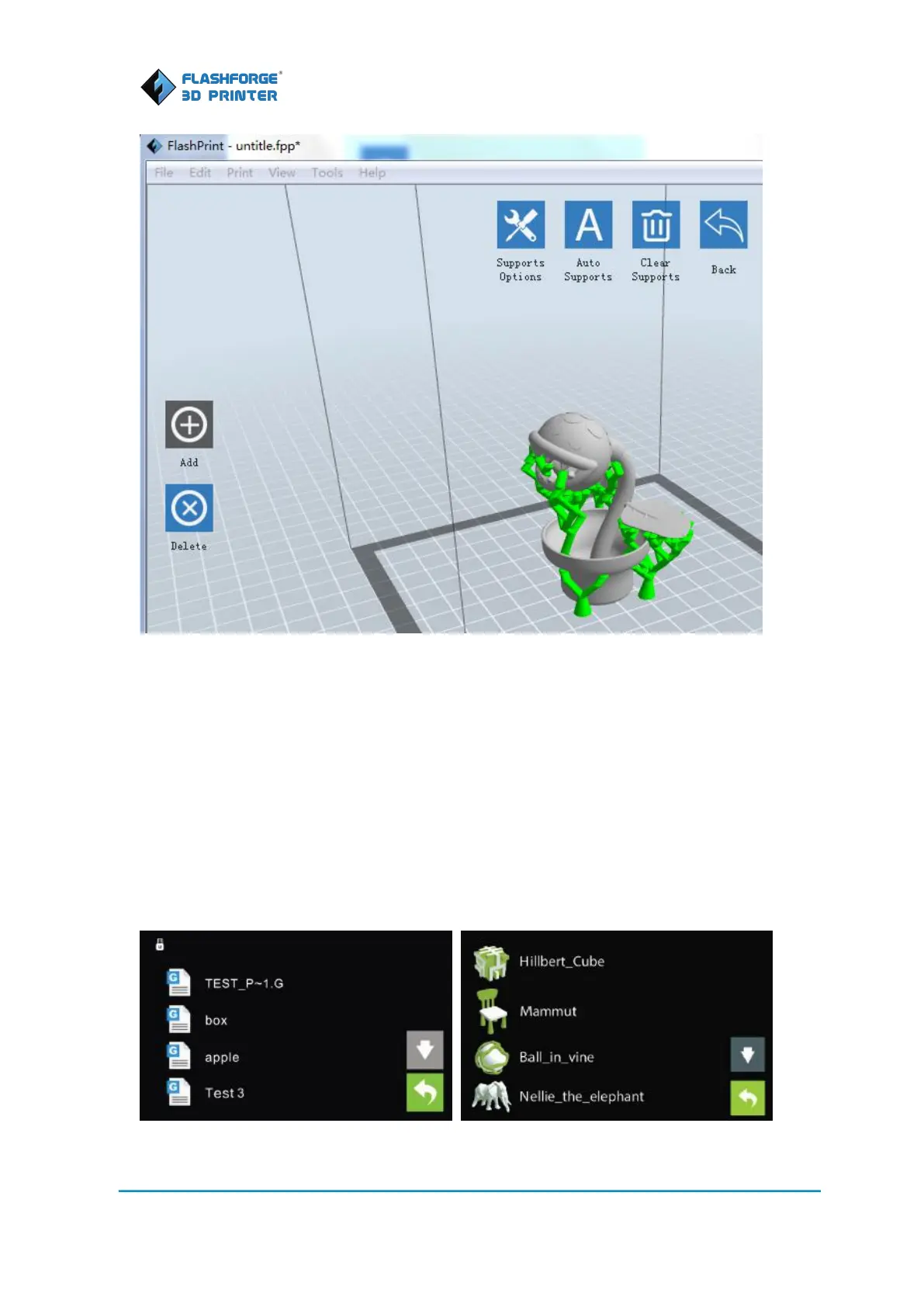
6. Click [OK] to preview the model with supports.
7. Click the Back icon, a dialog box will pop up. Click [Yes] to save the file as .fpp file. It is
suggested that you click [No] to exit. If you click [Yes] to save the model as .fpp, supports will be
loaded together with the model when you reload it next time.
8. Click the Print icon and a dialog box will pop up. Set all the settings for your print job.
9. Click [OK] to select the path to save the Gcode file after you done with settings. You can
rename the file as you like and save it as a .g or .gx file, click [Save] to generate a Gcode file.
Note: .gx files are available for preview while the .g files are not. Left are .g files and right are .gx












 To Next Page