9
Setting the Resolution
From either the
Home or Review Screen
:
• Press UP ARROW to highlight the Settings icon. The current or factory settings will have a
checkmark above them.
• Press DOWN ARROW to move into the Resolution (dpi) menu.
• Use RIGHT ARROW to highlight the desired resolution setting
• Press OK to select.
• Press OK again to move back to the Home Screen or the Review Screen, if there are images
to review
or
Press DOWN ARROW to move to the Power-Saver Timer setting.
Setting the Power-Saver Timer
From the
Resolution setting
(above):
• Press DOWN ARROW to move to the Power-Saver Timer setting.
• Use RIGHT or LEFT ARROW to highlight the desired timer setting.
• Press OK to select.
• Press OK again to move back to the Home or Review Screen.
Quick Tips
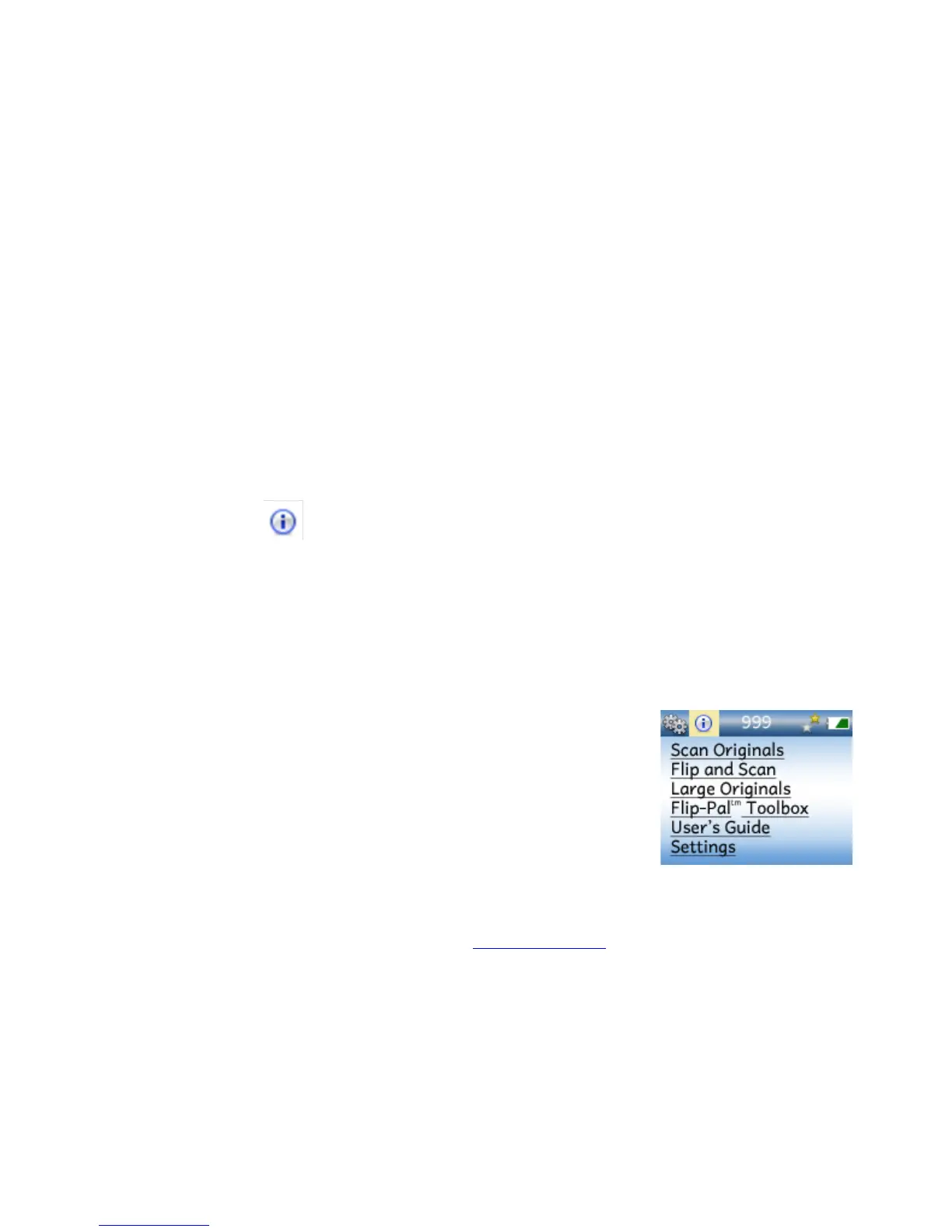
To see a variety of tips on using your scanner, from the Home or Review Screen, press UP
ARROW then RIGHT ARROW to move to Quick Tips. You will see the Contents Screen similar
to this.
Use UP or DOWN ARROW to scroll through the contents. Press OK to view the Quick Tip for
that topic. If a topic takes more than one screen press RIGHT ARROW to move to the next
screen.
After reading a Quick Tip, you can:
• Press LEFT ARROW to go back to the index
• Press UP ARROW or DOWN ARROW to scroll through all the tips
• Press OK to return to the Home or Review Screen
Customizing the Home Screen
You can use one of your own images for the Home Screen. It can be any JPEG file with an
image that is 160 pixels wide by 106 pixels tall. The name must be MyScanner.jpeg. Store
it in the top level of the SD memory card. Visit www.flip-pal.com for more information.


 To Next Page