Copyright 2017, FLIR Commercial Systems, Inc.
Chapter 3: Quick Start
13
3.5 - Serial Connection
To connect, power on, and test the PTU using the serial interface:
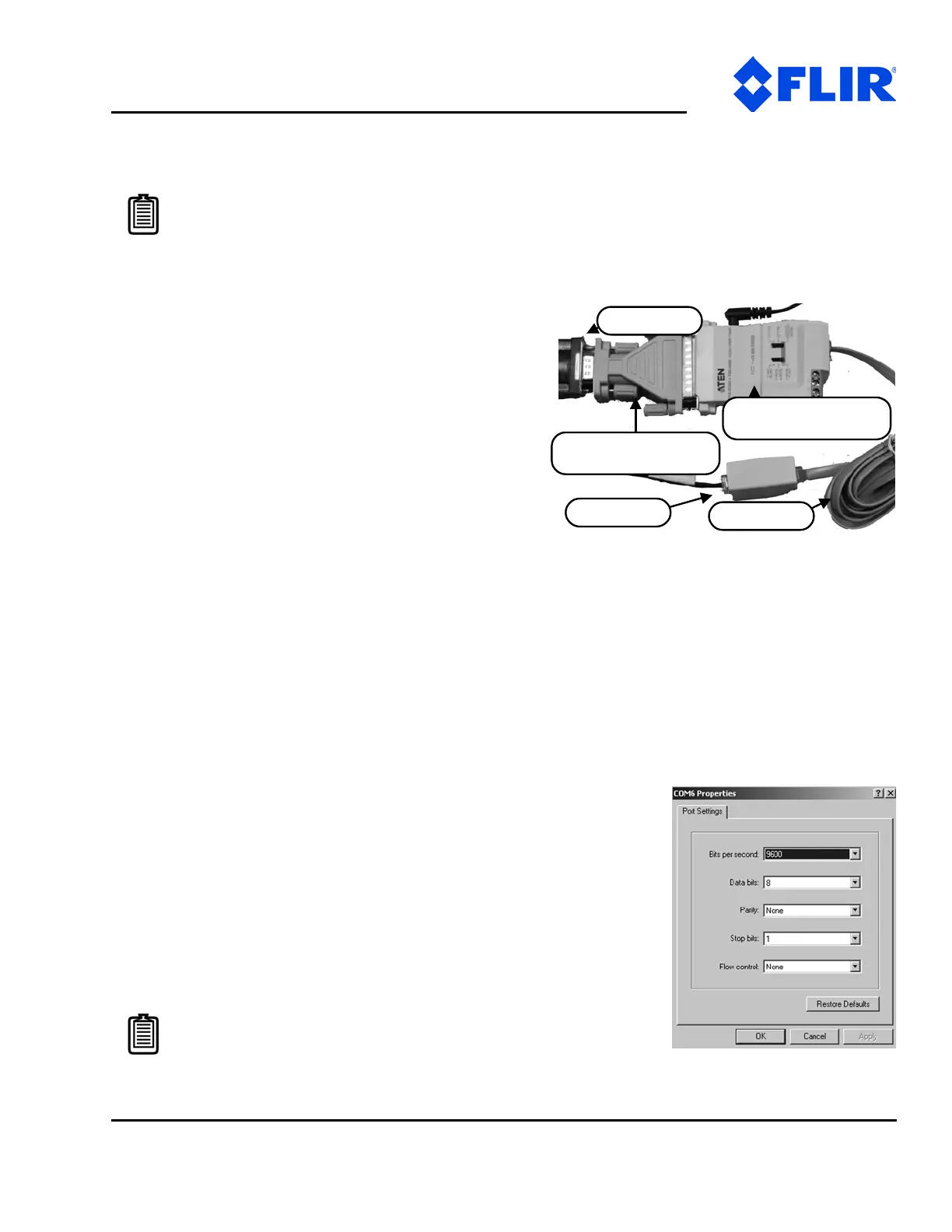
1. Connect the PTU as follows:
- Attach the DB25 to DB9 converter on one side of
the RS-232 to RS-485 converter.
- Attach one end of the four-pin RJ-11 phone cable
to the other side of the RS-232 to RS-485 adapter.
- Set the switches on the RS-232 to RS-485 con-
verter to T RxON and DCE.
- Attach the four-pin RJ-11 female-to-female
adapter to the other end of the phone cable. This
is important because the adapter rearranges the pins; the PTU will not function if the adapter is
not attached correctly.
- Connect the RS485 connector from the breakout cable into the adapter.
- Provide power to the converter through the included power supply.
- Alternatively, you can connect the USB to RS-485 cable (PTU-CONV-USB-RS485) to a USB port on
the host PC and the RJ-11 connector on the breakout cable.
2. Attach a standard RS-232 cable between a host PC and the DB9F connector on the PTU labeled RS-
232.
3. Open a terminal program such as HyperTerminal® or TeraTerm®.\
4. Create a new connection with the following communications
parameters:
- 9600 baud
-8 data bits
- 1 stop bit
-no parity
- no handshaking
Note: You may use simultaneous Ethernet and serial connections.
Note: HyperTerminal is available with Microsoft®
Windows XP® and previous versions. You may download
TeraTerm from http://ttssh2.sourceforge.jp/.
RS-232 to RS-485
adapter
DB9 to DB25 adapter
F-F adapter
RS-232
Phone cord



 To Next Page