Fluke 19xC-2x5C
Users Manual
88
Documenting Screens
With the FlukeView
®
software you can upload waveform
data and screen bitmaps to your PC or notebook computer
for further processing. Printing can also be done by
connecting the test tool directly to a printer.
Connecting to a Computer
To connect the test tool to a PC or notebook computer and
use the FlukeView software for Windows
®
(SW90W), do
the following:
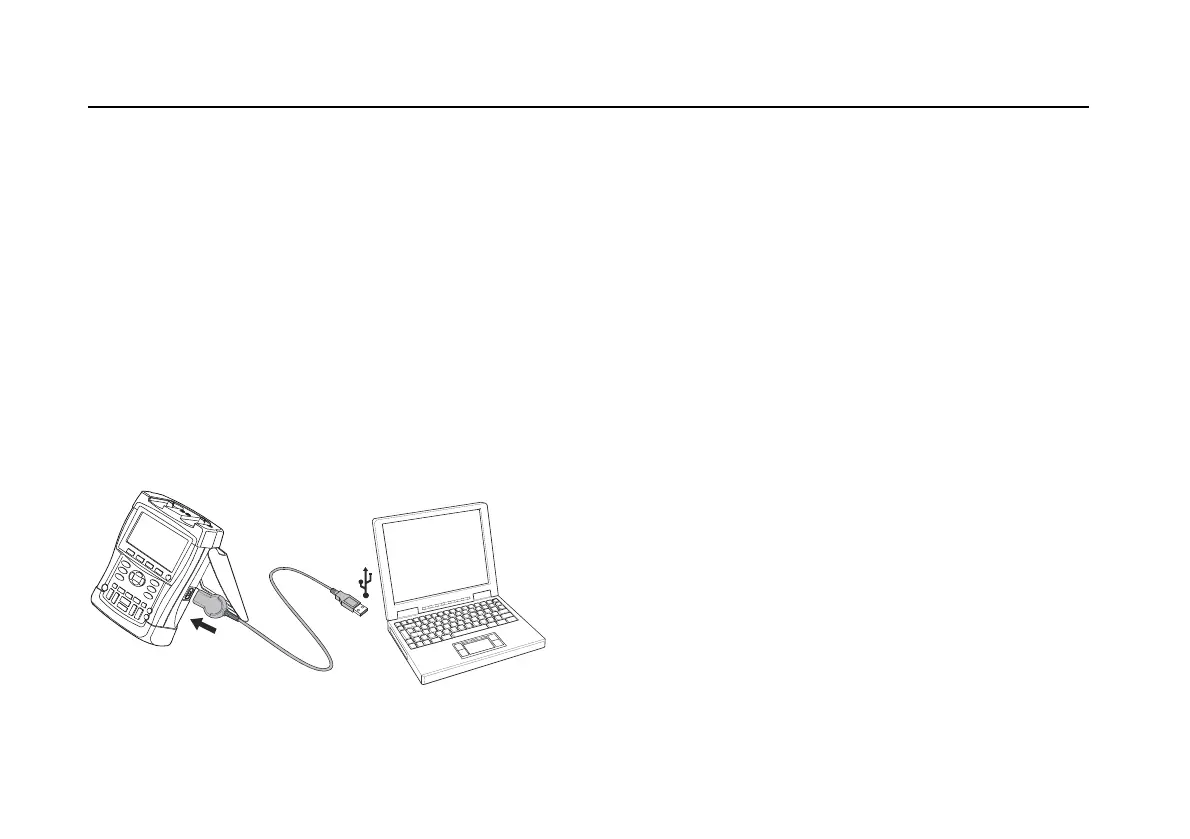
z Use the Optically Isolated Adapter/Cable (USB:
OC4USB; RS-232: PM9080) to connect a computer to
the OPTICAL PORT of the test tool. (See
Figure 48.)
Figure 48. Connecting a Computer
Note
For information about installing and using the
FlukeView ScopeMeter software, see the
SW90W Users Manual.
A Software & Cable Carrying Case Kit is optionally
available as model number SCC190.
Connecting to a Printer
To print a screen directly to a printer, use one of the
following adapters:
z The Optically Isolated RS-232 Adapter/Cable
(PM9080, optional) to connect a serial printer to the
OPTICAL PORT of the test tool. (See
Figure 49.)
z The Print Adapter Cable (PAC91, optional) to connect
a parallel printer to the OPTICAL PORT of the test
tool. (See
Figure 50.)
Before printing, you must setup the test tool for a specific
printer.






 To Next Page