TiS20+
Users Manual
14
Palette Menu
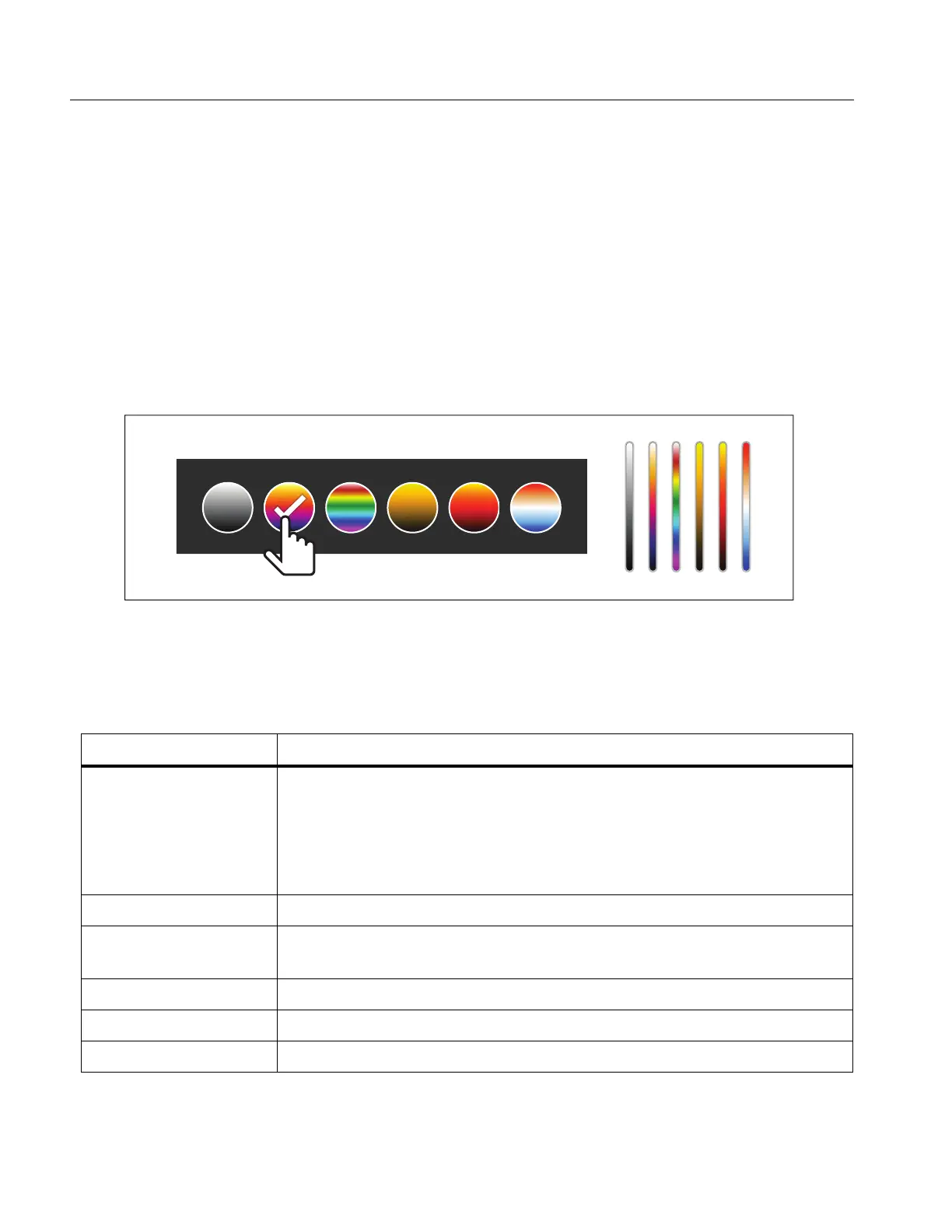
The standard palettes offer an equal, linear presentation of colors that allow for best
presentation of detail. The palettes are Grayscale, Ironbow, High Contrast, Amber, Hot Iron,
and Blue-Red.
To change the palette of an image:
1. Tap P.
2. Tap on a palette thumbnail.
A check mark shows on the selected palette. The color and temperature range bar on the
display changes according to the selected palette. See Figure 2.
Figure 2. Palette and Range Bar Selection
Display Menu
Use the Display menu to set which features to show on the display. To show the Fluke logo on
the display, see Device Settings Menu. Table 9 lists the options in the Display menu.
Table 9. Display
Option Description
Spot Temp
(Min/Max)
Turn on or off the maximum and minimum temperature indicators on
the display.
The Spot Temperatures are floating HI and LO temperature
indicators that move on the display as the temperature
measurements of the image fluctuate.
Marker Turns on or off a fixed-temperature spot marker. See Marker.
Spot Box
Turns on or off a temperature measurement zone (box) that centers
on a target. See Spot Box.
Center Point Turn on or off the Center point marker and Center point temperature.
Scale Turn on or off the Scale.
Status Bar Turn on or off the Status bar.


 To Next Page