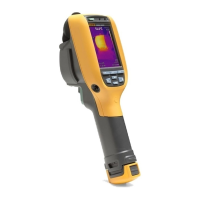
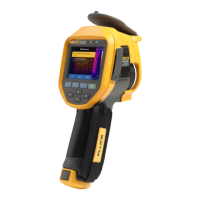
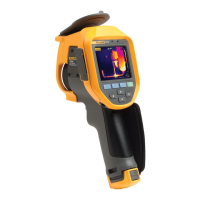
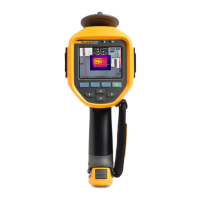
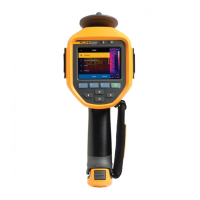
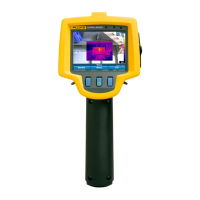
Thermal Imager
Palette Menu
19
Assign Asset ID Tag Manually
To manually enter a unique asset ID:
1. Select
F > Scan Asset ID.
2. Tap Manual Entry.
A keyboard opens on the display.
3. Enter a unique asset identification.
4. Tap Save.
The display returns to camera mode, and the asset ID shows on the display.
Exit an Asset ID Tag
To exit out of an asset ID and save images without an asset ID:
1. Tap the asset ID that looks like on the display.
2. Tap Exit Asset ID xxxxx (where xxxxx is the name of the asset ID).
The display returns to camera mode, and the asset ID does not show on the display.
Assign a Different Asset ID Tag
To exit out of an asset ID and save images with a different asset ID:
1. Tap the asset ID that looks like on the display.
2. Tap D Scan New Asset ID.
3. Assign a new asset ID. See Asset Identification (Asset ID).


 To Next Page