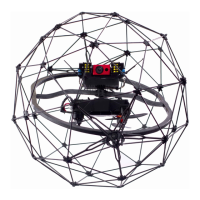
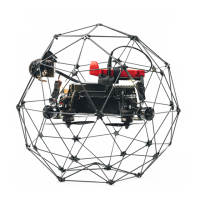
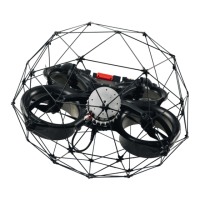
1. Before removing the LiDAR assembly from the electronic body, we recommend you turn the ELIOS 3
upside down while securing the LiDAR with two fingers, as per the video instructions, that you can find
at our Support page.
2. Disconnect the LiDAR cable from the drone by pulling the connector ring. Please make sure not to
remove the cable on the LiDAR side, as this connector is glued in place, and removing it would break
the LiDAR sensor.
3. Remove the two inner screws that attach the LiDAR support to the drone. The two inner screws should
be left untouched, since they fix the carbon frame to the central housing of the drone.
4. Now you can slide the LiDAR assembly out from the drone.
2.4.1.3. HOW TO ATTACH THE LIDAR
REQUIRED TOOLS:
- LiDAR.
- Torque adjustable driver, adjusted at 04 Newton meters.
- T8 Torx size bit.
1. After turning the drone upside down, insert the LiDAR assembly by sliding it into place. Before
inserting the LiDAR assembly, make sure that the slot in which you slide the LiDAR mount is free of
dirt and dust, so you can slide it to the end. Same goes for the LiDAR mount—it should be clean prior
to its installation.
2. Tighten the 2 screws with the T8 screwdriver attached to the torque control driver adjusted at 0.4 Nm.
Those 2 screws will maintain the whole structure, so it is important that you tighten them correctly.
3. Once the LiDAR has been fixed to the drone, you need to connect the cable to the AUX connector. To
do this, align the dot on the rubber of the connector on the LiDAR side with the white dot of the
connector on the drone side. You will know that the cable has been well connected once you hear a
clear audible click. If you do not connect the LiDAR sensor properly you risk having an intermittent
connection in flight, which can lead to problems with your data gathering efforts.
Please make sure not to try to remove the connector from the LiDAR directly, as this isn’t meant to be
removed and will break the LiDAR if you do so.
2.4.2. Limitations
The LiDAR technology has these limitations::
- Collision (ATTI, SPORT): Even though light collisions won’t affect the map, heavy collisions in ATTI and
Sport mode might create divergences, double walls, or a complete disorientation of the model.
THE LIDAR PAYLOAD IS SENSITIVE TO SHOCKS AND IMPACTS.
THOUGH IT IS PROTECTED BY THE CAGE, A VIOLENT COLLISION OF
THE DRONE MIGHT DAMAGE THE UNIT.


 To Next Page