148 149
EN
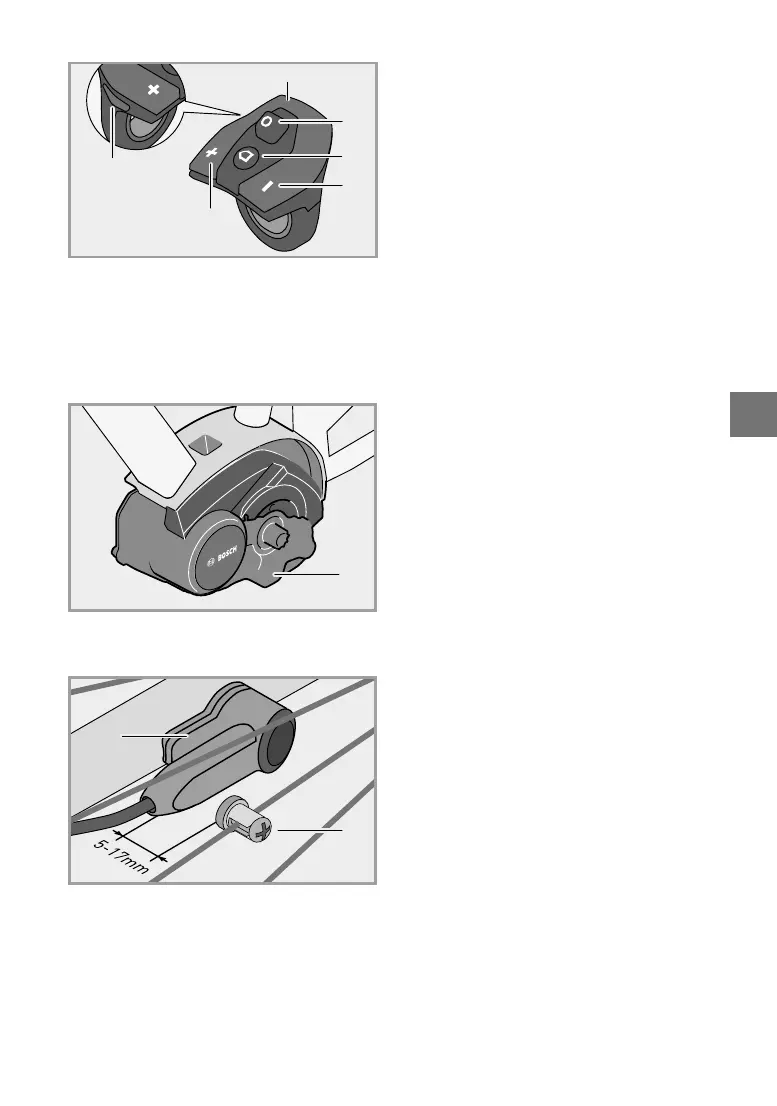
Control panel
12. Control panel
13. Joystick on control panel
14. “Home” button on control panel
15. Reduce support button
16. Increase support button
17. “WALK” pushing/start-up aid button
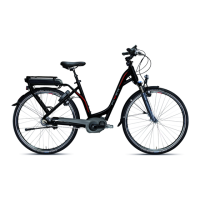
Drive unit
18. Drive unit
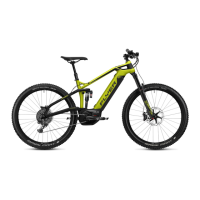
Speed sensor
19. Speed sensor
20. Speed sensor spoke magnet
12
13
14
15
16
17
18
20
19
Switching on the operating system
There are several ways of switching on the oper
-
ating system:
• Place the on-board computer in its holder (4.).
• Press the on/off button on the display (5) once.
The e-bike system can only be activated if
there is an adequately charged battery in use
and the on-board computer is sitting properly
in its holder.
• Press the on/off button on the battery. For this,
an on-board computer must be in use.
Motor support is activated as soon as you push
on the pedals.
Switching off the operating system.
To switch the operating system off:
• remove the on-board computer from its holder
(4).
• Press the on/off button on the display (5) once.
• Press the on/off button on the battery.
To save energy, the operating system switches off
after around 10 minutes if no buttons have been
pressed on the Nyon or if no power has been ap
-
plied to the pedals because, for example, you
have parked your FLYER.
Selecting functions
You can navigate through the menu using the joy
-
stick (1 and 13) found on both the display and the
remote control.
When the Nyon is turned on and correctly installed
unto the FLYER., the operation mode “Ride” will be
displayed. If the Nyon is not correctly installed on
the FLYER, the operation mode “Dashboard” will
be displayed. By pressing the “Home” button (2 or
14), you will automatically be brought to the oper
-
ation mode which you congured under “Settings”
> “My Nyon” By moving the joystick up or down
you can select the desired menu item on this
page. Moving the joystick to the right takes you ei
-
ther to a sub-menu of the selected item or straight
to the desired display. Moving the joystick to the
left takes you back.
To use all of the Nyon's functions, all 3 system
components are required:
• Nyon on-board computer with operating unit
• The “Bosch eBike Connect” smartphone ap
-
plication
• The online portal “www.eBike-Connect.com “
For more on this, please read the manufacturer's
operating manual.
The following options appear in the main menu:
• Dashboard
• Ride
• Map & Navigation
• Fitness
• Settings


 To Next Page